All data in your OurCarClub system can be displayed in a "List" context, that can be sorted, filtered, re-ordered and exported.
Understanding a List Page
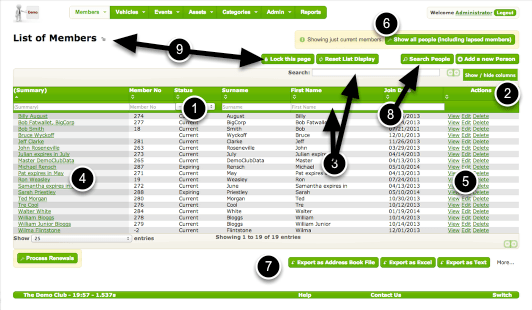
Note: the “Green” theme is shown on this page.
This particular shot is showing the List of Members, which has a few items peculiar to that type of record. But every collection of records of a certain type (i.e. all Vehicles, all Members, all Types of Assets) can be manipulated in this way.
- Headers: click to sort by this column, click and drag to re-order columns
- Click “Show/Hide Columns” to alter the list display. The settings you choose are retained next time you come to this page
- Type a few characters in the quick-search box to find a particular record or group of records
- Click on a name to View member details
- Click Edit or Delete to alter this record
- By default only current members are shown. Click this button to show ex-member details.
- Export all records of this type for other uses.
- Perform more sophisticated Searching
- If you find you’re going back and forth from List to View and back again, it can be more efficient to lock the view page. Once the lock is activated all the links at (4) and (5) automatically open in a new browser window or tab (depending on your browser’s settings), leaving this list view in place. The button toggles the state of the lock, and the icon to the right of the title shows the current state.
 OurCarClub