Examining a single member’s data
(That’s enough fiddling with the themes – back to the original Red & Blue theme).
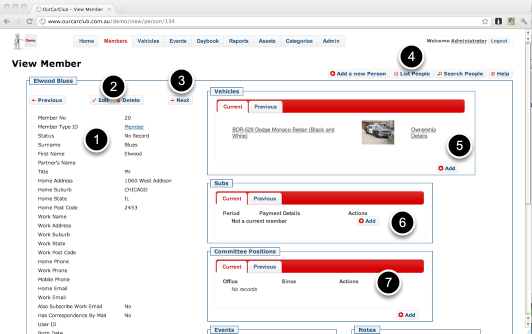
View Screens follow a standard design: the information about the particular record is on the left, and related information is grouped in boxes to the right and underneath. Related records are generally things we need to track over time, or where there may be none, one or many items linked to the main item (in this case a Member). A member may have many vehicles now, or they may have none. They may have previously owned vehicles that they have since sold. Obviously, if there was only one field in the Member record called "Vehicle", it would severely limit our ability to track this sort of thing.
1. All the standard fields for a member: names, addresses, contact details.
2. Edit / Delete this record.
3. Navigate to the next or previous member (by member-number)
4. Add a New Member, return to the List View, perform a Search, or open the Help Panel.
5. Member’s Vehicles, both Current and Previous can be seen in this tab. Click on the description or "Ownership Details" to navigate to the details of the Vehicle
6. Subscription info – curent membership info, and previous subscriptions (renewals). So each annual renewal is recorded for posterity.
7. Similarly to Subs, if this member has been or is a Committee Member, details are shown in this panel.
The sharp-eyed reader may have realised "hey, a Member can have move house, or change email address, or phone number! Over time they may have many of these things." And that’s true. But we’re not really interested in capturing an accurate history of this. It’s not relevant to managing your car club. As long as the address in the system is where they live now, where they used to live is not terribly important. We’re interested in ensuring any mail we might send today gets to them, not where we might have sent mail a year ago.
The other half of the Member screen
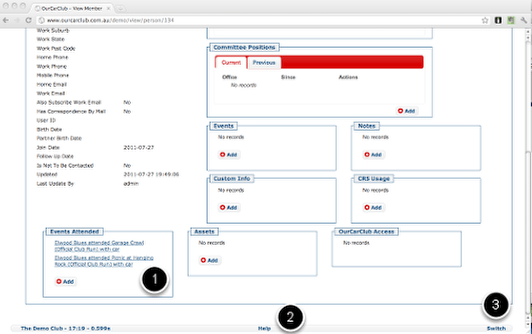
As mentioned above, all the boxed content shows "related information", where there may be no data, one or many related records for a particular member. In OurCarClub, anything that looks like a link is a link, and it is easy to navigate from individual record to similar records. (See the Vehicle pages for more examples of this.)
1. Clicking on an Attendance Record will take you to a view of that member’s attendance in that event. (Attendance contains details of which car they brought to the event, amongst other things.)
2. Virtually every page has a Help link at the bottom to show context-sensitive information about the page you’re viewing.
3. If you have access to multiple Car Club’s OurCarClub systems – including this "Demo Club", you can use the "Switch" link to access the alternate systems.
 OurCarClub