Most clubs have a date when all members’ renewals fall due. Usually, the club meeting at this time is very busy for the Treasurer, processing many members’ payments. Similarly, there may be lots of direct deposits on the bank statement to be entered into the system.
OurCarClub has a specialised version of the Member List page to handle this, for small to medium sized clubs. More instructions for large clubs can be found at the end of this article.
Processing Bulk Renewals
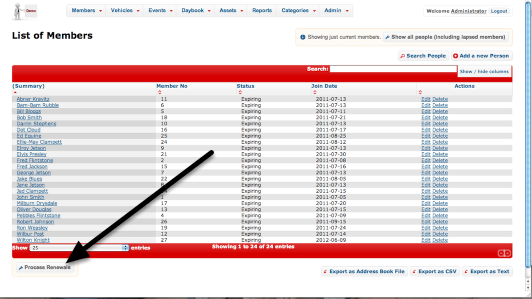
At the bottom of the Member List is a button labelled "Process Renewals". Click that to continue.
Processing Bulk Renewals (continued.)
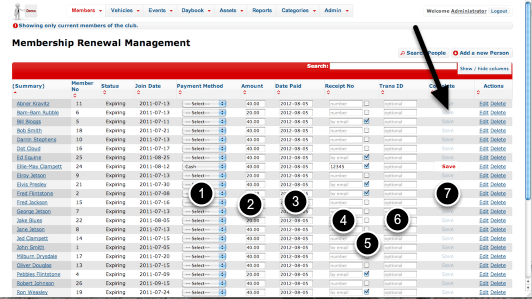
The usual features of a list screen are available – you can use the Search and sort functions to quickly find a particular individual. Note that only members with Expiring Status appear on this version of the page. You may also notice that the save button is disabled on all rows initially. This is to ensure that we don’t accidentally process the wrong record.
In this example we’re going to renew Ellie-May Clampett’s membership.
- Choose the payment method from the drop-down. This selection triggers the enabling of the Save button at the right, since all the other fields are optional.
- The amount field defaults to the Renewal Amount for this Member’s Membership Type. It can be overridden if neessary.
- The payment date defaults to today.
- If you issue a paper receipt from a receipt book, you can record the number here
- This checkbox is enabled if this member has an email address listed. In that case a receipt for this payment will be automatically emailed to the member. If the member does not have an email address, you can still check this box, in which case the receipt will be emailed to you, allowing you to print and post it if necessary.
- For processing direct deposit or credit card payments, and transaction ID associated with the payment can be recorded here.
- Once the payment type has been selected at (1), the Save button is enabled. Click it, and the renewal process will commence in the background. You can continue to process the next member.
When a renewal process completes, the "Payment Method" dropdown is replaced by a short message to alert you to the result.
Bulk Renewals for Large Clubs, and handling Individual Renewals
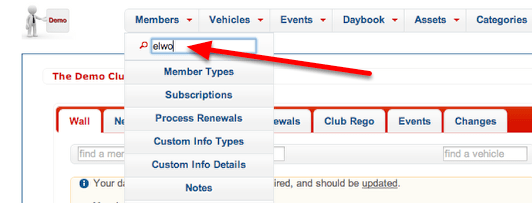
Because the customised List View shown above presents all expiring members on a single page, for very large clubs this can lead to very long lists, and responsiveness of the page can decline as a result. An alternative is to use the Quick Search feature under the Member menu item to quickly locate the relevant member (or ex-member), and be taken to their Member View page.
Quick Renewal for a Single Member
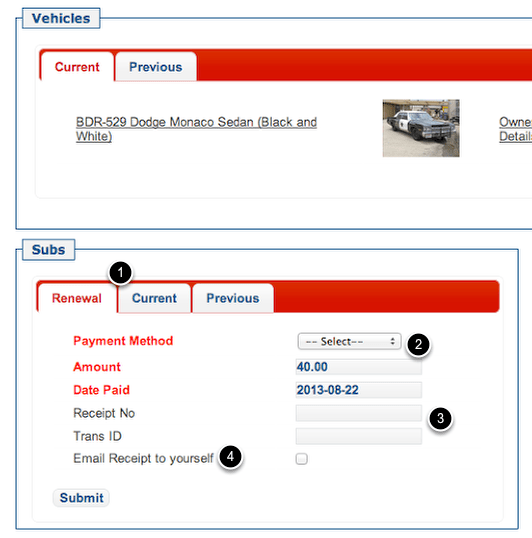
The “Subs” panel has a tab labelled “Renewal” that provides quick access to entering details of the renewal.
- If the member is in “Expiring” or “Lapsed” status, the Renewal Tab will be front-most. If they are a current member, it will be behind the “Current” and “Previous” tabs.
- Choose the type of payment from the drop-down list. The pre-populated amount is based on the “Renewal Fee” setting for this member’s Membership Type. You can override it if required. Similarly, the date paid field is prepopulated with today’s date, but can be changed.
- The Receipt Number and Transaction ID fields can be entered if they’re relevant. For example, you might want to record a Cheque Number, Postal Order Number or other identifying information to cross reference this payment against other information. Both of these fields are optional.
- An emailed receipt can be automatically generated and sent to the member. If the member has an email address recorded, this checkbox will be checked by default. If (as is the case in this example) the member does not have an email address, the prompt will read “Email Receipt to yourself”, and will NOT be checked by default. This allows you to receive the receipt email to print and post it.
When you’ve completed this renewal, click on the Members quick-search to locate the next renewing member.
You can expedite the process still further by turning on the Process Renewals mode, which can be found in the Members menu.
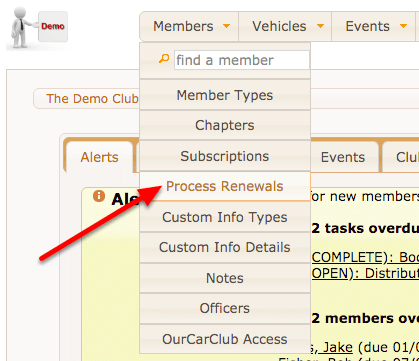
Turning Process Renewals mode on changes the behaviour of the Member View page. Instead of the usual action, it opens in Edit view, but with the Subs panel also available. This allows you to make changes to address details of the member and process their renewal with far fewer clicks. Turning the mode off again can be done using the same approach.
 OurCarClub