Managing Club Events – Where and When, and Who Participated
Viewing a List of Events
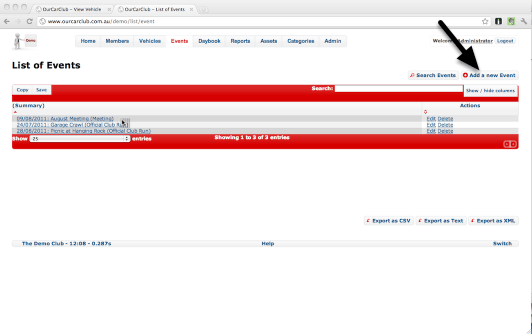
The List of Events view is identical in layout to all other Lists. The Show/Hide columns button allows you to view additional general information about an Event. Click Add a new Event to start recording details of an event, either one already held, or one coming up.
Adding a New Event
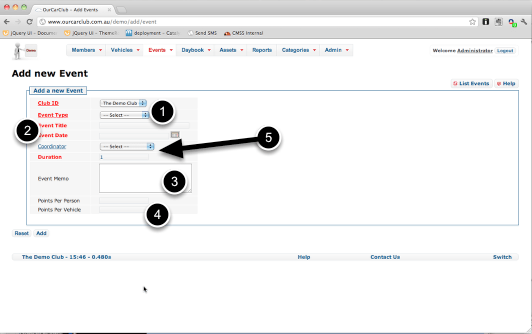
Adding an Event is also similar to creation of most other types of records in OurCarClub. Mandatory fields have red titles, and categorisation can be done using drop-down lists.
- Select an Event Type. The default values are Meeting, Official Club Run and Sanctioned Event, but you can customise this list to suit your circumstances.
- Give the event a name, such as "February Meeting", or "All Holden Day". A Date for the event is also required.
- The Event Memo field allows you to record other details about the event. For example, the address, or convoy details, or in the case of an event that’s already occurred, perhaps a record of the food supplied by the club for members (30kg sausages, 8 loaves bread etc.) It could be useful to record such information if this is an event you hold every year. Use the field however you see fit.
- If you wish to track attendance points, you can override the default values for Points per Person and per Vehicle set for the Event Type. However, this would typically be left blank.
- Co-ordinator and Duration: you can optionally record the name of the Member who is co-ordinating the event, if required. Note this field has a blue label, which means it is not a required piece of information. The Duration records the number of days over which an event was held, and defaults to 1.
Recording Event Attendance

When viewing your event, you can quickly log details of attendees, and what vehicle (if any) they attended with.
- As with all View screens, the details of the main item can be viewed on the left. Click Edit or Delete to make changes. (NB: You cannot delete a record that has attendees attached to it.)
- Type a few letters of the member’s name and choose them from the drop-down list that appears. See over for more detail.
- Click the "Run" button to view an attendance report for this event.
Recording Event Attendance (continued)
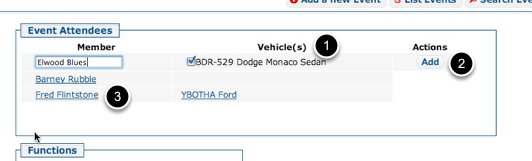
As shown on the previous page, type a few letters of the attendee’s name and pick them from the list. In this case I typed blu, and had the options of either Jake or Elwood. Typing elw would also have found Elwood.
- On selecting the attendee, their current vehicle(s) appear under the Vehicles heading. If they have only one, it is automatically checked. If they have multiple vehicles, check the vehicle(s) they brought. If no vehicles are shown because none have been recorded for this person, you can add the attendee now, and add the vehicle later on by simply repeating the steps shown above. Multiple attendance records for the same person are silently merged together.
- Click Add to save the record. You’ll return to the same screen, and start entering another attendee.
- Clicking on the name of an already entered attendee takes you to the Person Attendance record. There are fields there to record additional information about the person’s attendance, if required.
 OurCarClub