Integration with Excel and other Desktop Applications

OurCarClub offers a few different ways to access your data and use it in other applications. The most common purpose for this facility is to manipulate the data in Microsoft Excel, to generate special purpose lists, or to perform analysis of the data, such as charting or pivot tables.

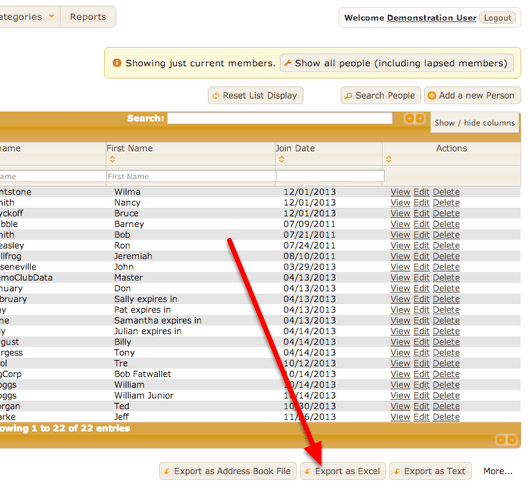
The two basic methods of extracting data involve taking a copy of the data that will be static, and the third, more advanced option creates a live link to the data in OurCarClub, that can stay up-to-date with subsequent changes made. Each of these can be accessed from any List page.

Option 1 – Export as CSV
media_1387015579754.png

When this button is clicked, a dialog box will prompt you to save the file. It will be in CSV (or “Comma Separated Values”) format, which can be opened directly in Excel. The file will be named for the list being viewed, i.e. persons.csv or vehicles.csv

Option 2 – Copy and Paste to Excel
media_1387016061943.png

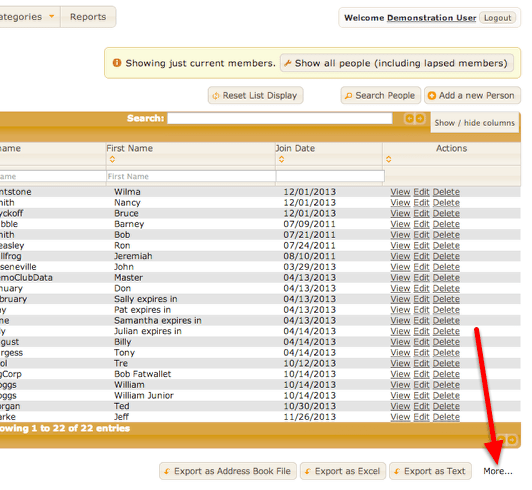
Under the link labelled “More…” are some less commonly used Export features.
media_1387016135202.png

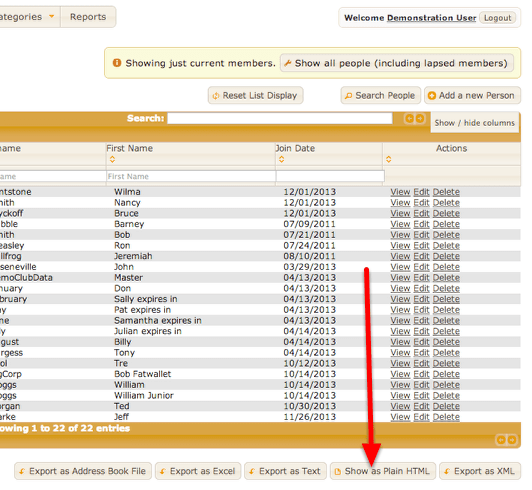
In this instance, the “Show as Plain HTML” is what is required. This will re-display the current list, but in a very basic format.

media_1387016228574.png

In your browser, under the “Edit” menu, choose “Select All”, then “Copy”. Switch to Excel, and “Paste” into a Worksheet.
Note that this method is probably not well suited to lists that are likely to generate thousands of entries.

Option 3 – Access live OurCarClub data from Excel using a "Web Query"

OurCarClub provides a method for integrating with other web-apps or applications. By using this feature, you can create a link to live data that can be refreshed at any time, bringing the latest Member or Vehicle data into your spreadsheets whenever you open them.

This feature requires that you generate an API Key. API Keys are not generated by default for all OurCarClub users, as they are an advanced feature. An API Key should be treated like your username and password, and not shared with others.

To create an API Key, click on your username in the top right corner of the application.

Generating an API Key
media_1387017792424.png

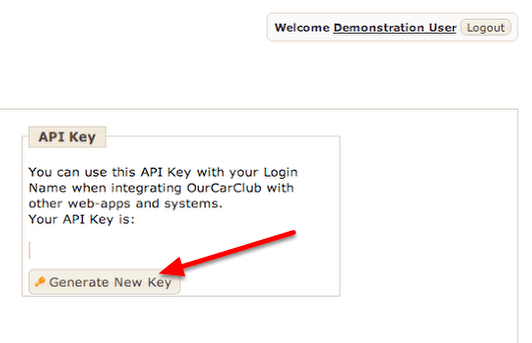
On the page with your details, there is a box labelled API Key, and a button to Generate a new API Key. This is used to create an initial key, or to regenerate it.
NB: If you regenerate your API Key, the old one is no longer valid, and anything that uses it will need to be updated.
media_1387017850088.png

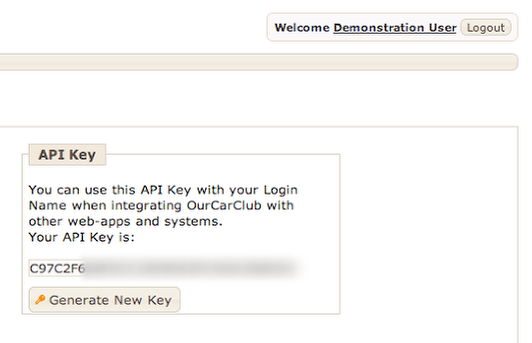
The key is a long string of letters and numbers. For the current purpose (creating an Excel Web Query) it is not necessary to make a note of it or copy it anywhere else.

Create a Web Query File
media_1387091059402.png

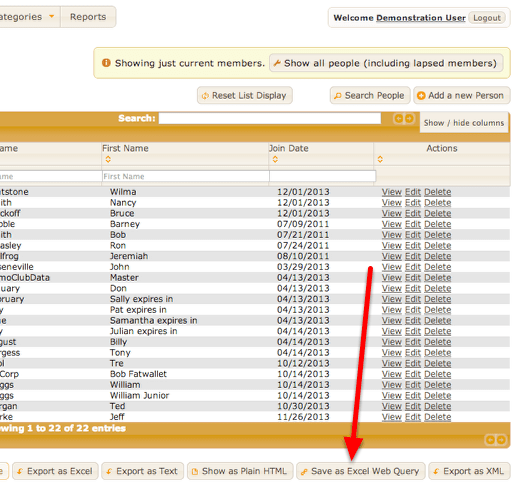
Once again, back to the List view. Now, under the “More…” export options, there is an additional “Save as Excel Web Query” option. Clicking this will result in a “Save As” dialog box appearing, for saving the file on your hard drive. By default, it will be called “OurCarClub-<club>-<list-type>.iqy”, but you can of course change this to call it anything you choose. The “iqy” extension should be retained, especially on a Windows PC.

Using the Web Query in Excel
media_1387091682562.png

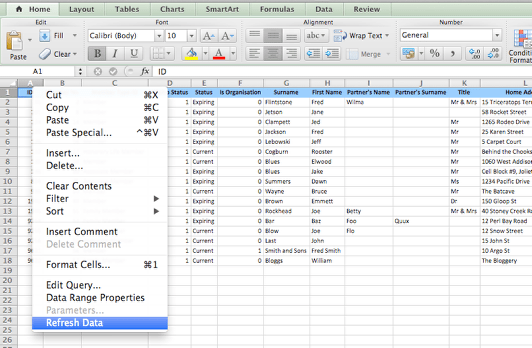
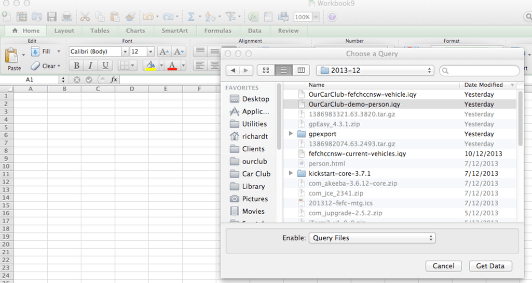
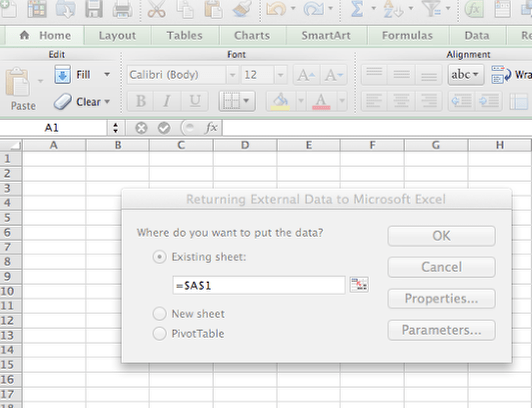
All reasonably modern versions of Microsoft Excel have the option to “Get External Data”, and this is usually located under a “Data” menu item. You will want to locate the “Use Saved Query” option, and then navigate to the Web Query file you just saved. You will then be prompted for where you want the data to be placed in the spreadsheet (usually cell $A$1 in the active sheet).
media_1387091724816.png

OurCarClub data live in Excel

media_1387091787667.png

Once you click OK, Excel will request the data from OurCarClub, and return it as a table of data. You are then free to create graphs, pivot charts or other information from this data. At any time in the future, you can simply refresh the data from the Data menu, and obtain the latest information from OurCarClub.

Committee Meetings and Task Management

OurCarClub allows you to easily keep minutes of Committee Meetings, including the members who attended and those who gave apologies. More importantly, you can capture new tasks and who has been assigned ownership of them, track their progress and close them once they’re complete. You can also easily print a formal agenda and official minutes.


Committee Meetings

media_1369216281920.png

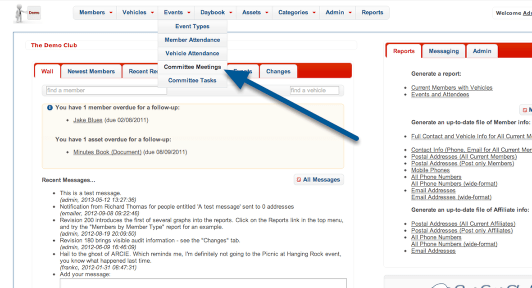
You’ll find Committee Meetings as an option under the “Events” menu. Notice also the “Committee Tasks” option. We’ll come back to that later.

Create a new Committee Meeting

media_1369216750917.png

Good meeting procedure means having an agreed agenda. For this reason, the Committee Meeting record should be created before the event. Like most aspects of OurCarClub, click the “Add” button.

Create a new Committee Meeting

media_1369217239783.png

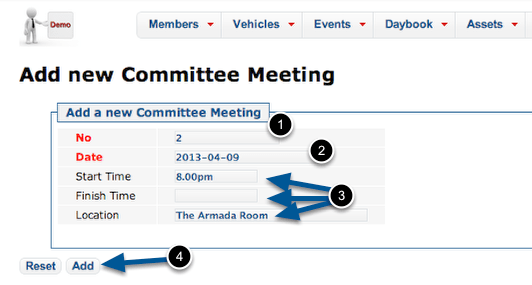
The meeting record itself only has a handful of fields.

  1. The Meeting No is automatically generated as the next one in sequence. Meeting numbers are important for tracking the tasks created at them. This is a mandatory field.
  2. Enter the date the meeting will occur – this is also required.
  3. The Start and Finish Times and Location are all optional, and are simply text fields. Obviously the Finish Time cannot be known until the meeting actually occurs, so we’ll edit the record to add that later.
  4. As always, click the “Add” button to save the new record.

Committee Meeting Detail

media_1369217308195.png
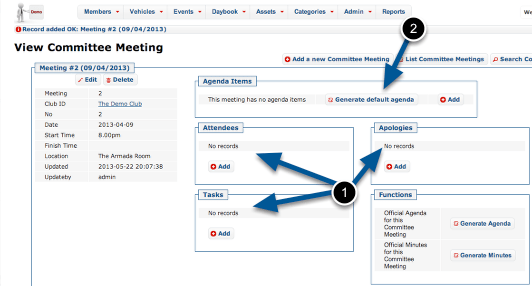
  1. Now that we can see all the related information, it should be obvious that most of these can only be populated after the meeting occurs.
  2. What we should do now is create an agenda. You can create an entirely customised agenda, but most of your meetings are likely to follow a standard pattern, which will be created for you by clicking “Generate default agenda”.

Default Agenda Items

media_1369217893291.png
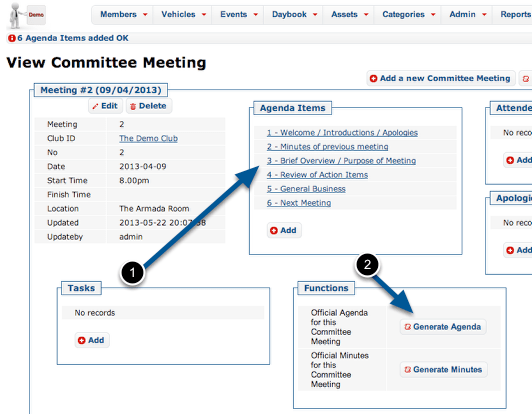
  1. The meeting now has the 6 standard agenda items. (Later on, we’ll see how you can adjust the default agenda items to suit your club.)
  2. Click “Generate Agenda” to produce a formal agenda document.

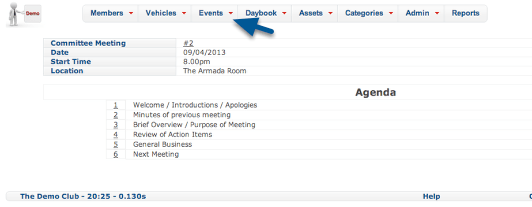
Agenda

media_1369218607287.png

Here’s our new meeting’s Agenda, ready to be distributed. Print it out a few copies, or print to PDF and email it if you have PDF software installed.

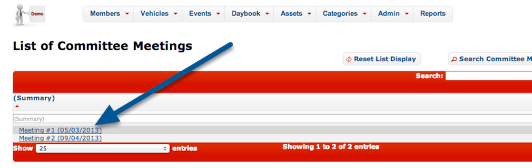
The other thing that should be provided to attendees is the minutes of the previous meeting. (We had a previous meeting – now you know why our newly created meeting was number 2). Click the link under Events to jump back to the list of committee meetings.

Generating Minutes from a previous Meeting

media_1369218737891.png

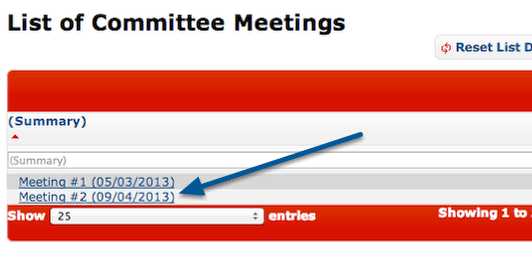
Click on the title of the meeting you want to generate minutes for.

A Previous Meeting

media_1369218838288.png
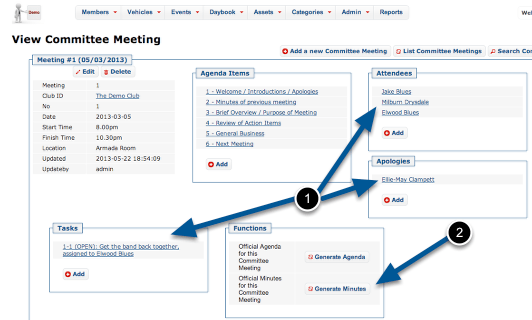
  1. Because this is a previous meeting, we have details of Attendees, Apologies and Tasks created. You might also notice this meeting has a finish time recorded. We’ll come back to all that later.
  2. Click the “Generate Minutes” button to create your document.

Meeting Minutes

media_1369219111371.png
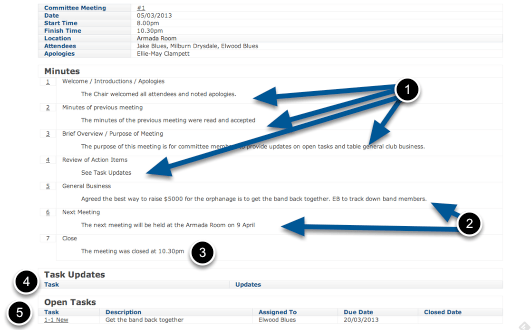
  1. All of these minutes are ‘boilerplate’, created when you generated the agenda.
  2. The minutes of the General Business and the Next Meeting would have been added at the time of the last meeting. Obviously these change with each meeting held.
  3. This 7th item gets added on automatically, based on the finish time recorded for the Meeting.
  4. Because this was our first meeting, we had no Task Updates. Otherwise, any tasks still open at the time of the last meeting would show here, with any recorded updates.
  5. We created a new Task at that meeting, which is identified as 1-1 (Meeting #1, Task #1). We can see who took responsibility for it and when it was due to be completed.

Like our Agenda, we can print these out for distribution.

Minuting the Meeting

media_1369219836830.png

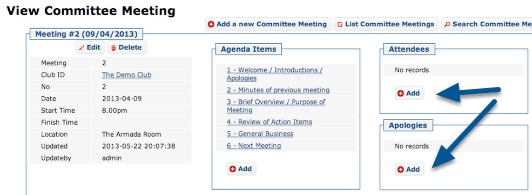
Your secretary (or nominated person) can minute the meeting as it occurs, if they have access to OurCarClub. The minutes can be transcribed later on, of course. To begin, view the relevant meeting.
Record Attendees and Apologies

media_1369219965263.png

Recording of both attendees and apologies is identical, and very like adding a ‘related record’ in other aspects of OurCarClub.
Add an Attendee

media_1369220137498.png

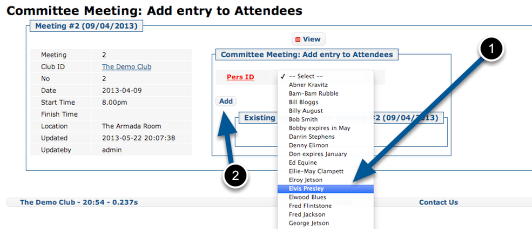
Select an attendee (1), and click “Add” (2). (NB – if your club is large, the Person selection will show a search-box rather than a huge long list.)

Apologies work exactly the same way.

Add a new Task

media_1369225454997.png
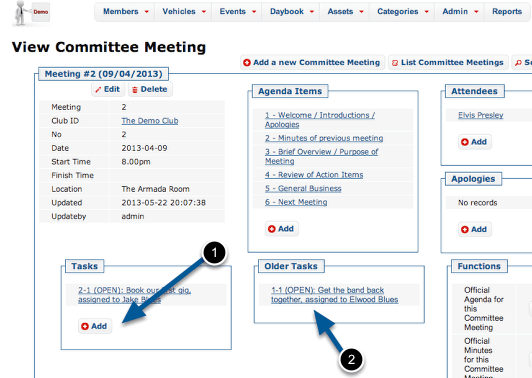
  1. As the meeting progresses, any new Task can be added.
  2. Existing tasks can be updated. NB: Older tasks will have been created at other meetings, and appear here for convenience.

Adding a new Task

media_1369221436397.png

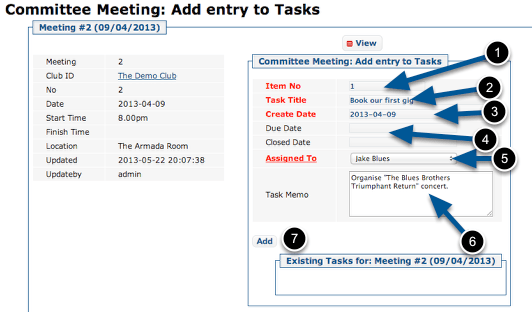
Enter the details of the task:

  1. Item Number is automatically generated in sequence.
  2. Give the task a short title
  3. The Create Date defaults to the date of the Meeting
  4. Due Date is optional, but should be entered. When a Task is allocated, it should have a defined date by which it will be done.
  5. Select the member assigned to the task.
  6. Enter additional notes about the task.
  7. Click “Add” to save the task.

Managing Club Assets

Most clubs own a variety of assets that are used to promote the club, or for members’ benefit. There are obvious items like computers or printers, club banners and perhaps a club trailer or barbecue. Beyond that, here are many other things a club might own: perpetual trophies, record books, documents and of course merchandise: shirts, stickers, badges, even reproduction parts for vehicles.
The OurCarClub system allows you track your assets, quantity on hand, who has custody of them and so on.

Asset Types

wpid173-media_1365826272233.png
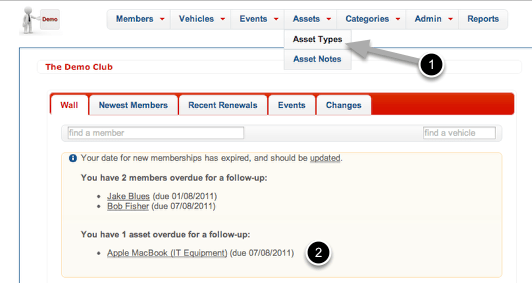
  1. Under the Assets option on the Menu, choose Asset Types to see the Asset Type List.
  2. Notice this message on the wall that there is an asset overdue for a follow-up – we’ll come back to that later.

Asset Types List

wpid174-media_1365826781604.png

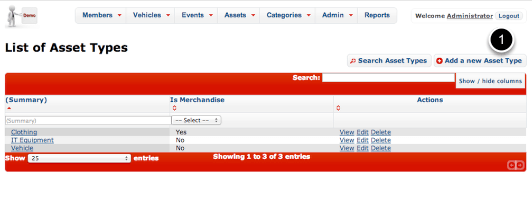
Here is an example of a list of Asset Types. Other possible types could include:

  • Trophy
  • Document/Record

You can add whatever suits your club. Let’s add a new type to cover the club’s flag, banner and similar items. Click “Add a new Asset Type”

Add a new Asset Type

wpid175-media_1365827000284.png
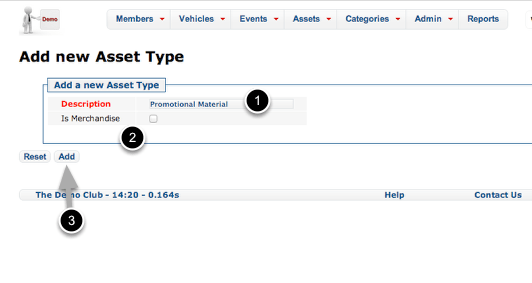
  1. Let’s call this type of item “Promotional Material”.
  2. Note the checkbox. This should be checked if this type of Asset is something you sell, and/or need to keep inventory of. Obviously that’s not the case for the club banner.
  3. Click Add or hit Return to save the Asset Type.

View the new Asset Type

wpid176-media_1365827147752.png

We’re now viewing Asset Type, which presents the information we just entered.

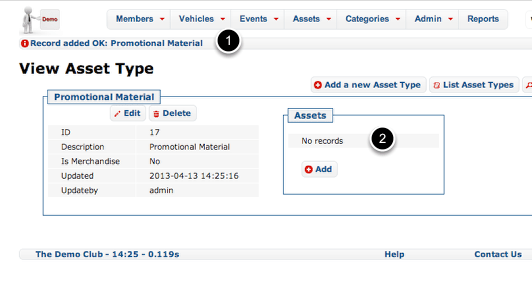
  1. The banner across the top notifies you that the new record was successfully added.
  2. Because this is a brand new Asset Type, there are not yet any Assets of this type. Press “Add” to create one.

Add a new Asset

wpid177-media_1365827718971.png

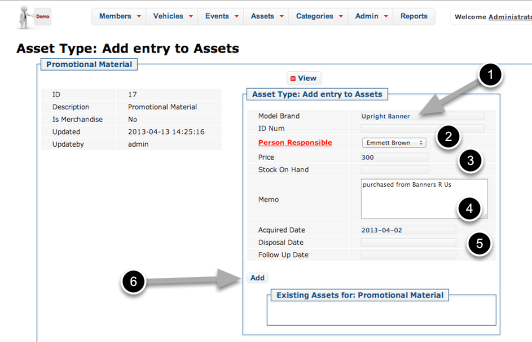
Enter the relevant details here:

  1. Give the item a suitable name. If it has a model name (IT Equipment is a good example of this) then it’s a good idea to include it. Similarly, if it has an ID or Serial Number, that can also be recorded.
  2. Enter the name of the member who has custody of or is responsible for the item.
  3. You can record the price of the item should you choose. This is usually more relevant for Merchandise items, as is the Stock on Hand column.
  4. A memo field is provided to make a note about the item.
  5. A series of dates to record when the item was acquired, disposed of, or needs to be followed up. All three fields are optional, but if the Follow Up Date is in the past, then this Asset will appear on the Wall (as we saw in an earlier screenshot). An example of how you might use this: imagine the asset was a perpetual trophy, given out at the Christmas Party. You might record a follow-up date of Nov. 1, to remind you to get it back from the current holder.
  6. Click “Add” to save this Asset.

View Asset Type (again)

wpid178-media_1365828794570.png

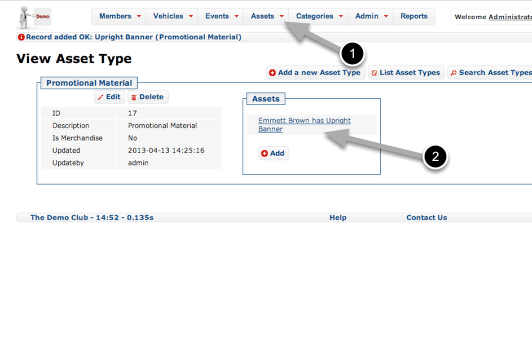
Repeat the exercise to record other promotional material if you wish.

  1. You can see and search all Assets in the Asset List, by clicking this item on the menu.
  2. To see details of the Asset, click this link.

View Asset

wpid179-media_1365829057634.png
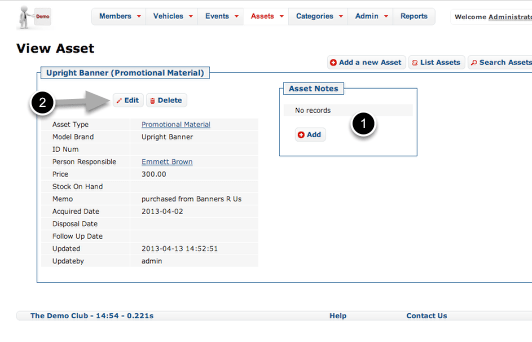
  1. Beyond the simple “Memo” field, you can also record a history of Notes regarding this asset if you choose. A Note is also automatically created when custody of an Asset changes.
  2. Click Edit to record a change of custody.

Change Asset Details

wpid180-media_1365829312251.png

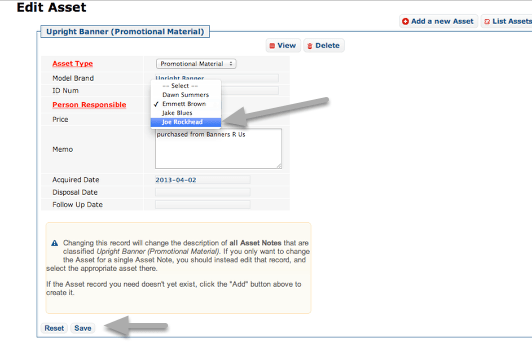
In this example, custody of the banner has passed from Emmett to Joe. Click Save to record the change.

Asset Custody History

wpid181-media_1365829417367.png

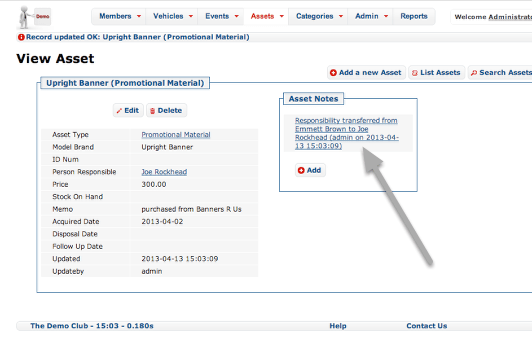
Note the auto-generated Note recording the date on which custody was transferred.

Managing Merchandise

wpid182-media_1365829717633.png

Merchandise such as club shirts needs to be kept inventoried and tracked. OurCarClub does not attempt to be a full book-keeping system, but provides a means to track inventory with ease.

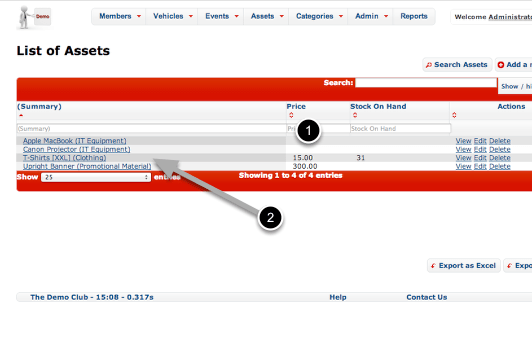
  1. In this List View, we have enabled displaying the Price and Stock on Hand fields.
  2. Click on the T-Shirts link to view detail for this item.

Recording Merchandise Inventory Changes

wpid183-media_1365829875130.png
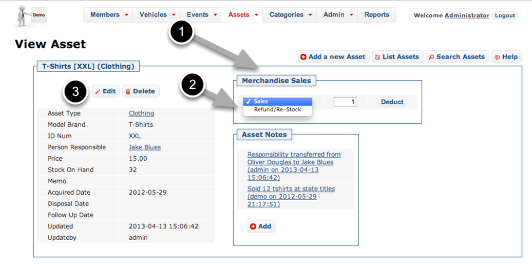
  1. When an Asset is recorded as being of a Type marked as “Is Merchandise”, the additional box show above appears.
  2. To record sale of an item, enter the quantity and click “Deduct”. Change the drop-down to “Refund/Re-Stock” to record a refund or a purchase by the club of more stock. (The “Deduct” button changes to “Add” when you do this.)
  3. To update Stock on Hand to reflect a Stocktake/Audit, simply Edit the Asset record and change the Stock on Hand field.

Once you’re comfortable with this, you’ll have control over your club’s assets in no time!

Granting access to other members, and resetting passwords

OurCarClub users with sufficient privileges have the ability to grant access to other members.

Granting Access

media_1329630544389.png

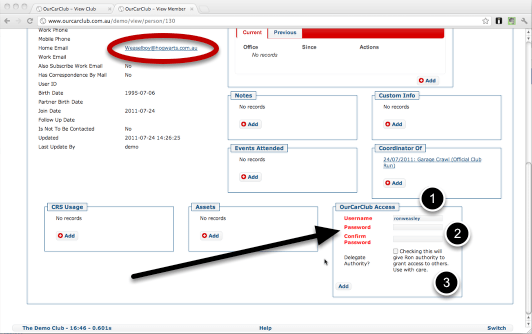
You can grant existing members access to your OurCarClub system easily. At the bottom of the regular "View Member" page you will find the following panel.

  1. A suggested username is provided, but you have the option to change it. Username must be between 3 and 11 characters in length, and it will warn you if the name you’ve chosen is not available.
  2. Enter a starting password, and confirm it.
  3. You have the option to delegate authority – meaning that this user will also be able to grant access to others, reset passwords and so on.

When you click Add, an email will automatically be sent to the member to let them know their login details. If they don’t have an email address, you’ll have to let them know yourself.

Access Granted

access-granted.png

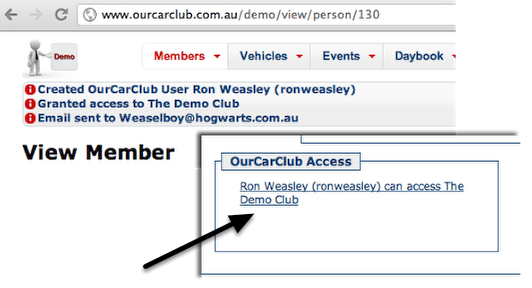
After clicking the Add button, the following messages are displayed, and the Access box shows that the user can access this system. Click on that link to edit or delete this access, or to reset the user’s password.

Resetting Passwords

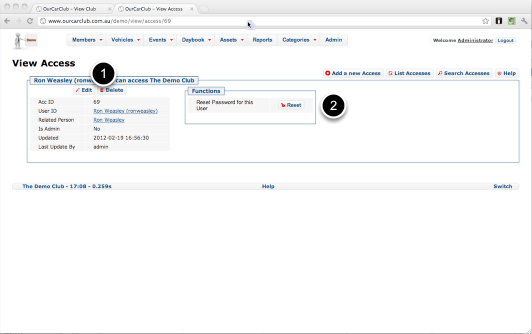
media_1329631718119.png
  1. The usual Edit and Delete buttons allow you to manage this access (i.e. upgrade to Administrator or remove Administrative privilege)
  2. The Reset button will generate a new password and email it directly to the user.

Events Management

Managing Club Events – Where and When, and Who Participated

Viewing a List of Events

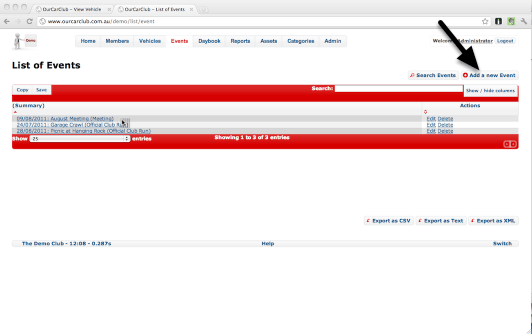
media_1328490606167.png

The List of Events view is identical in layout to all other Lists. The Show/Hide columns button allows you to view additional general information about an Event. Click Add a new Event to start recording details of an event, either one already held, or one coming up.

Adding a New Event

media_1343627198545.png

Adding an Event is also similar to creation of most other types of records in OurCarClub. Mandatory fields have red titles, and categorisation can be done using drop-down lists.
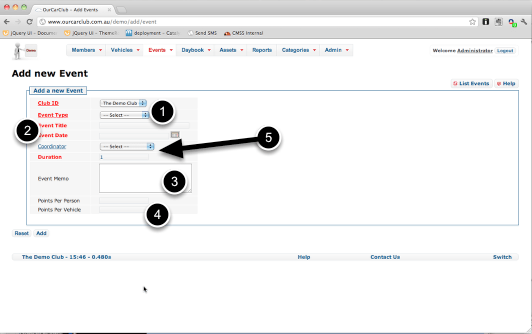
  1. Select an Event Type. The default values are Meeting, Official Club Run and Sanctioned Event, but you can customise this list to suit your circumstances.
  2. Give the event a name, such as "February Meeting", or "All Holden Day". A Date for the event is also required.
  3. The Event Memo field allows you to record other details about the event. For example, the address, or convoy details, or in the case of an event that’s already occurred, perhaps a record of the food supplied by the club for members (30kg sausages, 8 loaves bread etc.) It could be useful to record such information if this is an event you hold every year. Use the field however you see fit.
  4. If you wish to track attendance points, you can override the default values for Points per Person and per Vehicle set for the Event Type. However, this would typically be left blank.
  5. Co-ordinator and Duration: you can optionally record the name of the Member who is co-ordinating the event, if required. Note this field has a blue label, which means it is not a required piece of information. The Duration records the number of days over which an event was held, and defaults to 1.

Recording Event Attendance

media_1343627951643.png

When viewing your event, you can quickly log details of attendees, and what vehicle (if any) they attended with.

  1. As with all View screens, the details of the main item can be viewed on the left. Click Edit or Delete to make changes. (NB: You cannot delete a record that has attendees attached to it.)
  2. Type a few letters of the member’s name and choose them from the drop-down list that appears. See over for more detail.
  3. Click the "Run" button to view an attendance report for this event.

Recording Event Attendance (continued)

media_1343628606649.png

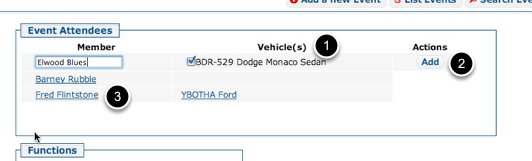
As shown on the previous page, type a few letters of the attendee’s name and pick them from the list. In this case I typed blu, and had the options of either Jake or Elwood. Typing elw would also have found Elwood.

  1. On selecting the attendee, their current vehicle(s) appear under the Vehicles heading. If they have only one, it is automatically checked. If they have multiple vehicles, check the vehicle(s) they brought. If no vehicles are shown because none have been recorded for this person, you can add the attendee now, and add the vehicle later on by simply repeating the steps shown above. Multiple attendance records for the same person are silently merged together.
  2. Click Add to save the record. You’ll return to the same screen, and start entering another attendee.
  3. Clicking on the name of an already entered attendee takes you to the Person Attendance record. There are fields there to record additional information about the person’s attendance, if required.