Relationships

One of the most fundamental features of a database (as opposed to a spreadsheet) is the ability to describe relationships between types of information. Simply put, a Vehicle has a Class (ie Authentic, or Modified etc), and any one Class may have none, one or many Vehicles. One of the most powerful aspects of OurCarClub is the ease with which you can navigate from an item to a category, to another item and so on.

Navigating Relationships
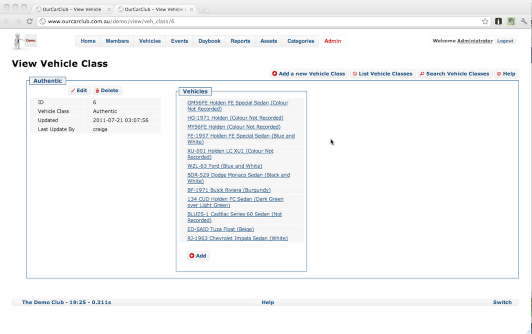
media_1328430797261.png

As mentioned on the previous page, by clicking the Vehicle Class link (the word "Authentic" on the View Vehicle page), you are taken to the View page for that Vehicle Class. This shows any attributes related to the class, and a list of all the vehicles with that Class. Any of them can be clicked on to jump on to another "View Vehicle" page. You could also add another Authentic Vehicle from this screen, but the View Person screen has a "Wizard" for this, and would be the recommended approach.
Vehicle View

Just as a Member has many attributes and related pieces of information, so too does a vehicle.

Viewing an Individual Vehicle

wpid36-media_1328430330808.png

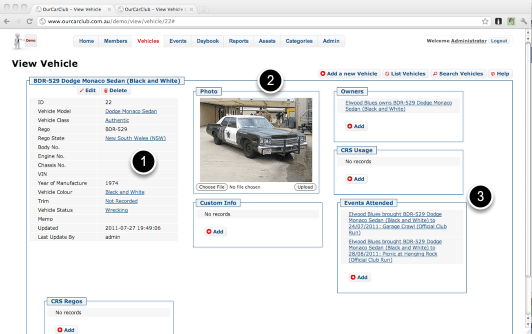
All View pages are similar in design: the left hand side has the attributes of the item being viewed, with Edit and Delete buttons. The boxes to the right and underneath show related pieces of information, where there may be none, one or many related records.

  1. Attributes of this vehicle. Any fields that are shown as links denote a relationship to a category or item. Clicking on “Authentic”, for example, would take you to a page showing all the vehicles thus classified. (More on this later…)
  2. You can upload an image of your member’s vehicle from this page, or you can provide a URL to an existing image on the web. OurCarClub supports a main image for each vehicle, and up to 8 additional images. This should be sufficient for clubs in jurisdictions where photographic records of vehicles on “Club Plates” need to be maintained (such as VicRoads).
  3. Another example of linked information. This vehicle may have attended many events, and you can navigate to a specific attendance record via the link.

List of Vehicles

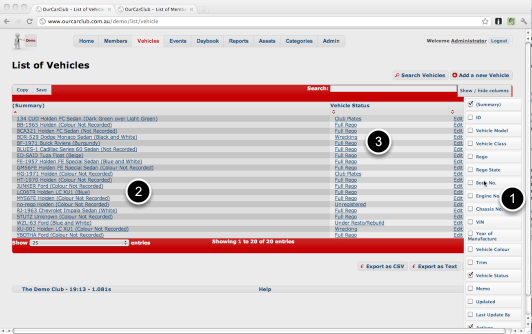
Let’s look at a different List Screen, the records of Vehicles in your club. As you can see, it’s quite similar to the Member List.

List of Vehicles

wpid22-media_1328429624781.png

As mentioned previously, all List screens share common features: click or drag the headers to sort or re-arrange, filter and export your data.

1. The Show/Hide columns button has been clicked, showing the additional columns available for inclusion in this view. Click any of the check-boxes to show/hide that column, and click the Show/Hide columns button again to dismiss.
2. Click on the "Summary" of any vehicle to go to its "View" screen.
3. All Vehicles have a Status. Click on a Status to show information about that Status, and a list of all Vehicles that match that status. This item to group to item navigation is a key feature of the OurCarClub system. It is extremely easy to navigate around your data.

List Vehicles (continued)

wpid23-media_1328430107263.png

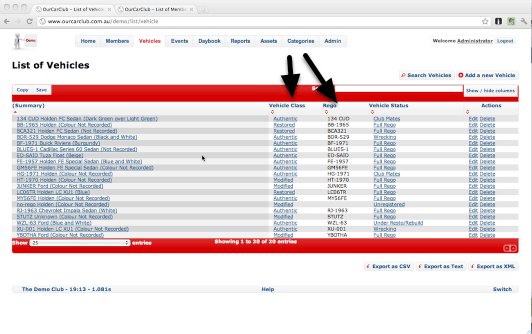
Here is that same screen with the Vehicle Class and Rego columns added to the view.

Views – Member View

Examining a single member’s data

wpid18-media_1328422813967.png

(That’s enough fiddling with the themes – back to the original Red & Blue theme).

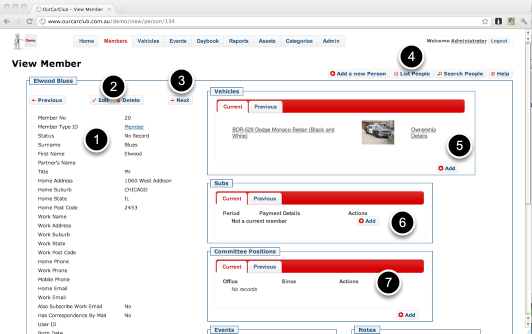
View Screens follow a standard design: the information about the particular record is on the left, and related information is grouped in boxes to the right and underneath. Related records are generally things we need to track over time, or where there may be none, one or many items linked to the main item (in this case a Member). A member may have many vehicles now, or they may have none. They may have previously owned vehicles that they have since sold. Obviously, if there was only one field in the Member record called "Vehicle", it would severely limit our ability to track this sort of thing.

1. All the standard fields for a member: names, addresses, contact details.
2. Edit / Delete this record.
3. Navigate to the next or previous member (by member-number)
4. Add a New Member, return to the List View, perform a Search, or open the Help Panel.
5. Member’s Vehicles, both Current and Previous can be seen in this tab. Click on the description or "Ownership Details" to navigate to the details of the Vehicle
6. Subscription info – curent membership info, and previous subscriptions (renewals). So each annual renewal is recorded for posterity.
7. Similarly to Subs, if this member has been or is a Committee Member, details are shown in this panel.

The sharp-eyed reader may have realised "hey, a Member can have move house, or change email address, or phone number! Over time they may have many of these things." And that’s true. But we’re not really interested in capturing an accurate history of this. It’s not relevant to managing your car club. As long as the address in the system is where they live now, where they used to live is not terribly important. We’re interested in ensuring any mail we might send today gets to them, not where we might have sent mail a year ago.

The other half of the Member screen

wpid19-media_1343643474174.png

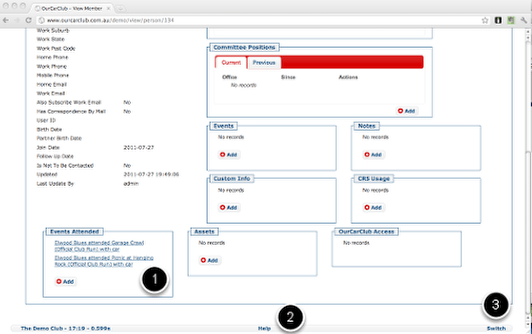
As mentioned above, all the boxed content shows "related information", where there may be no data, one or many related records for a particular member. In OurCarClub, anything that looks like a link is a link, and it is easy to navigate from individual record to similar records. (See the Vehicle pages for more examples of this.)

1. Clicking on an Attendance Record will take you to a view of that member’s attendance in that event. (Attendance contains details of which car they brought to the event, amongst other things.)
2. Virtually every page has a Help link at the bottom to show context-sensitive information about the page you’re viewing.
3. If you have access to multiple Car Club’s OurCarClub systems – including this "Demo Club", you can use the "Switch" link to access the alternate systems.

Lists – Member List

All data in your OurCarClub system can be displayed in a "List" context, that can be sorted, filtered, re-ordered and exported.

Understanding a List Page

wpid73-media_1328422055418.png

Note: the “Green” theme is shown on this page.

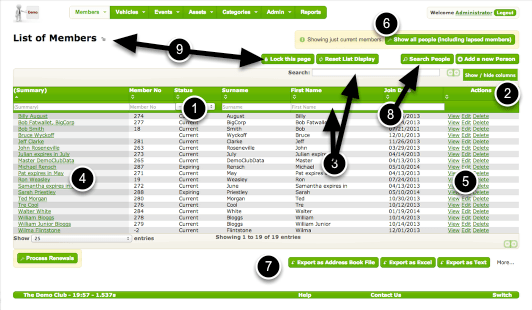
This particular shot is showing the List of Members, which has a few items peculiar to that type of record. But every collection of records of a certain type (i.e. all Vehicles, all Members, all Types of Assets) can be manipulated in this way.

  1. Headers: click to sort by this column, click and drag to re-order columns
  2. Click “Show/Hide Columns” to alter the list display. The settings you choose are retained next time you come to this page
  3. Type a few characters in the quick-search box to find a particular record or group of records
  4. Click on a name to View member details
  5. Click Edit or Delete to alter this record
  6. By default only current members are shown. Click this button to show ex-member details.
  7. Export all records of this type for other uses.
  8. Perform more sophisticated Searching
  9. If you find you’re going back and forth from List to View and back again, it can be more efficient to lock the view page. Once the lock is activated all the links at (4) and (5) automatically open in a new browser window or tab (depending on your browser’s settings), leaving this list view in place. The button toggles the state of the lock, and the icon to the right of the title shows the current state.

The Home Page for your Club

The "home-page" of your OurCarClub system.

Finding your way around your OurCarClub system

wpid9-media_1343630373670.png

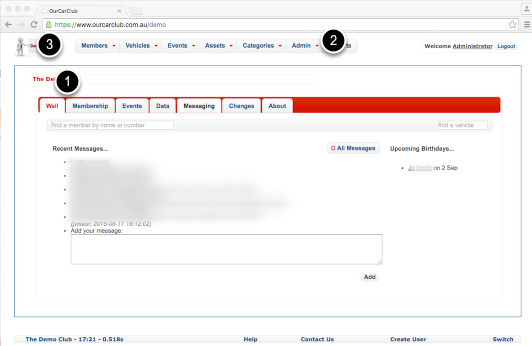
This is the “home-page” of your OurCarClub system. You can navigate to almost anywhere in the application from this page, and you can always return to this page from anywhere in the system by clicking on the club logo icon in the top left corner.

  1. The tabs in the main panel give you quick access to the “Wall” – where users can leave messages for each other, quickly find the most recently joined members, most recent renewals, upcoming Club Rego renewals and usage, and most recent and upcoming events.
  2. The menu bar quickly takes you to the most important parts of your database: Members, Vehicles, Events, Assets and so on.
  3. Click the club logo icon to return to this page from anywhere else in the application.

Finding your way around (continued)

wpid10-media_1343641855658.png

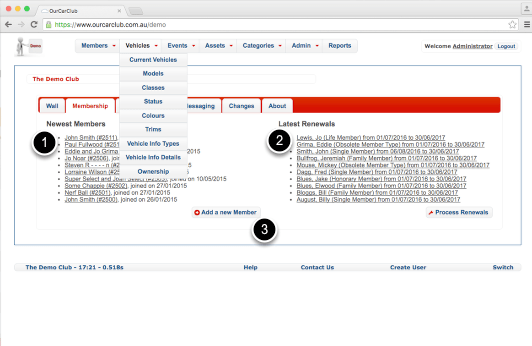
The main menu area has drop-down sub-menus, to easily navigate to its related categories.

Note that the top levels of each menu are also links – so you click “Members“, “Vehicles” and so on to get to the List View of that record type. (Unless you’re using a mobile device, in which case the link will appear as the top level item in the drop-down. This is because a touch device doesn’t have a distinction between a hover and a click.)

  1. The 10 most recently joined members
  2. The 10 most recently renewed memberships
  3. This button takes you to the page where you can add a new member and their vehicle.

More home page tabs

wpid11-media_1343641964881.png

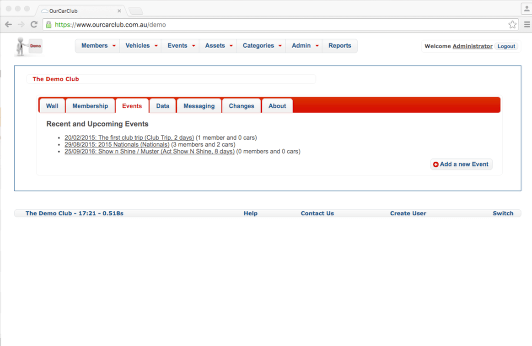
A lot of information on the Home Page or Dashboard is placed in tabs, to make the information manageable. In this example we’ve clicked the “Events” tab.

And finally…

wpid12-media_1343642118951.png

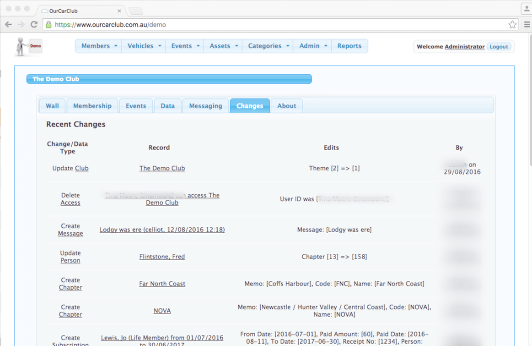
Note the “Blue” theme on this page. You can choose the theme that suits your club logo and colours. You’ll find this under the “Categories” link, explained later.

This panel shows the 20 most recent edits that were done, by whom and when.