Advanced Email Options

Beyond simply emailing all members, OurCarClub allows you to send targeted messages to specific groups of members. Furthermore, you can choose to allow your members, your affiliates and others to send messages to your club members.

Allowing All Club Members to Email the Club
media_1404983182494.png

If you choose to enable this feature, it means your <yourclub>@ourcarclub.info address operates as a Mailing List, and all participants can send a message to all others. It is disabled by default, since it reduces control over what messages are sent.
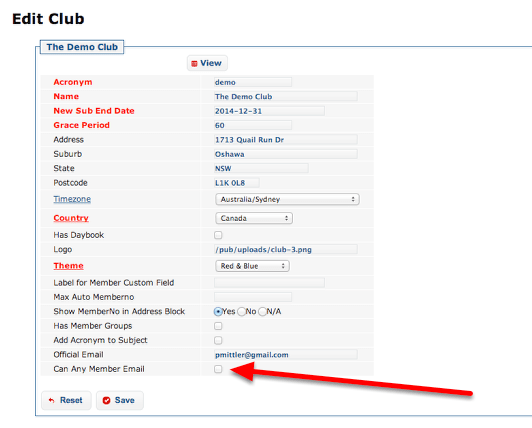
To enable this feature, click on the “Categories” menu item, and check the “Can Any Member Email” checkbox.

Emailing Member Subsets
media_1404983768324.png

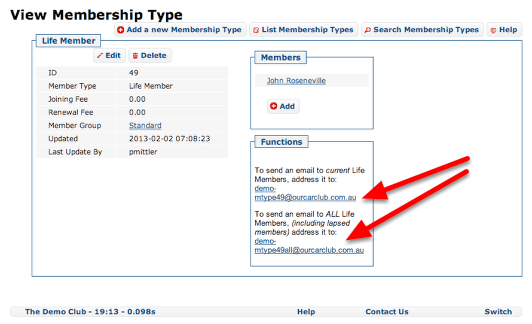
Many category style lists – Vehicle Model, Member Type, Event and so on, provide an email address by which you can send an email to just the members who meet that criteria. The address that should be used can be found in the “Functions” box on the “View” page for any data type that supports the feature. In each case there are two variations – an email address for all current members (the default), and another for members current and expired. The example image above shows the email address to use to email just the Life Members of the Demo Club.

This feature can also be used to email just the participants in a specific event – future or past. The email address can be found on the Event view page.

Some of the categories that support email subsets are:

  • Membership Type
  • Member Group (where enabled)
  • Custom Info Type
  • Vehicle Model
  • Vehicle Class
  • Vehicle Status
  • Club Vehicle Info (Vehicle Custom Info Tpye)
  • Event

Allowing Affiliates to email your members
media_1404987599335.png

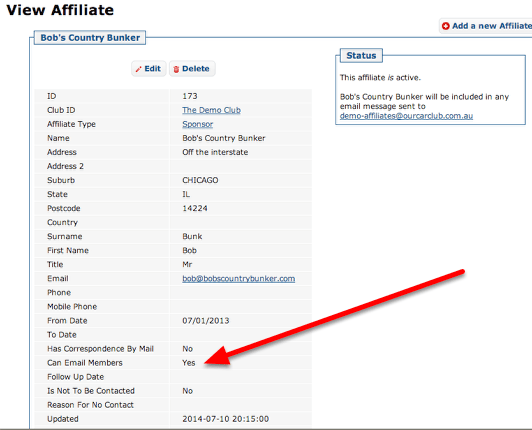
Affiliates can be flagged as permitted to send messages to your club members by checking the box shown above. An affiliate that is not considered “current” will not be allowed to send messages to the group regardless of the setting of this box.

Allowing other email addresses
media_1404987869999.png

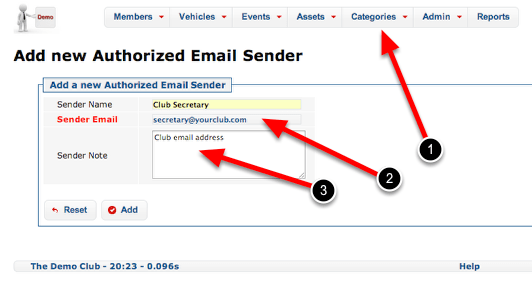
If you have additional email addresses beyond those that belong to committee members or affiliates, you can add them to the Authorized Email Senders list. Any email sent to a club address from an address in that list will be accepted and forwarded.
This feature is useful for recording email addresses that belong to the club, such as secretary@<yourclub.com>, where it is impractical to record it against a club member.

  1. Authorized Email Senders can be found under the Categories drop-down
  2. Record the approved email address
  3. A note regarding who the address belongs to and why it is permitted can be added here.
Mailing Lists

One of the most important features of OurCarClub is its ability to send emails to all or some of your current members for you.

Even if your club runs a Mailing List Manager (like Mailman), you still need to manually maintain the list of members subscribed to the list, adding new members and removing lapsed ones. If you’re not on top of this, you run the risk that new members are getting no correspondence, and non-members are still getting club benefits.

If you manually address email messages to 50 individual addresses, you already know how messy it is to keep such a list up to date.

OurCarClub makes Emailing your Current Members Painless.

If you send a message to

    <yourclub>-members@ourcarclub.com.au    
        [or]
    <yourclub>-members@ourcarclub.info
        

it will be propagated to all your current members. It’s that simple.

It won’t relay any old thing that it’s sent though, the sender has to be authorised (see below). The sender will of course receive a copy of the email once it’s been routed through the system, and there’s also a Wall post added to your OurCarClub home page along the lines of:

    Email from Fred Nurk <elprez at someclub.org.au> entitled 'We're using OurCarClub and we love it!!!' sent
    to 82 addresses (emailer, 2011-12-30 19:16:28)

    
If a message is sent that isn’t from an authorised user, it gets relayed to the OurCarClub system users for that club (the committee), along with a notification email explaining what it is and what they should do with it. So you can vet any mails that come in from non committee members or non members. An email will be accepted and broadcast to your members if the sender’s email address meets one of the following conditions:

  • it is the official club email address recorded on the Categories page
  • it is an address associated with a current committee member (as recorded in OurCarClub)
  • it is an address associated with someone authorised to use your OurCarClub system
  • it is an address associated with an Affiliate where the “Can Email Members” checkbox is enabled
  • it is an address registered in the Authorised Email Senders list

Furthermore, you can choose to personalise your emails. If you put:

    Dear {{recipient_fname}},

in the email, at the time it is sent to each member that token will be replaced by their real first name, so Bob’s email says Dear Bob, Fred’s email says Dear Fred, and so on. The tokens available for personalisation in this manner are:

    {{recipient}}              which produces Fred Nurk elprez@someclub.org.au
    {{recipient_fname}} which produces Fred
    {{recipient_lname}} which produces Nurk
    {{recipient_email}} which produces elprez@someclub.org.au

For even more email personalisation, see the advanced topic on Email Merge.

There are no limits on the number of emails you can send. The maximum size of any email (including attachments) is 15MB, but bear in mind that individual recipients’ ISPs may refuse to accept messages that are larger than what they permit, or if the recipient’s mailbox is full. Consider breaking messages that big up into several emails, or better still, upload these large documents on your website and send your members a link to download them. Your members with dial-up or slower mobile broadband will appreciate it.

Finally, the address:

    <yourclub>@ourcarclub.com.au
    

is an alias for the address above, but we recommend using the tag “members” in the address because it is more explicit, and to be consistent with the other options shown next.

Emailing a Specific Chapter

media_147245382239011.png

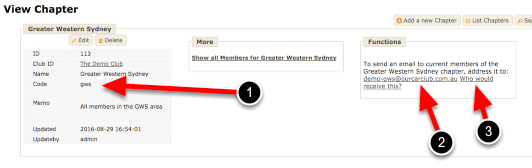
Chapters are often used by large clubs that cover a significant geographical area, and have need to send messages just to members in particular “zones”. If your club uses this feature, each member will have been assigned to one of these Chapters. Each chapter record has a “code”, which forms part of the email address. It must be lower-case letters and numbers only, no other punctuation marks are permitted.

  1. The code field. This forms part of the email address
  2. The email address. In this case it is <yourclub>-gws@ourcarclub.com.au
  3. This is an example of a link described in a few pages, under “That’s a lot of email address options! How can I know who will receive what?

Emailing your Affiliates

OurCarClub supports the recording of your club’s ‘affiliates’ – other car clubs you correspond with, sponsors, advertisers and so on. You can email all your affiliates or sponsors directly from the system.

To send a message to all your affiliates or sponsors with an email address recorded, just address the email to

    <yourclub>-affiliates@ourcarclub.com.au

You can address a message to both regular members and affiliates by simply including <yourclub>-members@ourcarclub.com.au and <yourclub>-affiliates@ourcarclub.com.au as recipients of the message.

Each individual Affiliate Type can also be targeted for a specific email. See the topic “Advanced Email Options” for more information. NB For this situation, you would find the email address to use on the Affiliate Type View page.

Emailing the Committee

If you just want to send an email to all the committee members, you can address a message to

    
    <yourclub>-committee@ourcarclub.com.au
    

and it will go only to those members who are recorded as current committee members in your OurCarClub system. If you create additional committees, each committee will have its own email address, which can be found on the “View” page for that Committee. Note that emails sent to committee addresses do not go through the validation discussed earlier, so anyone can send a message to the committee. Although OCC will catch as much spam as possible, publishing your OCC committee email address on your public web-page is likely to see it harvested by spambots. Best practice is to use a “Contact Us” form on your website that does not expose the email address directly.

If you create additional sub-committees, each of those will have an email address shown on their View page. This is also the case for most categorisation tables that support email segmentation (e.g. Member Types, Vehicle Class and so on.) If you have multiple committees, the address

    <yourclub>-officers@ourcarclub.com.au (or) <yourclub>-officials@ourcarclub.com.au

can be used to send a message to all committee members, whilst ensuring they get only one copy each, even if they hold multiple positions on multiple committees.

There are links in the Messaging tab on your club’s OurCarClub home-page to each of these options. To recap, they are:

    <yourclub>-members@ourcarclub.com.au
    <yourclub>-affiliates@ourcarclub.com.au
    <yourclub>-committee@ourcarclub.com.au
    

Emailing Lapsed Members, Members Falling Due and those about to Expire

Finally, there are a couple of other sub-group options; an email to:

    <yourclub>-expiring@ourcarclub.com.au

will be sent onto only those members who haven’t renewed their membership and are in ‘Expiring’ status. Handy for that final reminder that they’re about to be ‘struck off’!

Before they reach that stage, you can also address a message to members whose renewal is about to fall due by sending it to:

    <yourclub>-dueNN@ourcarclub.com.au

where NN represents the maximum number of days remaining before they will move from “Current” to “Expiring”. This is particularly useful for clubs that do not have an single anniversary model for renewals, but have members renewing throughout the year on an individual cycle, as well as those that offer multi-year membership, or don’t wish to send renewal notices to Honorary Life Members. For example, if your club’s renewals fall due on 30 June, then you might send a renewal message to all members sometime in May, addressed to <yourclub>-due60@ourcarclub.com.au

You can also contact just the members that have expired recently using a similar email address. A message sent to:

<yourclub>-lapsed180@ourcarclub.com.au

would only be received by those members whose membership lapsed in the last 6 months, and not every lapsed member since forever.

That’s a lot of email address options! How can I know who will receive what?

media_147245280032611.png

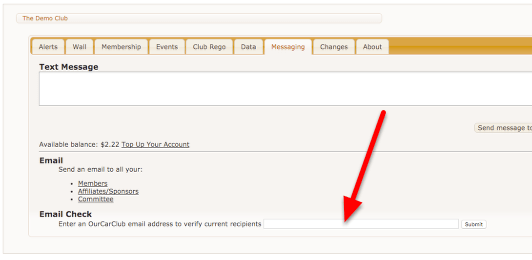
OurCarClub provides a method to see what email addresses will receive a message sent to a particular OCC email address. This is available on the Messaging tab of the home page, as a Report on the Reports menu, and as a feature wherever custom email addresses are shown in the application. For either of the first two options above, you simply enter the address you plan on sending your message to, and the output will be a report showing the recipients. Where the option appears on a specific email address link, it will obviously show recipients of that email address.

NB: The appearance of an address in this list does not guarantee successful delivery to that address. Messages that are too big or that look like spam may still get bounced by your member’s ISP.

Text Messages (SMS)

Even more immediate than email is SMS, straight to your members’ mobile phones. You can make sure everyone knows about a late change to an event (such as a wet weather venue) via SMS. You may also find SMS reminders a good way to increase participation in events, by reminding people of club runs a day or two before.

Sending SMS to All Current Members

wpid53-media_1344149487625.png

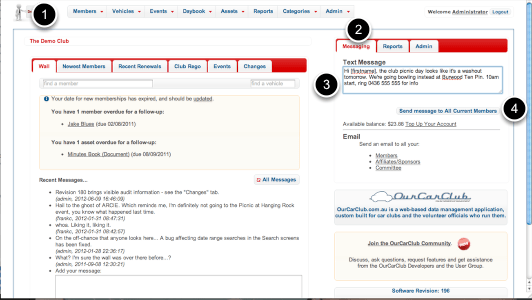
You have the option of sending a message to all current club members, or to an individual. Text messages are limited to 160 characters.

To send to all:

  1. Click on the club icon at the top left of the app to return to the "home page".
  2. Click on the Messaging tab on the right.
  3. Enter your message. If your OurCarClub user has been linked to your Member record, you’ll have the option of selecting whether the message will appear to come from you, or from ‘the club’. NB Messages from ‘the club’ cannot be replied to.
  4. Click ‘Send’ to trigger the SMS.

You’ll see a banner across the top of the page which will report the success or failure of the message send process. You’ll also see there is a link in the SMS panel that takes you to the SMS portal to top up your account. (More on this below.)

Advanced Usage:
You can personalise messages if you wish. Use the token [firstname] and/or [lastname] in the message, and they’ll be replaced with the member’s name details when the message arrives. Just remember to allow for long names if your message is close to 160 characters long.

This feature is not available…
If you see this message, you won’t be able to send SMS messages. SMS is not available for clubs that are trialling OurCarClub, nor can SMS messages be sent from the Demo Club. You’ll need to upgrade to a full OurCarClub account.

Sending SMS to a Specific Member

wpid54-media_1344149753821.png

Sending to a single member is virtually the same process. Navigate to the Member View page for the individual you want to send the message to, and you’ll find the SMS option amongst the various panels, immediately after ‘Committee Positions’. Then just follow steps 3 and 4 above.

NB: The last message sent is ‘sticky’, in the sense that the system remembers it for your session. This can be useful if you want to send the same message to three or four members. You won’t have to copy and paste it, the system will pre-populate the box for you with the contents of the last message you sent. Obviously you can overtype it.

This feature is not available…
You’ll see this message when the member you are looking at does not have a mobile number listed. Obviously it is not possible to send a text to a member without a mobile phone!

Using the SMS Portal

wpid55-media_1344150078499.png

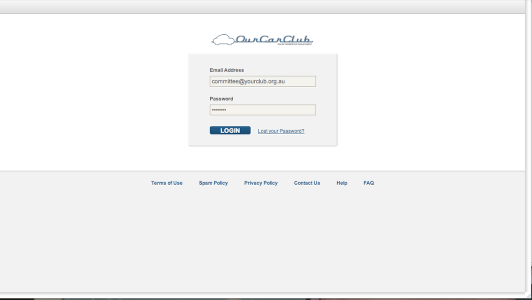
You’ll have a username (email address) and a password to log in, which OurCarClub will have provided you when you first set up your system. You can change either of these should you need to. Typically, the email address will be the club’s ‘official’ email address.

The main reason you will log into the portal is to top up your account with more funds to send messages to your members. However, there are some other features and benefits available there that you may choose to take advantage of if you wish.

Using the SMS Portal (continued.)

wpid56-media_1344152993846.png

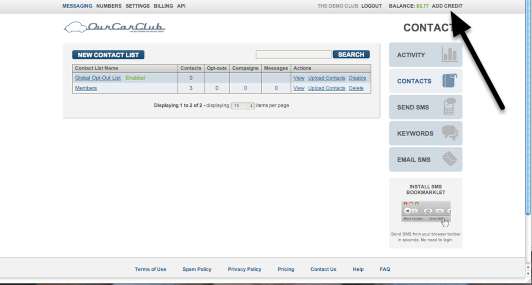
You’ll have a username (email address) and a password to log in, which OurCarClub will have provided you when you first set up your system. You can change either of these should you need to. Typically, the email address will be the club’s ‘official’ email address.

The main reason you will log into the portal is to top up your account with more funds to send messages to your members. However, there are some other features and benefits available there that you may choose to take advantage of if you wish.

Lists

The list entitled Members is automatically synchronised with your Current Members in OurCarClub. Although you can edit this list, you shouldn’t. Any changes you make will disappear after the next sync process anyway.

However, you can create more lists if you wish. From the portal, you are able to send an SMS to one of these lists (and indeed to any individual). Some suggestions:

Create a "Committee" list, which would make it easy to send a message out to your officials.
Create a list of members (and others – you can add any mobile number you wish) who are attending a particular run – say a big, interstate event – so you can message them all with ease.

This area of OurCarClub may be expanded in future releases to support creating and sending messages to custom lists.

Topping Up Your Account

wpid57-media_1344153164382.png

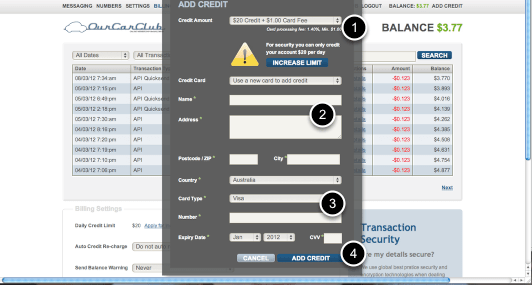
Clicking on the Add Credit link shown on the previous page brings up this screen. Just enter the required details and and click the "Add Credit" button.

  1. Select an option for how much credit to add
  2. Enter details for the card-holder
  3. Enter the card details
  4. Click "Add Credit"

Auto-renewal

The facility is there to arrange for the system to automatically debit a card when the balance drops below a certain amount. It’s entirely up to each club whether that is suitable for them or not.