Adding a New Member

There’s a lot of information that can be captured when adding a new member to your database.

Understanding the Add Screen
media_1328425446001.png

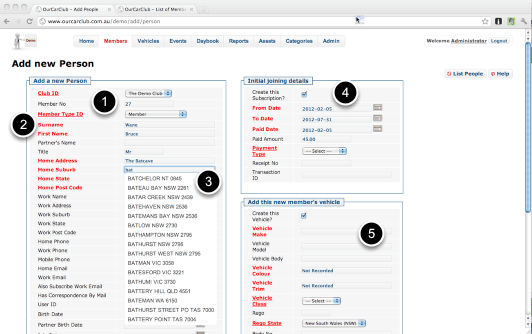
Although this is a very busy screen, it has everything required to add a new member into the system in a very short space of time, which means it can be done at a club meeting, if you have a computer (laptop, tablet etc) with internet access. Your new member can confirm for you that the details are correct, so you don’t have to try and decipher their handwriting a day or two later!

1. The next Member Number in sequence is automatically suggested.
2. Bold Red labels show attributes which are required, plain black labels are optional information.
3. Home and Workplace Suburb/State/Postcode are automatically suggested for you
4. Record this new member’s initial fees info, method of payment and receipt number.
5. Include their vehicle data. Again, Make/Model/Bodystyle are suggested for you from your Categories info, but can be overridden. Similarly, Vehicle Colour & Trim are suggested from your existing data once you type a couple of characters. (You can choose to record all the official Colour Codes and Descriptions for the model vehicles your club is dedicated to, if you wish. You can just enter "Blue", or you can leave it as Not Recorded if you’re not interested in recording this information.

Adding a New Member (continued)
media_1328426132612.png

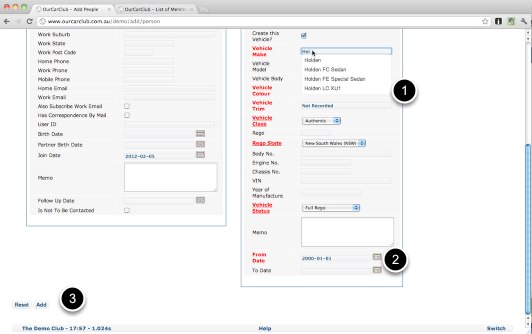
1. An example of the Make/Model/Body suggested text to describe the Vehicle
2. All Date fields have a Calendar control "widget" to select dates (and times, where appropriate).
3. When you’re finished, click Add. Any essential columns that are empty or invalid will be highlighted for correction, or you’ll go straight to the Member View page for this newly created record.

Adding a New Member (continued) Correcting Missing Info
media_1328426435382.png

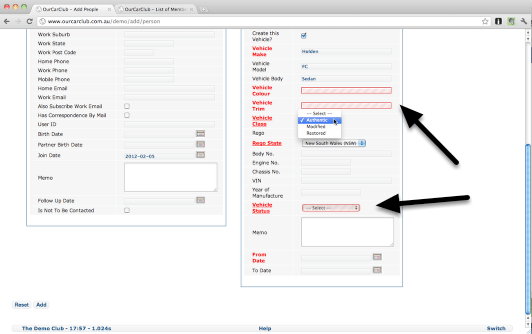
Note the highlighted text-boxes showing fields that require information that has not been provided.
Adding Information

OurCarClub allows you to view, edit, add or delete information. We’ve looked so far at navigating around and viewing records. Let’s look now at how we might add some new information to the system.

Understanding the different types of information

media_1343638893170.png

There are fundamentally two types of information:

  • records, which are specific “things”, such as Members, Vehicles, Events, Assets and so on.
  • categories, which describe how you group your records. Most clubs will have a couple of different Membership Types, Vehicles might be classified as Original, Restored or Modified; Assets might be “Computer Equipment”, or “Merchandise”. For most categories, you can start with the default, suggested list of values, and adjust them as you see fit.

In this example, we are going to add a Membership Type. We’ve decided to introduce a “Family Membership” option.
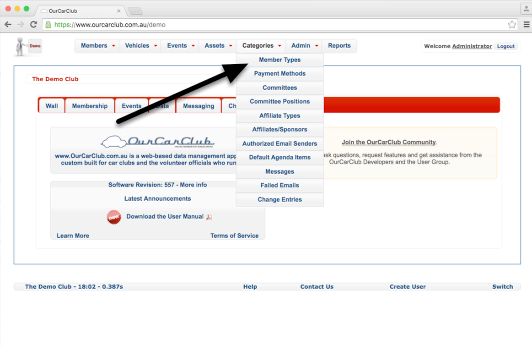
Click on the Member Types link under the Categories menu item.

Start with the List View – What have we got in our system already?

media_1343640347133.png

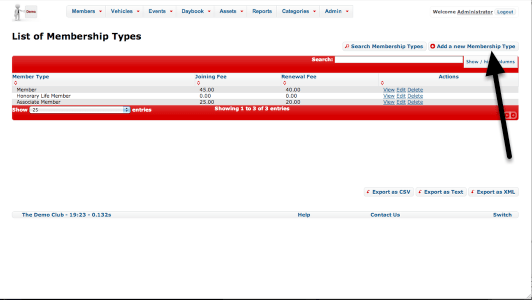
We’re now looking at the existing Membership Types, and whatever columns from the Show/Hide option we’ve adopted. We currently have "Member", "Associate Member" and "Honorary Life Member". Click on "Add a new Membership Type"

Adding a new Membership Type

media_1343640727610.png

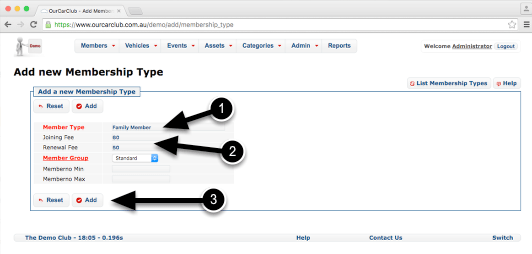
Labels in Red signify pieces of information that must be provided for this item to be valid. In this case, we need to provide a short description for the new item.

  1. I’ve typed “Family Member” here, as that is what we call our new Membership Type.
  2. This particular category also has optional values for Joining Fee and Renewal Fee, which I’ve also filled in.
  3. To Save this new record, click the “Add” button.

All Add screens function in this way. If any items require a value and one hasn’t been supplied, or data of the wrong type is entered (such as text where a date belongs), the fields in question will be flagged in red for correction.
It’s also important to bear in mind that you cannot have two records for the same thing. If you already had a record labelled “Family Member” and you attempted to create another, you would get an error message alerting you to this fact.

Now, having clicked “Add”, we should see…

What did we just do?!

media_1343641318724.png

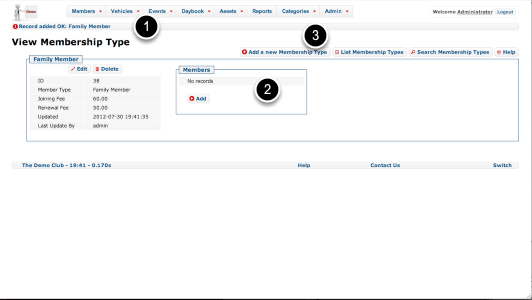
… the result, which is our freshly minted Membership Type. A few things to note about this screen:

  1. A message appears beneath the menu bar reminding you that a new record was added.
  2. Obviously, having just created this record, it has no related records. But once we create a new member and assign them Family Membership, this view screen will show that Person, as we looked at in the section on Navigation. NB: although you can create a new Member from here, it’s not the recommended, easiest way of doing that. See the next chapter.
  3. Click on the "Add a new Membership Type" button again to add another record if required, or "List Membership Types" to show our new, slightly longer list of types.