Understanding New Sub End Date and Grace Period

Almost all clubs have a set date on which all memberships expire. This may the end of the year, June 30, the date of the Annual General Meeting, or some other arbitrary date.

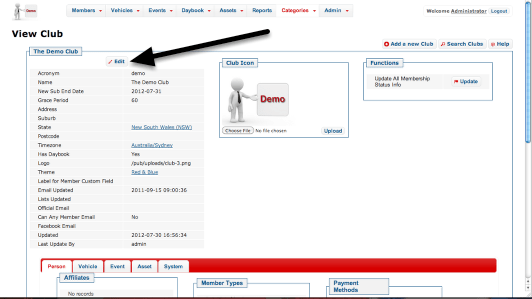
In the master record for your Club (the "Categories" link in the menu, known as the "View Club" page), there are two fields which are used to manage how your club’s memberships will expire.

Finding where these values are stored
media_1344159711820.png

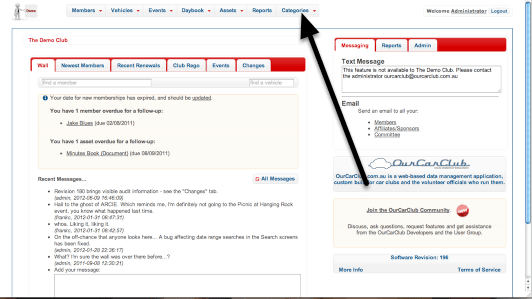
From the home page or any page, click on the "Categories" heading in the menu.

View Current Settings
media_1344160050214.png

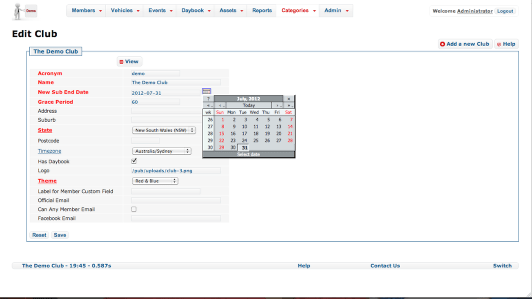
New Sub End Date

Unsurprisingly, this is the date on which any new members’ memberships and existing members’ renewals will expire. You will need to update this field from time to time, most likely annually.

Grace Period

This is a value in days, such as 14, 60 or 90. For this number of days beyond the latest subscription end-date, that member will continue to be treated as "Current". (Their Membership Status will be shown as "Expiring"). The member will be considered "struck off" and their status will show "Lapsed" once Grace Period days have passed from their last renewal.


Click Edit to adjust these club-wide settings.

Change New Sub End Date and Grace Period Settings
media_1344159935698.png

Membership Fees and Membership Expiry Management.

From our experience with Car Clubs, there are three typical models for managing when new memberships will expire and how much new members are charged: Extended Membership, Discounted Rate or by Anniversary. You will have entered the standard Joining Fee and Renewal Fee for each Membership Type in the Membership Types table previously. When creating a New Member, you can over-ride this amount if you wish.

1. Extended Membership Model.

New memberships are given more than 12 month’s initial membership, so that they get good value for money from their initial joining fee. A club that uses this model and expires all memberships on June 30 might allow a member that joins in March to get 15 months’ worth of membership in their initial subscription, rather than be expected to renew after 3 months.
    This club would update New Sub End Date at the beginning of March to be June 30 of next year.

2. Discounted Rate Model.

A club for whom all memberships expire on June 30 might allow members who join after Jan 1 to pay half the normal Joining Fee. Perhaps members who join from March 1 pay one quarter.
    This club would update New Sub End Date to end of June next year at the end of June. Additionally, they could choose to adjust the Joining Fee in the Membership Types table on Jan 1 and March 1, or just amend how much a new member pays when they create the new membership directly.

3. Anniversary Model.

Every membership expires on the anniversary of the date that member joined, in the manner of car rego or home insurance. This is a massive administrative burden, suitable only for very small or very large clubs that need to consider cash-flow.
    This club would either ignore New Sub End Date entirely, or update it to this day next year before adding a large number of members.

Remember that you can always override the end-date when creating a new member or renewal if need be.


Life Membership

Your club may have some form of Honorary Life Membership, where certain members are not required to pay renewals and are effectively members forever. The simplest way to manage this is to set the Subs End Date for any Life Member to sometime far, far in the future, such as 2099-12-31. Such a membership will never expire.
Should that member pass away, or resign from the club, you could choose to set the "Is Not To Be Contacted" checkbox to stop further correspondence, and update the Subs End Date to reflect the real end of their Membership.
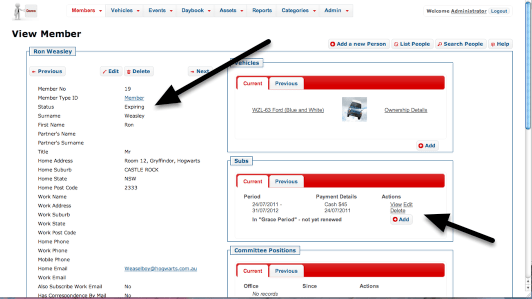
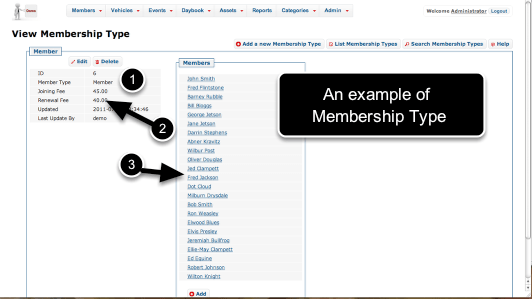
Membership Type and Membership Status

An area that does cause some confusion with new users of OurCarClub is the difference between Membership Type and Membership Status.

Membership Status

media_1344154546093.png

Regardless of the type of membership, each member has to pay their fees or risk having their membership lapse. (Unless they’re a Life Member, of course.) The OurCarClub system keeps a history of annual renewals, knowns as "Subs", or Subscriptions.

As a result, Membership Status is a derived value – you cannot enter it directly, it is determined from the currency of the member’s most recent Subscription. It is displayed in the Member List and Member View pages to make your life easier, but you cannot directly edit it.

  • Once the end-date of a member’s most recent renewal has passed, their Status will change from Current to Expiring.
  • Once the end-date is more than your club’s "grace period" days ago, the Status will change from Expiring to Lapsed.

See the section on New Sub End Date and Grace Period for more information.

NB: When loading historical data (records of past, not current members) into your OurCarClub system, an "Historical Data" membership-type can be created for you if you wish. However, it isn’t really necessary, unless there are no records of what kind of Membership these historical members had.

Membership Type

media_1344153758406.png

Each club can define their own list of Membership Types, and/or load the default set. Typical examples of Membership Types are:

  • Full Member
  • Social Member
  • Family Membership
  • Associate Member
  • Honorary Life Member
  1. The Membership Type must be unique – you cannot have two Membership Types both called "Member".
  2. Each type will have a Joining Fee (the amount charged on initially joining the club) and a Renewal Fee (the amount charged on renewing. These are entered as numbers – don’t try to include a ‘$’ sign. If there’s no difference between Joining and Renewal Fee in your club, just put the same amount in both fields.
  3. As with many pages that show a category item, a list of People in that category is shown to the right.

Generally speaking, although a member could change their membership type from one renewal to the next, it is something that only happens occasionally, e.g. Social Member becomes Full Member, or Full Member receives Honorary Life Membership. Notice that "Lapsed" or "ex-Member" do not appear in this list. This is by design. You should not create Membership Types for this purpose.

Showing Lapsed Members

media_1344154386745.png

By default, the Members List is limited to only Current Members. However, information about lapsed members is still in the database, and you can toggle whether you want to display lapsed members or not using the button with the spanner, as pictured.

This setting remains in force until you change it back, or you log out.

The ability to access lapsed members is useful if they subsequently rejoin, or if you have need to contact them. It also provides an auditable history of membership.

Annual Renewal Time

Most clubs have a date when all members’ renewals fall due. Usually, the club meeting at this time is very busy for the Treasurer, processing many members’ payments. Similarly, there may be lots of direct deposits on the bank statement to be entered into the system.
OurCarClub has a specialised version of the Member List page to handle this, for small to medium sized clubs. More instructions for large clubs can be found at the end of this article.

Processing Bulk Renewals

wpid102-media_1344156521968.png

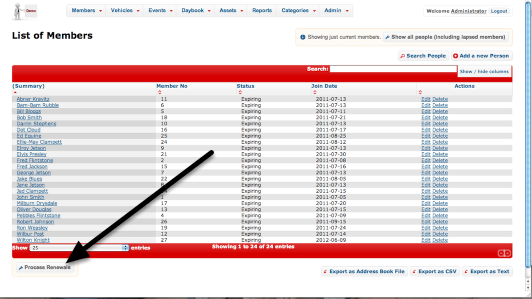
At the bottom of the Member List is a button labelled "Process Renewals". Click that to continue.

Processing Bulk Renewals (continued.)

wpid103-media_1344157367978.png

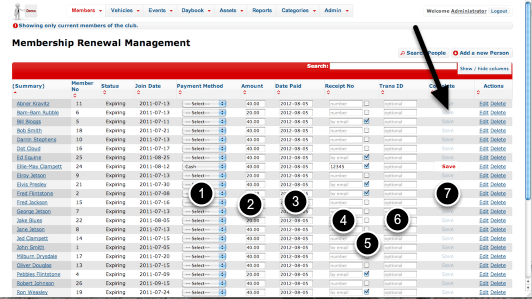
The usual features of a list screen are available – you can use the Search and sort functions to quickly find a particular individual. Note that only members with Expiring Status appear on this version of the page. You may also notice that the save button is disabled on all rows initially. This is to ensure that we don’t accidentally process the wrong record.

In this example we’re going to renew Ellie-May Clampett’s membership.

  1. Choose the payment method from the drop-down. This selection triggers the enabling of the Save button at the right, since all the other fields are optional.
  2. The amount field defaults to the Renewal Amount for this Member’s Membership Type. It can be overridden if neessary.
  3. The payment date defaults to today.
  4. If you issue a paper receipt from a receipt book, you can record the number here
  5. This checkbox is enabled if this member has an email address listed. In that case a receipt for this payment will be automatically emailed to the member. If the member does not have an email address, you can still check this box, in which case the receipt will be emailed to you, allowing you to print and post it if necessary.
  6. For processing direct deposit or credit card payments, and transaction ID associated with the payment can be recorded here.
  7. Once the payment type has been selected at (1), the Save button is enabled. Click it, and the renewal process will commence in the background. You can continue to process the next member.

When a renewal process completes, the "Payment Method" dropdown is replaced by a short message to alert you to the result.

Bulk Renewals for Large Clubs, and handling Individual Renewals

media_1377125203317.png

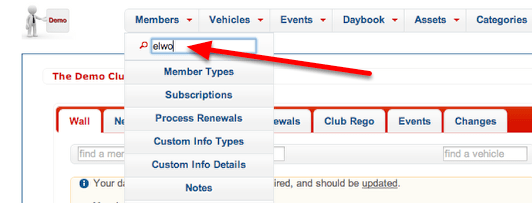
Because the customised List View shown above presents all expiring members on a single page, for very large clubs this can lead to very long lists, and responsiveness of the page can decline as a result. An alternative is to use the Quick Search feature under the Member menu item to quickly locate the relevant member (or ex-member), and be taken to their Member View page.

Quick Renewal for a Single Member

media_1377125556427.png

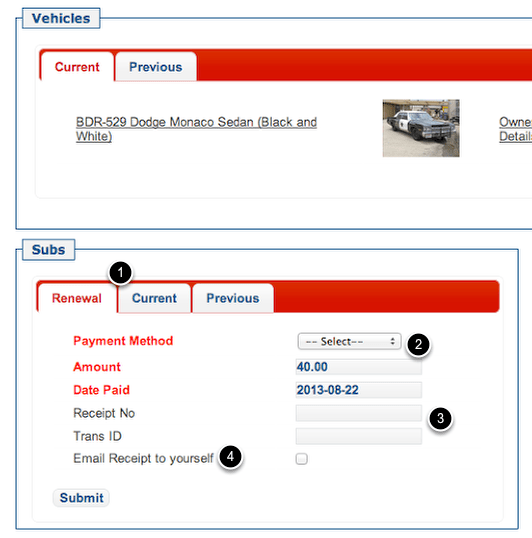
The “Subs” panel has a tab labelled “Renewal” that provides quick access to entering details of the renewal.

  1. If the member is in “Expiring” or “Lapsed” status, the Renewal Tab will be front-most. If they are a current member, it will be behind the “Current” and “Previous” tabs.
  2. Choose the type of payment from the drop-down list. The pre-populated amount is based on the “Renewal Fee” setting for this member’s Membership Type. You can override it if required. Similarly, the date paid field is prepopulated with today’s date, but can be changed.
  3. The Receipt Number and Transaction ID fields can be entered if they’re relevant. For example, you might want to record a Cheque Number, Postal Order Number or other identifying information to cross reference this payment against other information. Both of these fields are optional.
  4. An emailed receipt can be automatically generated and sent to the member. If the member has an email address recorded, this checkbox will be checked by default. If (as is the case in this example) the member does not have an email address, the prompt will read “Email Receipt to yourself”, and will NOT be checked by default. This allows you to receive the receipt email to print and post it.

When you’ve completed this renewal, click on the Members quick-search to locate the next renewing member.

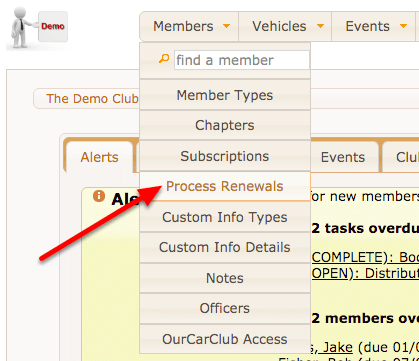
You can expedite the process still further by turning on the Process Renewals mode, which can be found in the Members menu.


media_1540460316408.png

Turning Process Renewals mode on changes the behaviour of the Member View page. Instead of the usual action, it opens in Edit view, but with the Subs panel also available. This allows you to make changes to address details of the member and process their renewal with far fewer clicks. Turning the mode off again can be done using the same approach.