If you need to produce a list of current members and their contact details, there are a few different ways to do it:
- Quick Download
- Onscreen Report
- Customised List Presentation
Simply choose the method you find most convenient for your intended purpose, and the device you’re using at the time. Some options are geared to use with smart-phones, whilst others may not suit smart-phones and tablets at all.
Method 1 – Quick Download to Excel etc
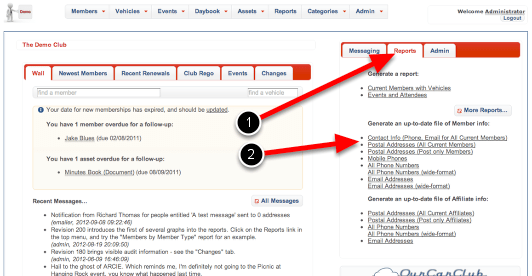
This option generates a report in a fixed format as a download.
- From the home-page, click on the Quick Reports pane.
- Click on “Contact Info”, or one of the other lists if only phone numbers, or email addresses are required.
You’ll be prompted to save a file to your local computer, which you can then open with Microsoft Excel, OpenOffice or similar program.
Note: this method may not be suitable when using OurCarClub on a smart-phone or tablet device, as downloads may not be permitted.
Method 2 – Onscreen Report
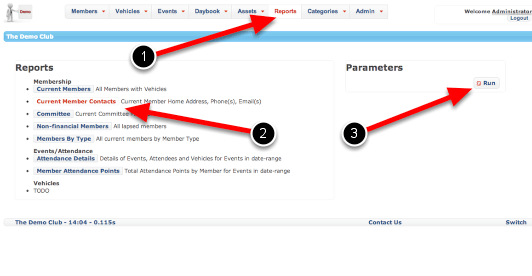
This option also produces a standard format report, which can be displayed on-screen or printed.
- Click the Top Menu Reports link from any page to bring up the Reports page.
- Choose “Current Member Contacts” by clicking on the label – note it’s highlighted once clicked on.
- This report has no parameters, so just click Run to display it.
Method 2 – Onscreen Report (cont.)
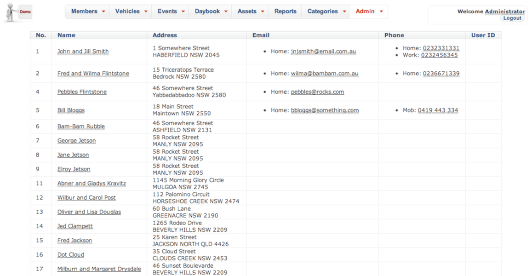
You will be presented with an onscreen report, which is also suitable for printing should you prefer.
- Click on a member’s name to view that member’s details. Pro-tip: right-click (PC) or control-click (Mac) to open this page in a new window or tab, allowing you to retain this report output in the current window.
- Click on an email address to open a new email addressed to this person
- On a smart-phone, click on the phone number to call the member.
Method 3 – Customised List Presentation
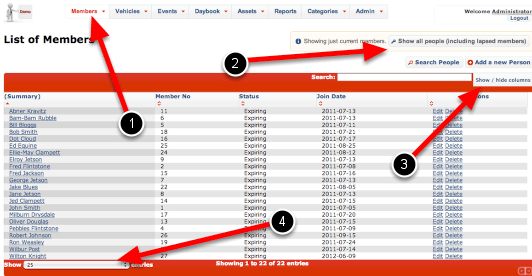
This approach is the most flexible, and allows you to create the exact view of members you desire. It can also be printed.
- Click on “Members” in the top menu, to bring up this Member List.
- (Optional) If required, click this to include lapsed members in the output as well as current members.
- Click on “Show/Hide Columns” to display all possible options.
- If required, increase the length of the display.
Method 3 – Customised List Presentation (cont)
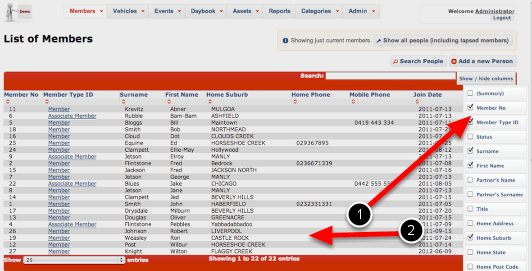
- Modify the displayed columns by checking and unchecking the boxes against their names. The list is instantly updated. In this example we have removed the Summary column to instead show separate Surname and First Name, replaced Status with Member Type, and added suburb and phone number fields.
- Click anywhere on the main page to dismiss the Show/Hide column list.
Method 3 – Customised List Presentation (cont)
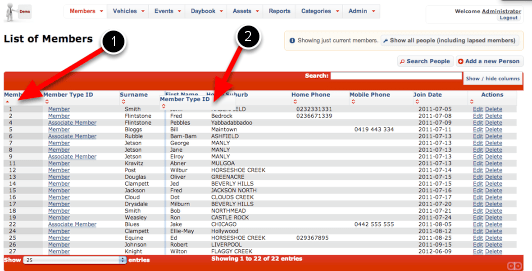
You can rearrange the columns to suit your preferred layout.
- Click on a column header to sort by that item. In this example the data is sorted by Member Number.
- Click and drag a column header to rearrange the layout. Notice Member Type is being dragged across towards the right. (NB this is not supported on all smart-phones and tablets.)
Pro tip: Settings for both Shown and Hidden columns, as well as sort order and column order will be remembered for whenever you return to this page.
 OurCarClub