Advanced Email Options

Beyond simply emailing all members, OurCarClub allows you to send targeted messages to specific groups of members. Furthermore, you can choose to allow your members, your affiliates and others to send messages to your club members.

Allowing All Club Members to Email the Club
media_1404983182494.png

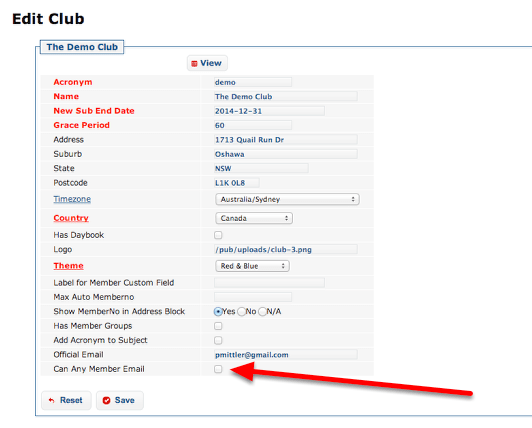
If you choose to enable this feature, it means your <yourclub>@ourcarclub.info address operates as a Mailing List, and all participants can send a message to all others. It is disabled by default, since it reduces control over what messages are sent.
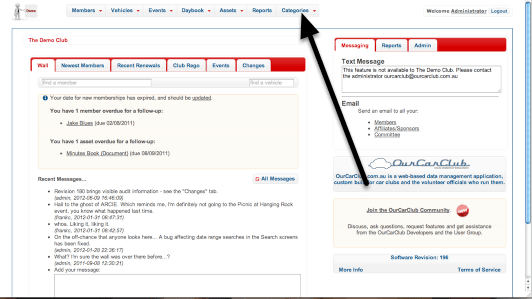
To enable this feature, click on the “Categories” menu item, and check the “Can Any Member Email” checkbox.

Emailing Member Subsets
media_1404983768324.png

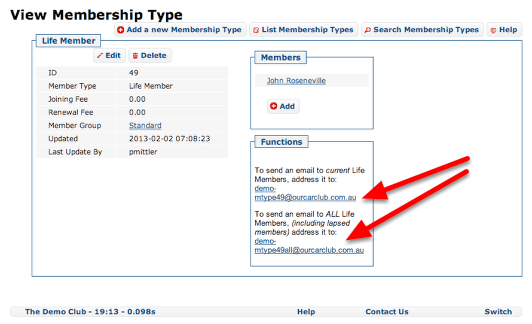
Many category style lists – Vehicle Model, Member Type, Event and so on, provide an email address by which you can send an email to just the members who meet that criteria. The address that should be used can be found in the “Functions” box on the “View” page for any data type that supports the feature. In each case there are two variations – an email address for all current members (the default), and another for members current and expired. The example image above shows the email address to use to email just the Life Members of the Demo Club.

This feature can also be used to email just the participants in a specific event – future or past. The email address can be found on the Event view page.

Some of the categories that support email subsets are:

  • Membership Type
  • Member Group (where enabled)
  • Custom Info Type
  • Vehicle Model
  • Vehicle Class
  • Vehicle Status
  • Club Vehicle Info (Vehicle Custom Info Tpye)
  • Event

Allowing Affiliates to email your members
media_1404987599335.png

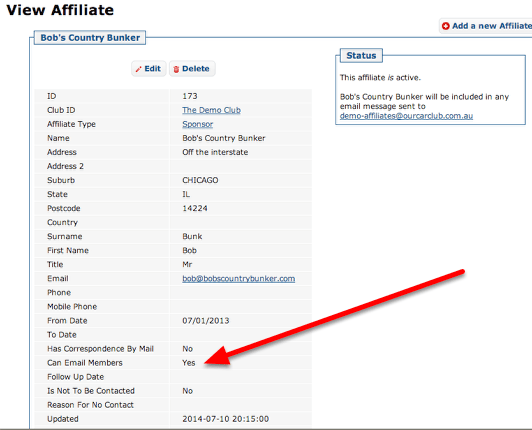
Affiliates can be flagged as permitted to send messages to your club members by checking the box shown above. An affiliate that is not considered “current” will not be allowed to send messages to the group regardless of the setting of this box.

Allowing other email addresses
media_1404987869999.png

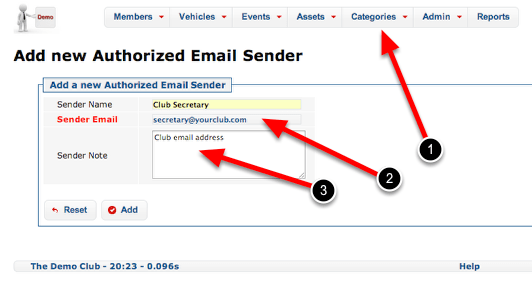
If you have additional email addresses beyond those that belong to committee members or affiliates, you can add them to the Authorized Email Senders list. Any email sent to a club address from an address in that list will be accepted and forwarded.
This feature is useful for recording email addresses that belong to the club, such as secretary@<yourclub.com>, where it is impractical to record it against a club member.

  1. Authorized Email Senders can be found under the Categories drop-down
  2. Record the approved email address
  3. A note regarding who the address belongs to and why it is permitted can be added here.
Integration with Excel and other Desktop Applications

OurCarClub offers a few different ways to access your data and use it in other applications. The most common purpose for this facility is to manipulate the data in Microsoft Excel, to generate special purpose lists, or to perform analysis of the data, such as charting or pivot tables.

The two basic methods of extracting data involve taking a copy of the data that will be static, and the third, more advanced option creates a live link to the data in OurCarClub, that can stay up-to-date with subsequent changes made. Each of these can be accessed from any List page.

Option 1 – Export as CSV

media_1387015579754.png

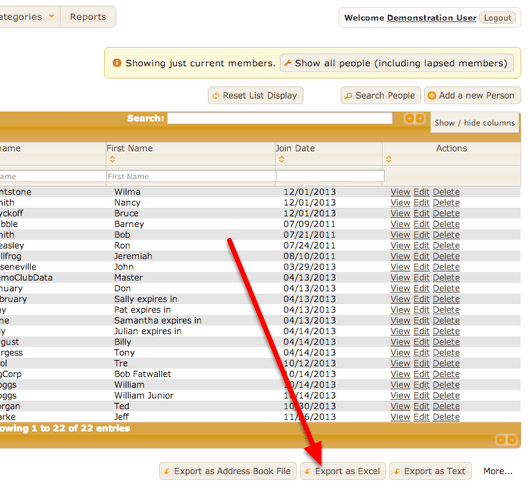
When this button is clicked, a dialog box will prompt you to save the file. It will be in CSV (or “Comma Separated Values”) format, which can be opened directly in Excel. The file will be named for the list being viewed, i.e. persons.csv or vehicles.csv

Option 2 – Copy and Paste to Excel

media_1387016061943.png

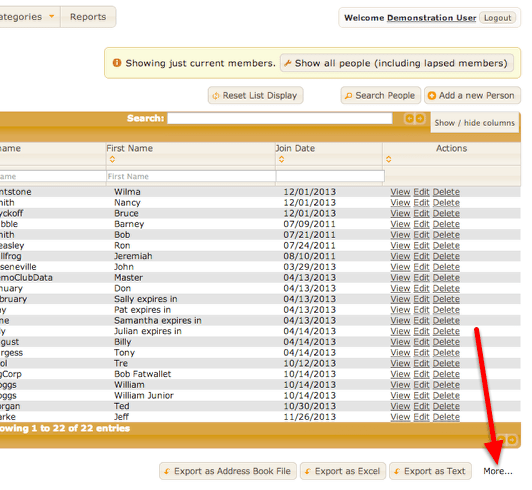
Under the link labelled “More…” are some less commonly used Export features.

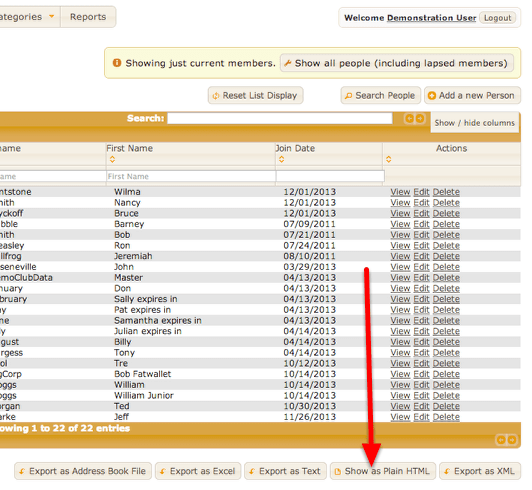
media_1387016135202.png

In this instance, the “Show as Plain HTML” is what is required. This will re-display the current list, but in a very basic format.

media_1387016228574.png

In your browser, under the “Edit” menu, choose “Select All”, then “Copy”. Switch to Excel, and “Paste” into a Worksheet.
Note that this method is probably not well suited to lists that are likely to generate thousands of entries.

Option 3 – Access live OurCarClub data from Excel using a "Web Query"

OurCarClub provides a method for integrating with other web-apps or applications. By using this feature, you can create a link to live data that can be refreshed at any time, bringing the latest Member or Vehicle data into your spreadsheets whenever you open them.

This feature requires that you generate an API Key. API Keys are not generated by default for all OurCarClub users, as they are an advanced feature. An API Key should be treated like your username and password, and not shared with others.
To create an API Key, click on your username in the top right corner of the application.

Generating an API Key

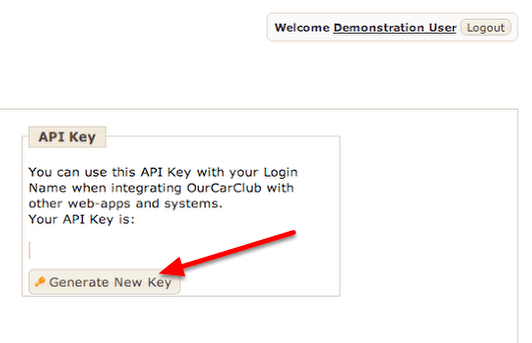
media_1387017792424.png

On the page with your details, there is a box labelled API Key, and a button to Generate a new API Key. This is used to create an initial key, or to regenerate it.
NB: If you regenerate your API Key, the old one is no longer valid, and anything that uses it will need to be updated.

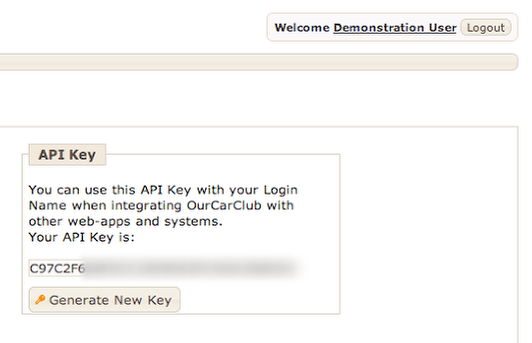
media_1387017850088.png

The key is a long string of letters and numbers. For the current purpose (creating an Excel Web Query) it is not necessary to make a note of it or copy it anywhere else.
Create a Web Query File

media_1387091059402.png

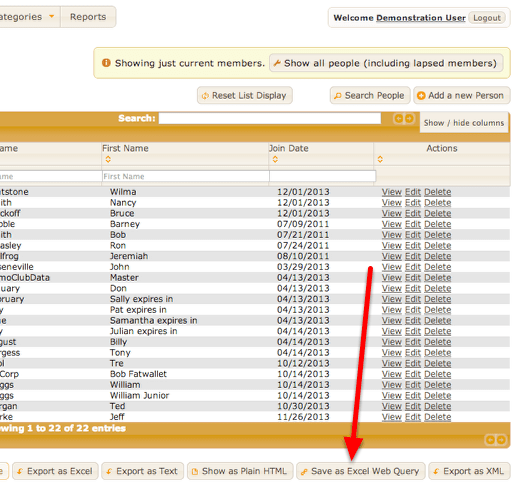
Once again, back to the List view. Now, under the “More…” export options, there is an additional “Save as Excel Web Query” option. Clicking this will result in a “Save As” dialog box appearing, for saving the file on your hard drive. By default, it will be called “OurCarClub-<club>-<list-type>.iqy”, but you can of course change this to call it anything you choose. The “iqy” extension should be retained, especially on a Windows PC.
Using the Web Query in Excel

media_1387091682562.png

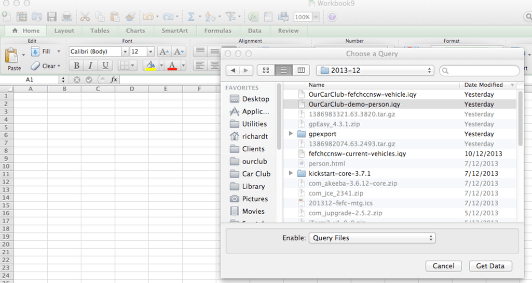
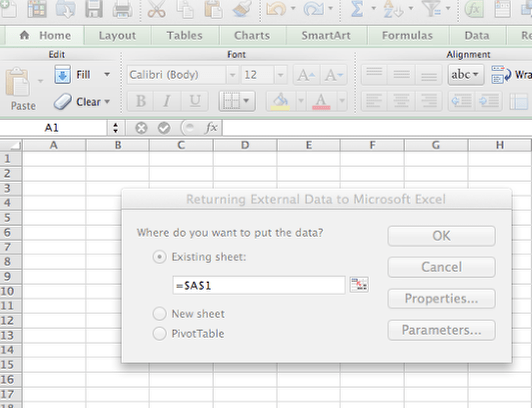
All reasonably modern versions of Microsoft Excel have the option to “Get External Data”, and this is usually located under a “Data” menu item. You will want to locate the “Use Saved Query” option, and then navigate to the Web Query file you just saved. You will then be prompted for where you want the data to be placed in the spreadsheet (usually cell $A$1 in the active sheet).

media_1387091724816.png

OurCarClub data live in Excel

media_1387091787667.png

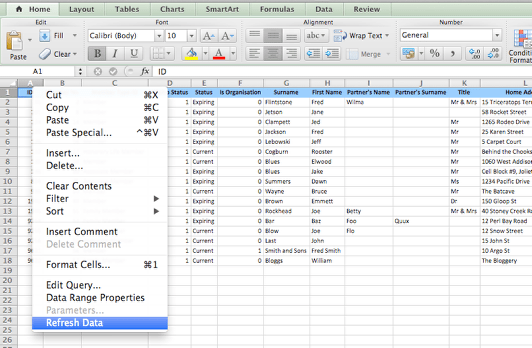
Once you click OK, Excel will request the data from OurCarClub, and return it as a table of data. You are then free to create graphs, pivot charts or other information from this data. At any time in the future, you can simply refresh the data from the Data menu, and obtain the latest information from OurCarClub.

Committee Meetings and Task Management

OurCarClub allows you to easily keep minutes of Committee Meetings, including the members who attended and those who gave apologies. More importantly, you can capture new tasks and who has been assigned ownership of them, track their progress and close them once they’re complete. You can also easily print a formal agenda and official minutes.


Committee Meetings

media_1369216281920.png

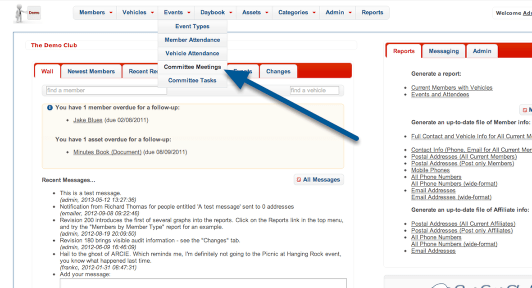
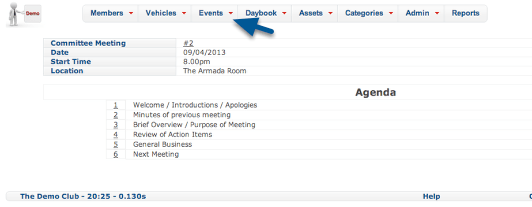
You’ll find Committee Meetings as an option under the “Events” menu. Notice also the “Committee Tasks” option. We’ll come back to that later.

Create a new Committee Meeting

media_1369216750917.png

Good meeting procedure means having an agreed agenda. For this reason, the Committee Meeting record should be created before the event. Like most aspects of OurCarClub, click the “Add” button.

Create a new Committee Meeting

media_1369217239783.png

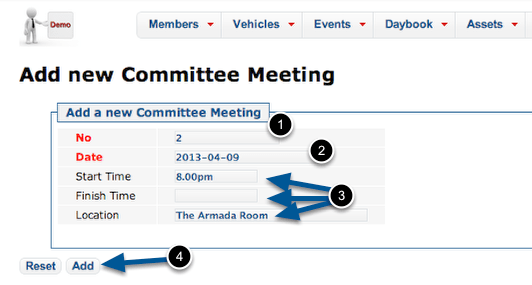
The meeting record itself only has a handful of fields.

  1. The Meeting No is automatically generated as the next one in sequence. Meeting numbers are important for tracking the tasks created at them. This is a mandatory field.
  2. Enter the date the meeting will occur – this is also required.
  3. The Start and Finish Times and Location are all optional, and are simply text fields. Obviously the Finish Time cannot be known until the meeting actually occurs, so we’ll edit the record to add that later.
  4. As always, click the “Add” button to save the new record.

Committee Meeting Detail

media_1369217308195.png
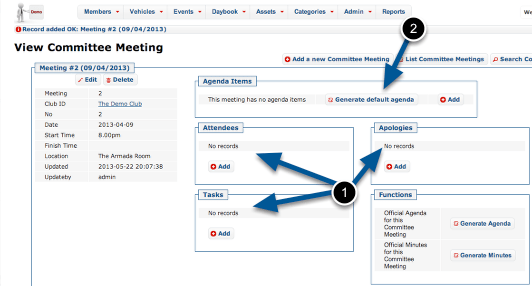
  1. Now that we can see all the related information, it should be obvious that most of these can only be populated after the meeting occurs.
  2. What we should do now is create an agenda. You can create an entirely customised agenda, but most of your meetings are likely to follow a standard pattern, which will be created for you by clicking “Generate default agenda”.

Default Agenda Items

media_1369217893291.png
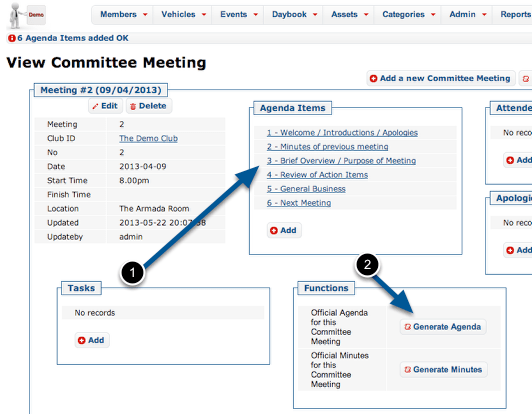
  1. The meeting now has the 6 standard agenda items. (Later on, we’ll see how you can adjust the default agenda items to suit your club.)
  2. Click “Generate Agenda” to produce a formal agenda document.

Agenda

media_1369218607287.png

Here’s our new meeting’s Agenda, ready to be distributed. Print it out a few copies, or print to PDF and email it if you have PDF software installed.

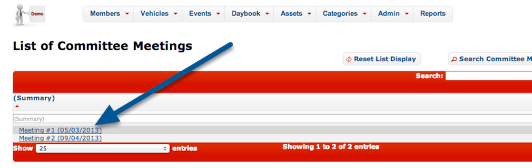
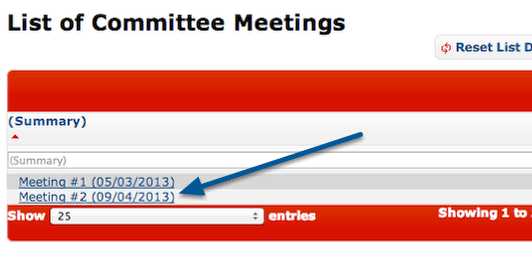
The other thing that should be provided to attendees is the minutes of the previous meeting. (We had a previous meeting – now you know why our newly created meeting was number 2). Click the link under Events to jump back to the list of committee meetings.

Generating Minutes from a previous Meeting

media_1369218737891.png

Click on the title of the meeting you want to generate minutes for.

A Previous Meeting

media_1369218838288.png
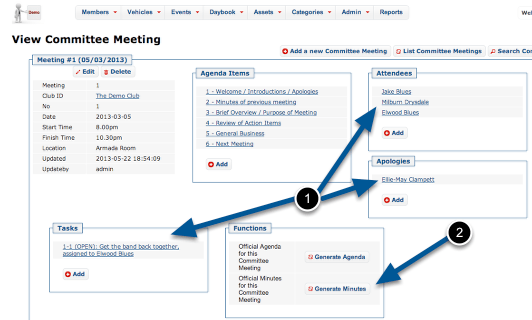
  1. Because this is a previous meeting, we have details of Attendees, Apologies and Tasks created. You might also notice this meeting has a finish time recorded. We’ll come back to all that later.
  2. Click the “Generate Minutes” button to create your document.

Meeting Minutes

media_1369219111371.png
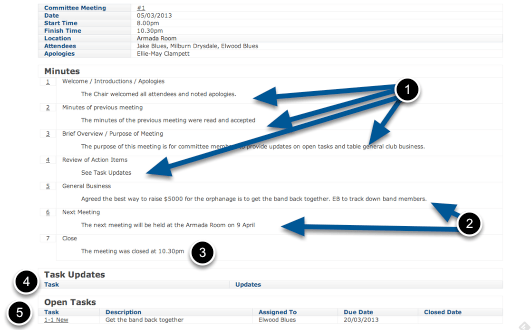
  1. All of these minutes are ‘boilerplate’, created when you generated the agenda.
  2. The minutes of the General Business and the Next Meeting would have been added at the time of the last meeting. Obviously these change with each meeting held.
  3. This 7th item gets added on automatically, based on the finish time recorded for the Meeting.
  4. Because this was our first meeting, we had no Task Updates. Otherwise, any tasks still open at the time of the last meeting would show here, with any recorded updates.
  5. We created a new Task at that meeting, which is identified as 1-1 (Meeting #1, Task #1). We can see who took responsibility for it and when it was due to be completed.

Like our Agenda, we can print these out for distribution.

Minuting the Meeting

media_1369219836830.png

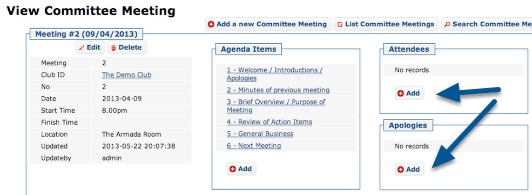
Your secretary (or nominated person) can minute the meeting as it occurs, if they have access to OurCarClub. The minutes can be transcribed later on, of course. To begin, view the relevant meeting.

Record Attendees and Apologies

media_1369219965263.png

Recording of both attendees and apologies is identical, and very like adding a ‘related record’ in other aspects of OurCarClub.

Add an Attendee

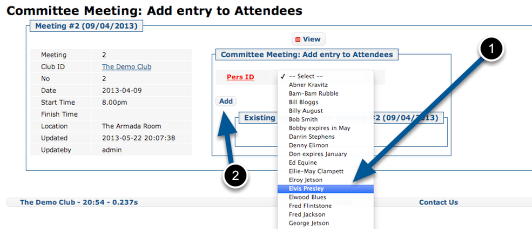
media_1369220137498.png

Select an attendee (1), and click “Add” (2). (NB – if your club is large, the Person selection will show a search-box rather than a huge long list.)

Apologies work exactly the same way.

Add a new Task

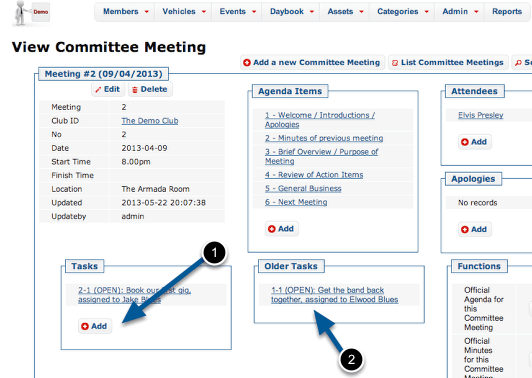
media_1369225454997.png
  1. As the meeting progresses, any new Task can be added.
  2. Existing tasks can be updated. NB: Older tasks will have been created at other meetings, and appear here for convenience.

Adding a new Task

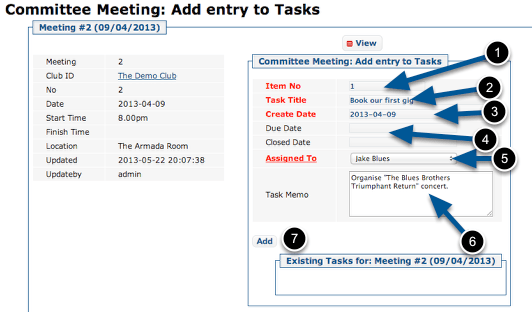
media_1369221436397.png

Enter the details of the task:

  1. Item Number is automatically generated in sequence.
  2. Give the task a short title
  3. The Create Date defaults to the date of the Meeting
  4. Due Date is optional, but should be entered. When a Task is allocated, it should have a defined date by which it will be done.
  5. Select the member assigned to the task.
  6. Enter additional notes about the task.
  7. Click “Add” to save the task.

Managing Club Assets

Most clubs own a variety of assets that are used to promote the club, or for members’ benefit. There are obvious items like computers or printers, club banners and perhaps a club trailer or barbecue. Beyond that, here are many other things a club might own: perpetual trophies, record books, documents and of course merchandise: shirts, stickers, badges, even reproduction parts for vehicles.
The OurCarClub system allows you track your assets, quantity on hand, who has custody of them and so on.

Asset Types

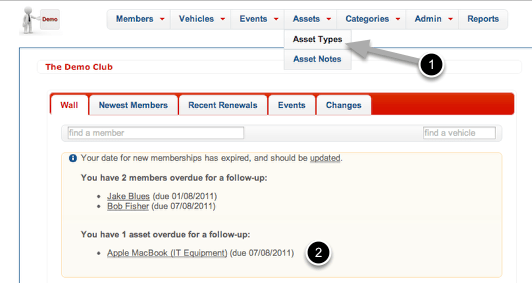
wpid173-media_1365826272233.png
  1. Under the Assets option on the Menu, choose Asset Types to see the Asset Type List.
  2. Notice this message on the wall that there is an asset overdue for a follow-up – we’ll come back to that later.

Asset Types List

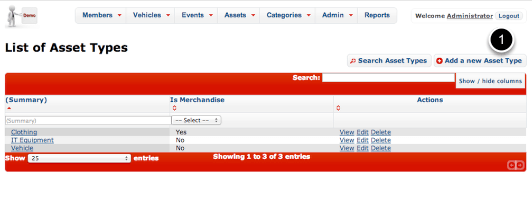
wpid174-media_1365826781604.png

Here is an example of a list of Asset Types. Other possible types could include:

  • Trophy
  • Document/Record

You can add whatever suits your club. Let’s add a new type to cover the club’s flag, banner and similar items. Click “Add a new Asset Type”

Add a new Asset Type

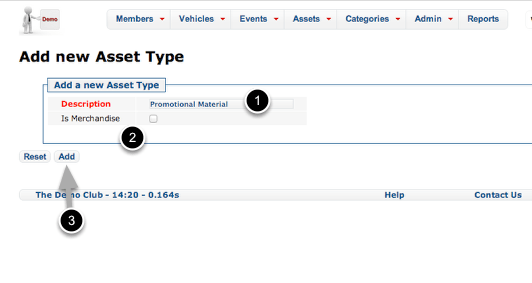
wpid175-media_1365827000284.png
  1. Let’s call this type of item “Promotional Material”.
  2. Note the checkbox. This should be checked if this type of Asset is something you sell, and/or need to keep inventory of. Obviously that’s not the case for the club banner.
  3. Click Add or hit Return to save the Asset Type.

View the new Asset Type

wpid176-media_1365827147752.png

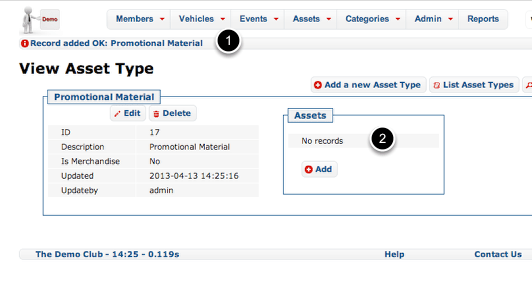
We’re now viewing Asset Type, which presents the information we just entered.

  1. The banner across the top notifies you that the new record was successfully added.
  2. Because this is a brand new Asset Type, there are not yet any Assets of this type. Press “Add” to create one.

Add a new Asset

wpid177-media_1365827718971.png

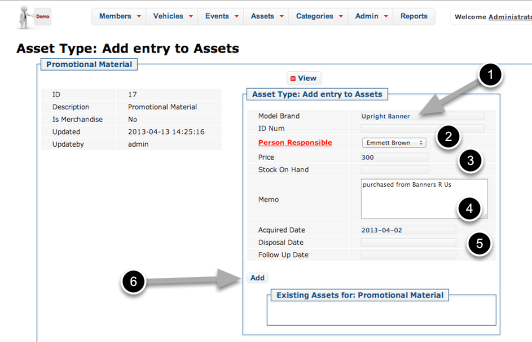
Enter the relevant details here:

  1. Give the item a suitable name. If it has a model name (IT Equipment is a good example of this) then it’s a good idea to include it. Similarly, if it has an ID or Serial Number, that can also be recorded.
  2. Enter the name of the member who has custody of or is responsible for the item.
  3. You can record the price of the item should you choose. This is usually more relevant for Merchandise items, as is the Stock on Hand column.
  4. A memo field is provided to make a note about the item.
  5. A series of dates to record when the item was acquired, disposed of, or needs to be followed up. All three fields are optional, but if the Follow Up Date is in the past, then this Asset will appear on the Wall (as we saw in an earlier screenshot). An example of how you might use this: imagine the asset was a perpetual trophy, given out at the Christmas Party. You might record a follow-up date of Nov. 1, to remind you to get it back from the current holder.
  6. Click “Add” to save this Asset.

View Asset Type (again)

wpid178-media_1365828794570.png

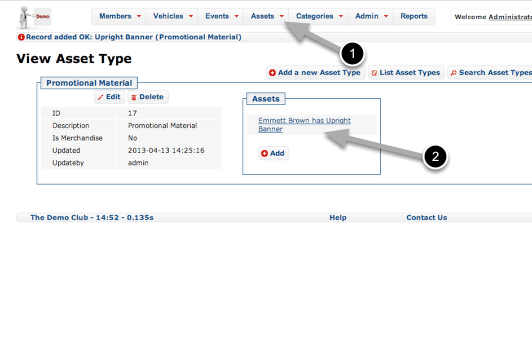
Repeat the exercise to record other promotional material if you wish.

  1. You can see and search all Assets in the Asset List, by clicking this item on the menu.
  2. To see details of the Asset, click this link.

View Asset

wpid179-media_1365829057634.png
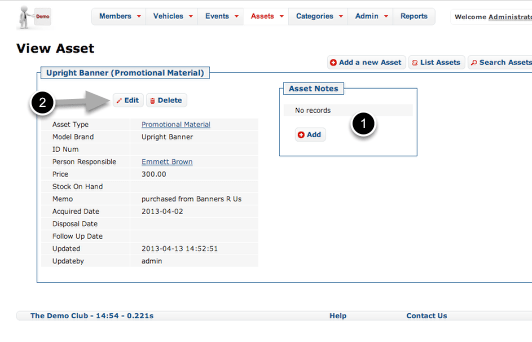
  1. Beyond the simple “Memo” field, you can also record a history of Notes regarding this asset if you choose. A Note is also automatically created when custody of an Asset changes.
  2. Click Edit to record a change of custody.

Change Asset Details

wpid180-media_1365829312251.png

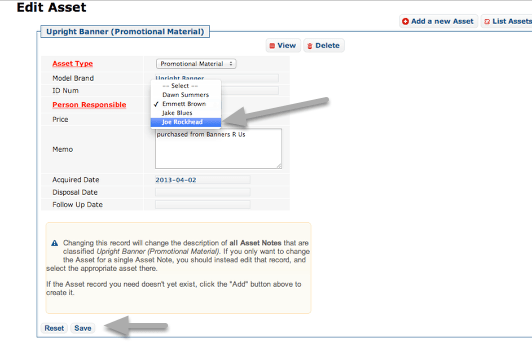
In this example, custody of the banner has passed from Emmett to Joe. Click Save to record the change.

Asset Custody History

wpid181-media_1365829417367.png

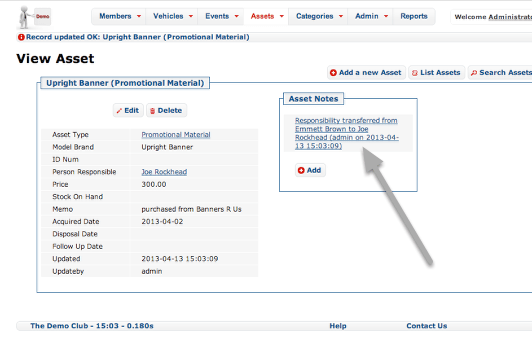
Note the auto-generated Note recording the date on which custody was transferred.

Managing Merchandise

wpid182-media_1365829717633.png

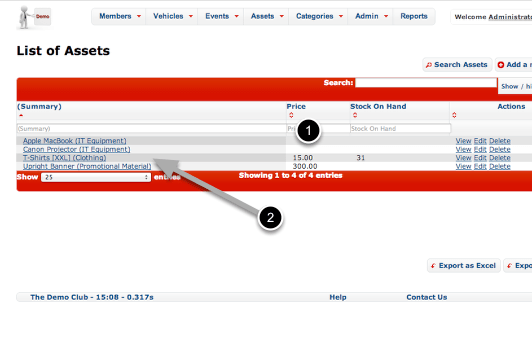
Merchandise such as club shirts needs to be kept inventoried and tracked. OurCarClub does not attempt to be a full book-keeping system, but provides a means to track inventory with ease.

  1. In this List View, we have enabled displaying the Price and Stock on Hand fields.
  2. Click on the T-Shirts link to view detail for this item.

Recording Merchandise Inventory Changes

wpid183-media_1365829875130.png
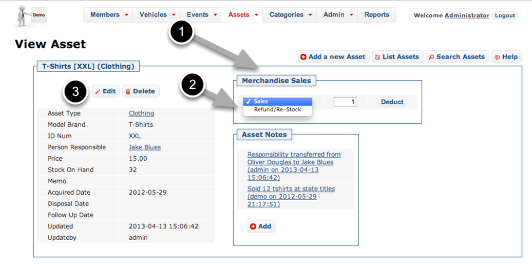
  1. When an Asset is recorded as being of a Type marked as “Is Merchandise”, the additional box show above appears.
  2. To record sale of an item, enter the quantity and click “Deduct”. Change the drop-down to “Refund/Re-Stock” to record a refund or a purchase by the club of more stock. (The “Deduct” button changes to “Add” when you do this.)
  3. To update Stock on Hand to reflect a Stocktake/Audit, simply Edit the Asset record and change the Stock on Hand field.

Once you’re comfortable with this, you’ll have control over your club’s assets in no time!

Granting access to other members, and resetting passwords

OurCarClub users with sufficient privileges have the ability to grant access to other members.

Granting Access

media_1329630544389.png

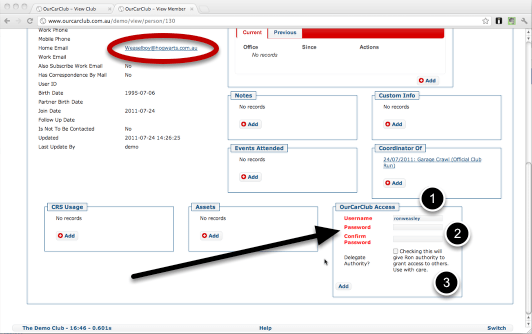
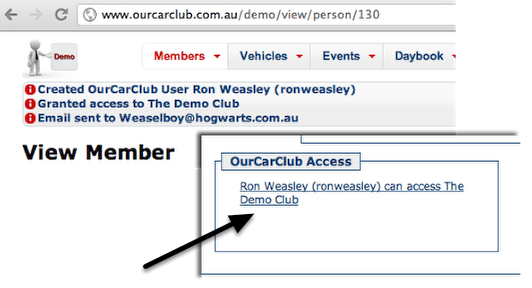
You can grant existing members access to your OurCarClub system easily. At the bottom of the regular "View Member" page you will find the following panel.

  1. A suggested username is provided, but you have the option to change it. Username must be between 3 and 11 characters in length, and it will warn you if the name you’ve chosen is not available.
  2. Enter a starting password, and confirm it.
  3. You have the option to delegate authority – meaning that this user will also be able to grant access to others, reset passwords and so on.

When you click Add, an email will automatically be sent to the member to let them know their login details. If they don’t have an email address, you’ll have to let them know yourself.

Access Granted

access-granted.png

After clicking the Add button, the following messages are displayed, and the Access box shows that the user can access this system. Click on that link to edit or delete this access, or to reset the user’s password.

Resetting Passwords

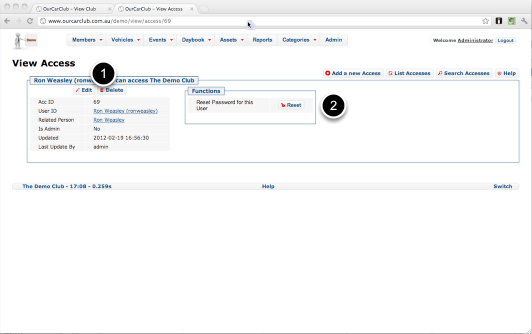
media_1329631718119.png
  1. The usual Edit and Delete buttons allow you to manage this access (i.e. upgrade to Administrator or remove Administrative privilege)
  2. The Reset button will generate a new password and email it directly to the user.

Events Management

Managing Club Events – Where and When, and Who Participated

Viewing a List of Events

media_1328490606167.png

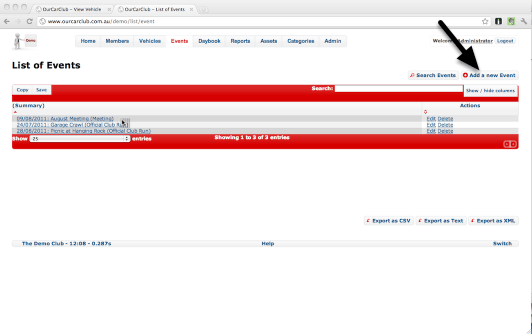
The List of Events view is identical in layout to all other Lists. The Show/Hide columns button allows you to view additional general information about an Event. Click Add a new Event to start recording details of an event, either one already held, or one coming up.

Adding a New Event

media_1343627198545.png

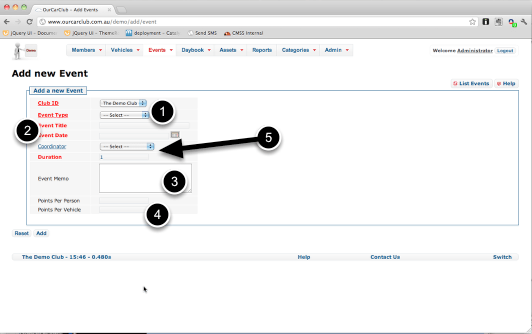
Adding an Event is also similar to creation of most other types of records in OurCarClub. Mandatory fields have red titles, and categorisation can be done using drop-down lists.

  1. Select an Event Type. The default values are Meeting, Official Club Run and Sanctioned Event, but you can customise this list to suit your circumstances.
  2. Give the event a name, such as "February Meeting", or "All Holden Day". A Date for the event is also required.
  3. The Event Memo field allows you to record other details about the event. For example, the address, or convoy details, or in the case of an event that’s already occurred, perhaps a record of the food supplied by the club for members (30kg sausages, 8 loaves bread etc.) It could be useful to record such information if this is an event you hold every year. Use the field however you see fit.
  4. If you wish to track attendance points, you can override the default values for Points per Person and per Vehicle set for the Event Type. However, this would typically be left blank.
  5. Co-ordinator and Duration: you can optionally record the name of the Member who is co-ordinating the event, if required. Note this field has a blue label, which means it is not a required piece of information. The Duration records the number of days over which an event was held, and defaults to 1.

Recording Event Attendance

media_1343627951643.png

When viewing your event, you can quickly log details of attendees, and what vehicle (if any) they attended with.

  1. As with all View screens, the details of the main item can be viewed on the left. Click Edit or Delete to make changes. (NB: You cannot delete a record that has attendees attached to it.)
  2. Type a few letters of the member’s name and choose them from the drop-down list that appears. See over for more detail.
  3. Click the "Run" button to view an attendance report for this event.

Recording Event Attendance (continued)

media_1343628606649.png

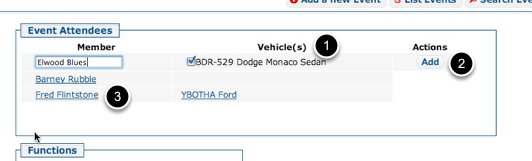
As shown on the previous page, type a few letters of the attendee’s name and pick them from the list. In this case I typed blu, and had the options of either Jake or Elwood. Typing elw would also have found Elwood.

  1. On selecting the attendee, their current vehicle(s) appear under the Vehicles heading. If they have only one, it is automatically checked. If they have multiple vehicles, check the vehicle(s) they brought. If no vehicles are shown because none have been recorded for this person, you can add the attendee now, and add the vehicle later on by simply repeating the steps shown above. Multiple attendance records for the same person are silently merged together.
  2. Click Add to save the record. You’ll return to the same screen, and start entering another attendee.
  3. Clicking on the name of an already entered attendee takes you to the Person Attendance record. There are fields there to record additional information about the person’s attendance, if required.


Understanding New Sub End Date and Grace Period

Almost all clubs have a set date on which all memberships expire. This may the end of the year, June 30, the date of the Annual General Meeting, or some other arbitrary date.

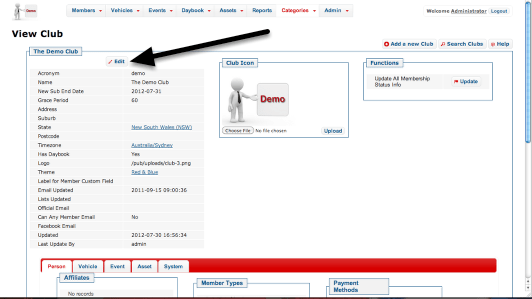
In the master record for your Club (the "Categories" link in the menu, known as the "View Club" page), there are two fields which are used to manage how your club’s memberships will expire.

Finding where these values are stored

media_1344159711820.png

From the home page or any page, click on the "Categories" heading in the menu.

View Current Settings

media_1344160050214.png

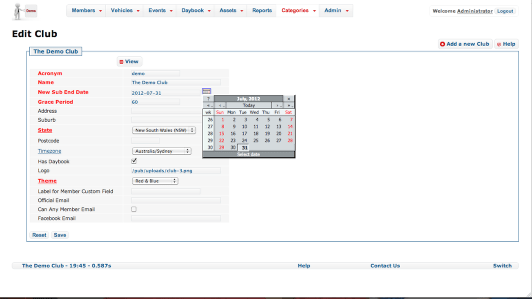
New Sub End Date

Unsurprisingly, this is the date on which any new members’ memberships and existing members’ renewals will expire. You will need to update this field from time to time, most likely annually.

Grace Period

This is a value in days, such as 14, 60 or 90. For this number of days beyond the latest subscription end-date, that member will continue to be treated as "Current". (Their Membership Status will be shown as "Expiring"). The member will be considered "struck off" and their status will show "Lapsed" once Grace Period days have passed from their last renewal.


Click Edit to adjust these club-wide settings.

Change New Sub End Date and Grace Period Settings

media_1344159935698.png

Membership Fees and Membership Expiry Management.

From our experience with Car Clubs, there are three typical models for managing when new memberships will expire and how much new members are charged: Extended Membership, Discounted Rate or by Anniversary. You will have entered the standard Joining Fee and Renewal Fee for each Membership Type in the Membership Types table previously. When creating a New Member, you can over-ride this amount if you wish.

1. Extended Membership Model.

New memberships are given more than 12 month’s initial membership, so that they get good value for money from their initial joining fee. A club that uses this model and expires all memberships on June 30 might allow a member that joins in March to get 15 months’ worth of membership in their initial subscription, rather than be expected to renew after 3 months.
    This club would update New Sub End Date at the beginning of March to be June 30 of next year.

2. Discounted Rate Model.

A club for whom all memberships expire on June 30 might allow members who join after Jan 1 to pay half the normal Joining Fee. Perhaps members who join from March 1 pay one quarter.
    This club would update New Sub End Date to end of June next year at the end of June. Additionally, they could choose to adjust the Joining Fee in the Membership Types table on Jan 1 and March 1, or just amend how much a new member pays when they create the new membership directly.

3. Anniversary Model.

Every membership expires on the anniversary of the date that member joined, in the manner of car rego or home insurance. This is a massive administrative burden, suitable only for very small or very large clubs that need to consider cash-flow.
    This club would either ignore New Sub End Date entirely, or update it to this day next year before adding a large number of members.

Remember that you can always override the end-date when creating a new member or renewal if need be.


Life Membership

Your club may have some form of Honorary Life Membership, where certain members are not required to pay renewals and are effectively members forever. The simplest way to manage this is to set the Subs End Date for any Life Member to sometime far, far in the future, such as 2099-12-31. Such a membership will never expire.
Should that member pass away, or resign from the club, you could choose to set the "Is Not To Be Contacted" checkbox to stop further correspondence, and update the Subs End Date to reflect the real end of their Membership.

Membership Type and Membership Status

An area that does cause some confusion with new users of OurCarClub is the difference between Membership Type and Membership Status.

Membership Status

media_1344154546093.png

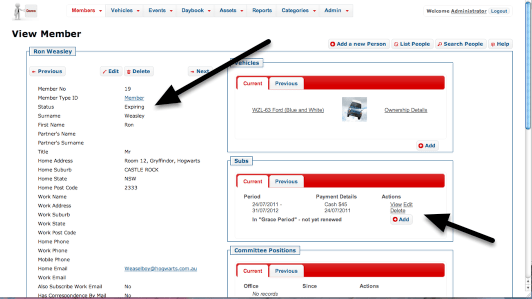
Regardless of the type of membership, each member has to pay their fees or risk having their membership lapse. (Unless they’re a Life Member, of course.) The OurCarClub system keeps a history of annual renewals, knowns as "Subs", or Subscriptions.

As a result, Membership Status is a derived value – you cannot enter it directly, it is determined from the currency of the member’s most recent Subscription. It is displayed in the Member List and Member View pages to make your life easier, but you cannot directly edit it.

  • Once the end-date of a member’s most recent renewal has passed, their Status will change from Current to Expiring.
  • Once the end-date is more than your club’s "grace period" days ago, the Status will change from Expiring to Lapsed.

See the section on New Sub End Date and Grace Period for more information.

NB: When loading historical data (records of past, not current members) into your OurCarClub system, an "Historical Data" membership-type can be created for you if you wish. However, it isn’t really necessary, unless there are no records of what kind of Membership these historical members had.

Membership Type

media_1344153758406.png

Each club can define their own list of Membership Types, and/or load the default set. Typical examples of Membership Types are:

  • Full Member
  • Social Member
  • Family Membership
  • Associate Member
  • Honorary Life Member
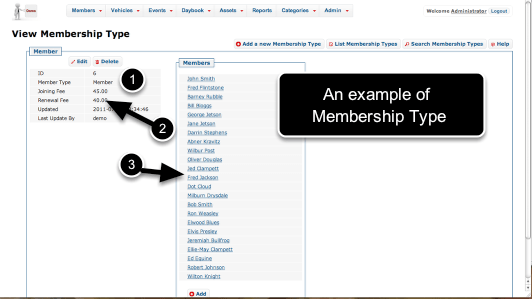
  1. The Membership Type must be unique – you cannot have two Membership Types both called "Member".
  2. Each type will have a Joining Fee (the amount charged on initially joining the club) and a Renewal Fee (the amount charged on renewing. These are entered as numbers – don’t try to include a ‘$’ sign. If there’s no difference between Joining and Renewal Fee in your club, just put the same amount in both fields.
  3. As with many pages that show a category item, a list of People in that category is shown to the right.

Generally speaking, although a member could change their membership type from one renewal to the next, it is something that only happens occasionally, e.g. Social Member becomes Full Member, or Full Member receives Honorary Life Membership. Notice that "Lapsed" or "ex-Member" do not appear in this list. This is by design. You should not create Membership Types for this purpose.

Showing Lapsed Members

media_1344154386745.png

By default, the Members List is limited to only Current Members. However, information about lapsed members is still in the database, and you can toggle whether you want to display lapsed members or not using the button with the spanner, as pictured.

This setting remains in force until you change it back, or you log out.

The ability to access lapsed members is useful if they subsequently rejoin, or if you have need to contact them. It also provides an auditable history of membership.

Adding a New Member

There’s a lot of information that can be captured when adding a new member to your database.

Understanding the Add Screen

media_1328425446001.png

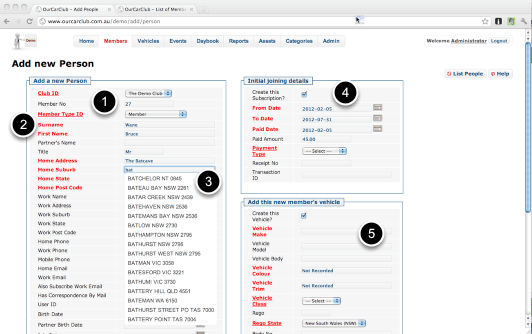
Although this is a very busy screen, it has everything required to add a new member into the system in a very short space of time, which means it can be done at a club meeting, if you have a computer (laptop, tablet etc) with internet access. Your new member can confirm for you that the details are correct, so you don’t have to try and decipher their handwriting a day or two later!

1. The next Member Number in sequence is automatically suggested.
2. Bold Red labels show attributes which are required, plain black labels are optional information.
3. Home and Workplace Suburb/State/Postcode are automatically suggested for you
4. Record this new member’s initial fees info, method of payment and receipt number.
5. Include their vehicle data. Again, Make/Model/Bodystyle are suggested for you from your Categories info, but can be overridden. Similarly, Vehicle Colour & Trim are suggested from your existing data once you type a couple of characters. (You can choose to record all the official Colour Codes and Descriptions for the model vehicles your club is dedicated to, if you wish. You can just enter "Blue", or you can leave it as Not Recorded if you’re not interested in recording this information.

Adding a New Member (continued)

media_1328426132612.png

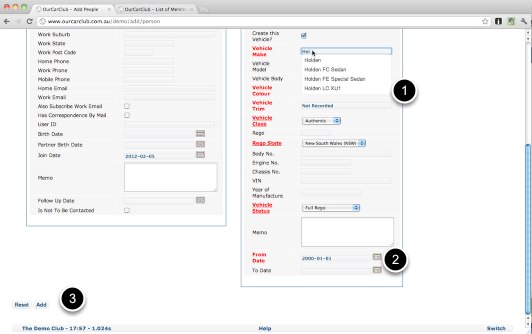
1. An example of the Make/Model/Body suggested text to describe the Vehicle
2. All Date fields have a Calendar control "widget" to select dates (and times, where appropriate).
3. When you’re finished, click Add. Any essential columns that are empty or invalid will be highlighted for correction, or you’ll go straight to the Member View page for this newly created record.

Adding a New Member (continued) Correcting Missing Info

media_1328426435382.png

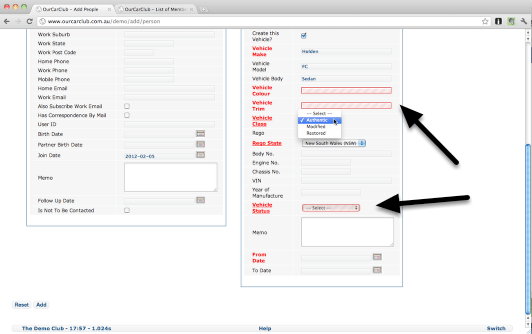
Note the highlighted text-boxes showing fields that require information that has not been provided.

Adding Information

OurCarClub allows you to view, edit, add or delete information. We’ve looked so far at navigating around and viewing records. Let’s look now at how we might add some new information to the system.

Understanding the different types of information

media_1343638893170.png

There are fundamentally two types of information:

  • records, which are specific “things”, such as Members, Vehicles, Events, Assets and so on.
  • categories, which describe how you group your records. Most clubs will have a couple of different Membership Types, Vehicles might be classified as Original, Restored or Modified; Assets might be “Computer Equipment”, or “Merchandise”. For most categories, you can start with the default, suggested list of values, and adjust them as you see fit.

In this example, we are going to add a Membership Type. We’ve decided to introduce a “Family Membership” option.
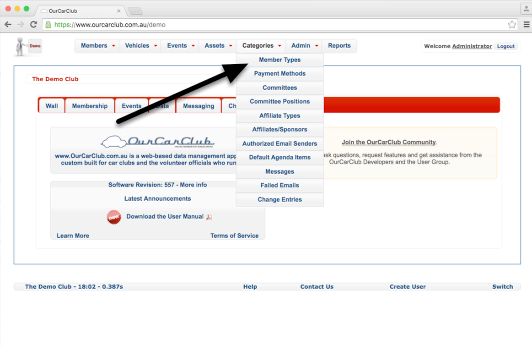
Click on the Member Types link under the Categories menu item.

Start with the List View – What have we got in our system already?

media_1343640347133.png

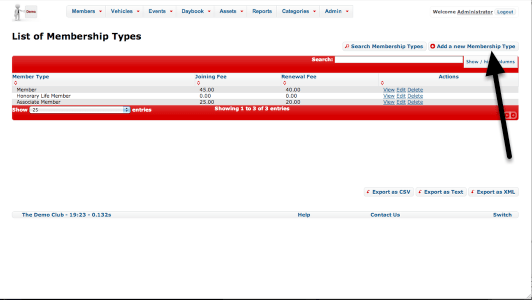
We’re now looking at the existing Membership Types, and whatever columns from the Show/Hide option we’ve adopted. We currently have "Member", "Associate Member" and "Honorary Life Member". Click on "Add a new Membership Type"

Adding a new Membership Type

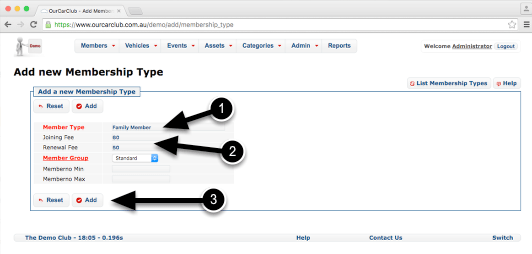
media_1343640727610.png

Labels in Red signify pieces of information that must be provided for this item to be valid. In this case, we need to provide a short description for the new item.

  1. I’ve typed “Family Member” here, as that is what we call our new Membership Type.
  2. This particular category also has optional values for Joining Fee and Renewal Fee, which I’ve also filled in.
  3. To Save this new record, click the “Add” button.

All Add screens function in this way. If any items require a value and one hasn’t been supplied, or data of the wrong type is entered (such as text where a date belongs), the fields in question will be flagged in red for correction.
It’s also important to bear in mind that you cannot have two records for the same thing. If you already had a record labelled “Family Member” and you attempted to create another, you would get an error message alerting you to this fact.

Now, having clicked “Add”, we should see…

What did we just do?!

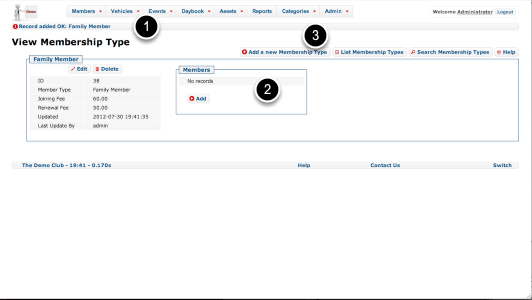
media_1343641318724.png

… the result, which is our freshly minted Membership Type. A few things to note about this screen:

  1. A message appears beneath the menu bar reminding you that a new record was added.
  2. Obviously, having just created this record, it has no related records. But once we create a new member and assign them Family Membership, this view screen will show that Person, as we looked at in the section on Navigation. NB: although you can create a new Member from here, it’s not the recommended, easiest way of doing that. See the next chapter.
  3. Click on the "Add a new Membership Type" button again to add another record if required, or "List Membership Types" to show our new, slightly longer list of types.