Relationships

One of the most fundamental features of a database (as opposed to a spreadsheet) is the ability to describe relationships between types of information. Simply put, a Vehicle has a Class (ie Authentic, or Modified etc), and any one Class may have none, one or many Vehicles. One of the most powerful aspects of OurCarClub is the ease with which you can navigate from an item to a category, to another item and so on.

Navigating Relationships

media_1328430797261.png

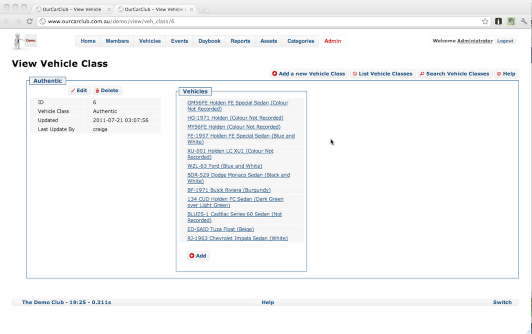
As mentioned on the previous page, by clicking the Vehicle Class link (the word "Authentic" on the View Vehicle page), you are taken to the View page for that Vehicle Class. This shows any attributes related to the class, and a list of all the vehicles with that Class. Any of them can be clicked on to jump on to another "View Vehicle" page. You could also add another Authentic Vehicle from this screen, but the View Person screen has a "Wizard" for this, and would be the recommended approach.

Reports

In addition to the ability to export data, OurCarClub comes with a series of "Standard" reports. In this chapter we will look at how to choose a report, provide parameters to it, and run it.

The Reports Menu

wpid60-media_1345626982689.png

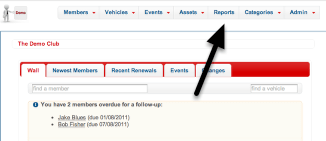
From any page, you can find the list of predefined reports from the main menu.

Standard Reports

wpid61-media_1345627092474.png
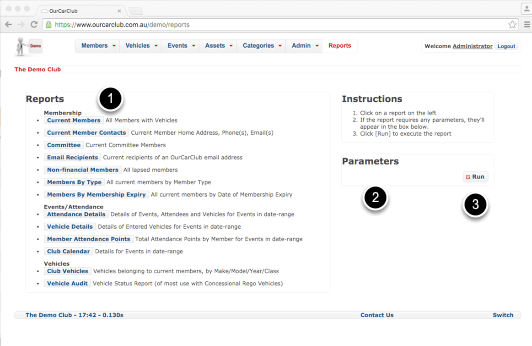
  1. The Standard Reports are presented as a list, organised by type – Membership related, Attendance related, Vehicle related and so on.
  2. You will notice the "Parameters" area is empty: once a particular report is selected, the parameters required to run it (if any) will appear. Some reports, such as Current Members and Committee do not require any parameters. Member Attendance requires date parameters.
  3. Clicking the Run button will execute the report.

Running a Simple Report

wpid62-media_1345627411116.png

Click "Current Members" and it is highlighted. As mentioned previously, this report requires no parameters. Clicking Run will generate the report.

wpid63-media_1345627549261.png

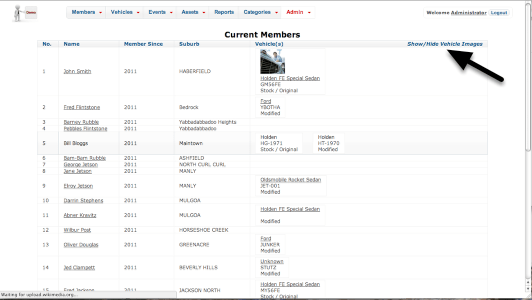
The resulting report can easily be printed on paper or as a PDF. Some reports have additional interactivity – this one has an option to hide the vehicle images to reduce the size of it.

Standard Report with Parameters

wpid64-media_1345813477869.png

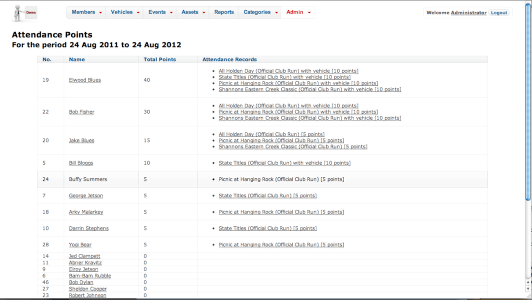
Some reports require parameters before executing. For example, Attendance Details and Member Attendance Points both require a range of dates (pictured). In both cases, From Date and To Date default to a year ago from today and today, respectively.

wpid65-media_1345813694024.png

An example of the Member Attendance Points Report output.

Mailing Lists

One of the most important features of OurCarClub is its ability to send emails to all or some of your current members for you.

Even if your club runs a Mailing List Manager (like Mailman), you still need to manually maintain the list of members subscribed to the list, adding new members and removing lapsed ones. If you’re not on top of this, you run the risk that new members are getting no correspondence, and non-members are still getting club benefits.

If you manually address email messages to 50 individual addresses, you already know how messy it is to keep such a list up to date.

OurCarClub makes Emailing your Current Members Painless.

If you send a message to

    <yourclub>-members@ourcarclub.com.au    
        [or]
    <yourclub>-members@ourcarclub.info
        

it will be propagated to all your current members. It’s that simple.

It won’t relay any old thing that it’s sent though, the sender has to be authorised (see below). The sender will of course receive a copy of the email once it’s been routed through the system, and there’s also a Wall post added to your OurCarClub home page along the lines of:

    Email from Fred Nurk <elprez at someclub.org.au> entitled 'We're using OurCarClub and we love it!!!' sent
    to 82 addresses (emailer, 2011-12-30 19:16:28)

    
If a message is sent that isn’t from an authorised user, it gets relayed to the OurCarClub system users for that club (the committee), along with a notification email explaining what it is and what they should do with it. So you can vet any mails that come in from non committee members or non members. An email will be accepted and broadcast to your members if the sender’s email address meets one of the following conditions:

  • it is the official club email address recorded on the Categories page
  • it is an address associated with a current committee member (as recorded in OurCarClub)
  • it is an address associated with someone authorised to use your OurCarClub system
  • it is an address associated with an Affiliate where the “Can Email Members” checkbox is enabled
  • it is an address registered in the Authorised Email Senders list

Furthermore, you can choose to personalise your emails. If you put:

    Dear {{recipient_fname}},

in the email, at the time it is sent to each member that token will be replaced by their real first name, so Bob’s email says Dear Bob, Fred’s email says Dear Fred, and so on. The tokens available for personalisation in this manner are:

    {{recipient}}              which produces Fred Nurk elprez@someclub.org.au
    {{recipient_fname}} which produces Fred
    {{recipient_lname}} which produces Nurk
    {{recipient_email}} which produces elprez@someclub.org.au

For even more email personalisation, see the advanced topic on Email Merge.

There are no limits on the number of emails you can send. The maximum size of any email (including attachments) is 15MB, but bear in mind that individual recipients’ ISPs may refuse to accept messages that are larger than what they permit, or if the recipient’s mailbox is full. Consider breaking messages that big up into several emails, or better still, upload these large documents on your website and send your members a link to download them. Your members with dial-up or slower mobile broadband will appreciate it.

Finally, the address:

    <yourclub>@ourcarclub.com.au
    

is an alias for the address above, but we recommend using the tag “members” in the address because it is more explicit, and to be consistent with the other options shown next.
Emailing a Specific Chapter

media_147245382239011.png

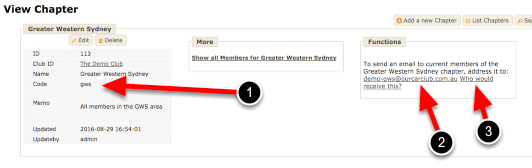
Chapters are often used by large clubs that cover a significant geographical area, and have need to send messages just to members in particular “zones”. If your club uses this feature, each member will have been assigned to one of these Chapters. Each chapter record has a “code”, which forms part of the email address. It must be lower-case letters and numbers only, no other punctuation marks are permitted.

  1. The code field. This forms part of the email address
  2. The email address. In this case it is <yourclub>-gws@ourcarclub.com.au
  3. This is an example of a link described in a few pages, under “That’s a lot of email address options! How can I know who will receive what?

Emailing your Affiliates

OurCarClub supports the recording of your club’s ‘affiliates’ – other car clubs you correspond with, sponsors, advertisers and so on. You can email all your affiliates or sponsors directly from the system.

To send a message to all your affiliates or sponsors with an email address recorded, just address the email to

    <yourclub>-affiliates@ourcarclub.com.au

You can address a message to both regular members and affiliates by simply including <yourclub>-members@ourcarclub.com.au and <yourclub>-affiliates@ourcarclub.com.au as recipients of the message.

Each individual Affiliate Type can also be targeted for a specific email. See the topic “Advanced Email Options” for more information. NB For this situation, you would find the email address to use on the Affiliate Type View page.

Emailing the Committee

If you just want to send an email to all the committee members, you can address a message to

    
    <yourclub>-committee@ourcarclub.com.au
    

and it will go only to those members who are recorded as current committee members in your OurCarClub system. If you create additional committees, each committee will have its own email address, which can be found on the “View” page for that Committee. Note that emails sent to committee addresses do not go through the validation discussed earlier, so anyone can send a message to the committee. Although OCC will catch as much spam as possible, publishing your OCC committee email address on your public web-page is likely to see it harvested by spambots. Best practice is to use a “Contact Us” form on your website that does not expose the email address directly.

If you create additional sub-committees, each of those will have an email address shown on their View page. This is also the case for most categorisation tables that support email segmentation (e.g. Member Types, Vehicle Class and so on.) If you have multiple committees, the address

    <yourclub>-officers@ourcarclub.com.au (or) <yourclub>-officials@ourcarclub.com.au

can be used to send a message to all committee members, whilst ensuring they get only one copy each, even if they hold multiple positions on multiple committees.

There are links in the Messaging tab on your club’s OurCarClub home-page to each of these options. To recap, they are:

    <yourclub>-members@ourcarclub.com.au
    <yourclub>-affiliates@ourcarclub.com.au
    <yourclub>-committee@ourcarclub.com.au
    

Emailing Lapsed Members, Members Falling Due and those about to Expire

Finally, there are a couple of other sub-group options; an email to:

    <yourclub>-expiring@ourcarclub.com.au

will be sent onto only those members who haven’t renewed their membership and are in ‘Expiring’ status. Handy for that final reminder that they’re about to be ‘struck off’!

Before they reach that stage, you can also address a message to members whose renewal is about to fall due by sending it to:

    <yourclub>-dueNN@ourcarclub.com.au

where NN represents the maximum number of days remaining before they will move from “Current” to “Expiring”. This is particularly useful for clubs that do not have an single anniversary model for renewals, but have members renewing throughout the year on an individual cycle, as well as those that offer multi-year membership, or don’t wish to send renewal notices to Honorary Life Members. For example, if your club’s renewals fall due on 30 June, then you might send a renewal message to all members sometime in May, addressed to <yourclub>-due60@ourcarclub.com.au

You can also contact just the members that have expired recently using a similar email address. A message sent to:

<yourclub>-lapsed180@ourcarclub.com.au

would only be received by those members whose membership lapsed in the last 6 months, and not every lapsed member since forever.

That’s a lot of email address options! How can I know who will receive what?

media_147245280032611.png

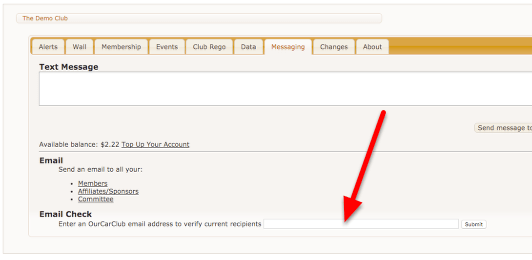
OurCarClub provides a method to see what email addresses will receive a message sent to a particular OCC email address. This is available on the Messaging tab of the home page, as a Report on the Reports menu, and as a feature wherever custom email addresses are shown in the application. For either of the first two options above, you simply enter the address you plan on sending your message to, and the output will be a report showing the recipients. Where the option appears on a specific email address link, it will obviously show recipients of that email address.

NB: The appearance of an address in this list does not guarantee successful delivery to that address. Messages that are too big or that look like spam may still get bounced by your member’s ISP.

Text Messages (SMS)

Even more immediate than email is SMS, straight to your members’ mobile phones. You can make sure everyone knows about a late change to an event (such as a wet weather venue) via SMS. You may also find SMS reminders a good way to increase participation in events, by reminding people of club runs a day or two before.

Sending SMS to All Current Members

wpid53-media_1344149487625.png

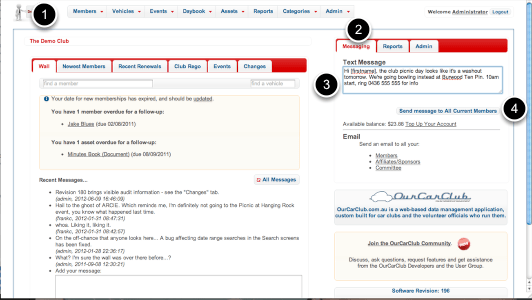
You have the option of sending a message to all current club members, or to an individual. Text messages are limited to 160 characters.

To send to all:

  1. Click on the club icon at the top left of the app to return to the "home page".
  2. Click on the Messaging tab on the right.
  3. Enter your message. If your OurCarClub user has been linked to your Member record, you’ll have the option of selecting whether the message will appear to come from you, or from ‘the club’. NB Messages from ‘the club’ cannot be replied to.
  4. Click ‘Send’ to trigger the SMS.

You’ll see a banner across the top of the page which will report the success or failure of the message send process. You’ll also see there is a link in the SMS panel that takes you to the SMS portal to top up your account. (More on this below.)

Advanced Usage:
You can personalise messages if you wish. Use the token [firstname] and/or [lastname] in the message, and they’ll be replaced with the member’s name details when the message arrives. Just remember to allow for long names if your message is close to 160 characters long.

This feature is not available…
If you see this message, you won’t be able to send SMS messages. SMS is not available for clubs that are trialling OurCarClub, nor can SMS messages be sent from the Demo Club. You’ll need to upgrade to a full OurCarClub account.

Sending SMS to a Specific Member

wpid54-media_1344149753821.png

Sending to a single member is virtually the same process. Navigate to the Member View page for the individual you want to send the message to, and you’ll find the SMS option amongst the various panels, immediately after ‘Committee Positions’. Then just follow steps 3 and 4 above.

NB: The last message sent is ‘sticky’, in the sense that the system remembers it for your session. This can be useful if you want to send the same message to three or four members. You won’t have to copy and paste it, the system will pre-populate the box for you with the contents of the last message you sent. Obviously you can overtype it.

This feature is not available…
You’ll see this message when the member you are looking at does not have a mobile number listed. Obviously it is not possible to send a text to a member without a mobile phone!

Using the SMS Portal

wpid55-media_1344150078499.png

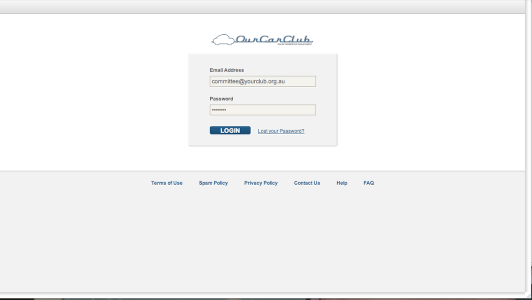
You’ll have a username (email address) and a password to log in, which OurCarClub will have provided you when you first set up your system. You can change either of these should you need to. Typically, the email address will be the club’s ‘official’ email address.

The main reason you will log into the portal is to top up your account with more funds to send messages to your members. However, there are some other features and benefits available there that you may choose to take advantage of if you wish.

Using the SMS Portal (continued.)

wpid56-media_1344152993846.png

You’ll have a username (email address) and a password to log in, which OurCarClub will have provided you when you first set up your system. You can change either of these should you need to. Typically, the email address will be the club’s ‘official’ email address.

The main reason you will log into the portal is to top up your account with more funds to send messages to your members. However, there are some other features and benefits available there that you may choose to take advantage of if you wish.

Lists

The list entitled Members is automatically synchronised with your Current Members in OurCarClub. Although you can edit this list, you shouldn’t. Any changes you make will disappear after the next sync process anyway.

However, you can create more lists if you wish. From the portal, you are able to send an SMS to one of these lists (and indeed to any individual). Some suggestions:

Create a "Committee" list, which would make it easy to send a message out to your officials.
Create a list of members (and others – you can add any mobile number you wish) who are attending a particular run – say a big, interstate event – so you can message them all with ease.

This area of OurCarClub may be expanded in future releases to support creating and sending messages to custom lists.

Topping Up Your Account

wpid57-media_1344153164382.png

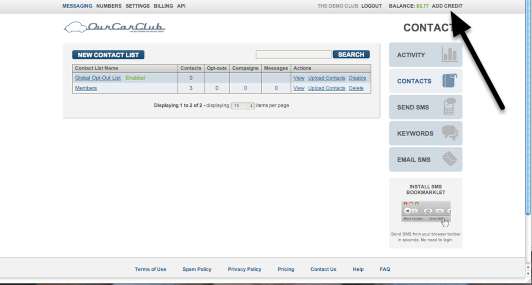
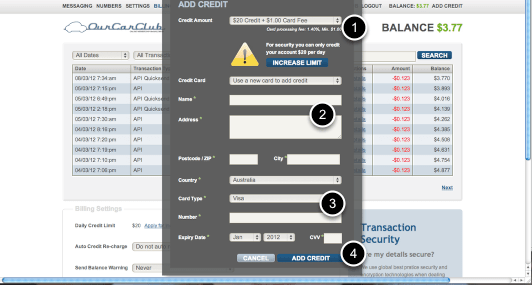
Clicking on the Add Credit link shown on the previous page brings up this screen. Just enter the required details and and click the "Add Credit" button.

  1. Select an option for how much credit to add
  2. Enter details for the card-holder
  3. Enter the card details
  4. Click "Add Credit"

Auto-renewal

The facility is there to arrange for the system to automatically debit a card when the balance drops below a certain amount. It’s entirely up to each club whether that is suitable for them or not.

Annual Renewal Time

Most clubs have a date when all members’ renewals fall due. Usually, the club meeting at this time is very busy for the Treasurer, processing many members’ payments. Similarly, there may be lots of direct deposits on the bank statement to be entered into the system.
OurCarClub has a specialised version of the Member List page to handle this, for small to medium sized clubs. More instructions for large clubs can be found at the end of this article.

Processing Bulk Renewals

wpid102-media_1344156521968.png

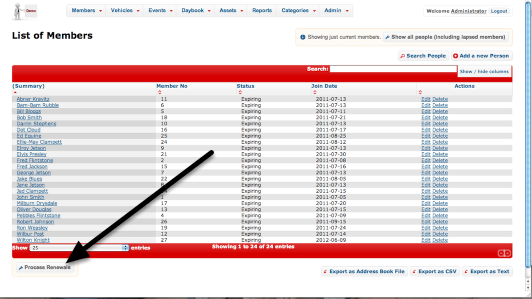
At the bottom of the Member List is a button labelled "Process Renewals". Click that to continue.

Processing Bulk Renewals (continued.)

wpid103-media_1344157367978.png

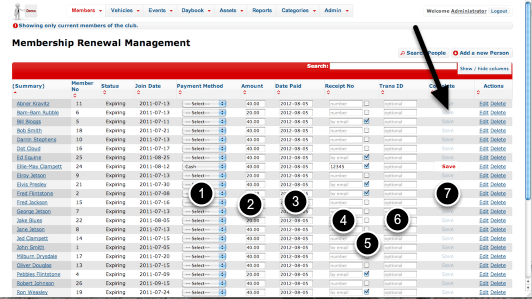
The usual features of a list screen are available – you can use the Search and sort functions to quickly find a particular individual. Note that only members with Expiring Status appear on this version of the page. You may also notice that the save button is disabled on all rows initially. This is to ensure that we don’t accidentally process the wrong record.

In this example we’re going to renew Ellie-May Clampett’s membership.

  1. Choose the payment method from the drop-down. This selection triggers the enabling of the Save button at the right, since all the other fields are optional.
  2. The amount field defaults to the Renewal Amount for this Member’s Membership Type. It can be overridden if neessary.
  3. The payment date defaults to today.
  4. If you issue a paper receipt from a receipt book, you can record the number here
  5. This checkbox is enabled if this member has an email address listed. In that case a receipt for this payment will be automatically emailed to the member. If the member does not have an email address, you can still check this box, in which case the receipt will be emailed to you, allowing you to print and post it if necessary.
  6. For processing direct deposit or credit card payments, and transaction ID associated with the payment can be recorded here.
  7. Once the payment type has been selected at (1), the Save button is enabled. Click it, and the renewal process will commence in the background. You can continue to process the next member.

When a renewal process completes, the "Payment Method" dropdown is replaced by a short message to alert you to the result.

Bulk Renewals for Large Clubs, and handling Individual Renewals

media_1377125203317.png

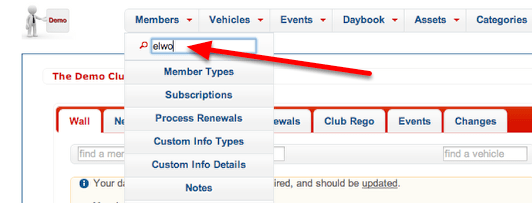
Because the customised List View shown above presents all expiring members on a single page, for very large clubs this can lead to very long lists, and responsiveness of the page can decline as a result. An alternative is to use the Quick Search feature under the Member menu item to quickly locate the relevant member (or ex-member), and be taken to their Member View page.

Quick Renewal for a Single Member

media_1377125556427.png

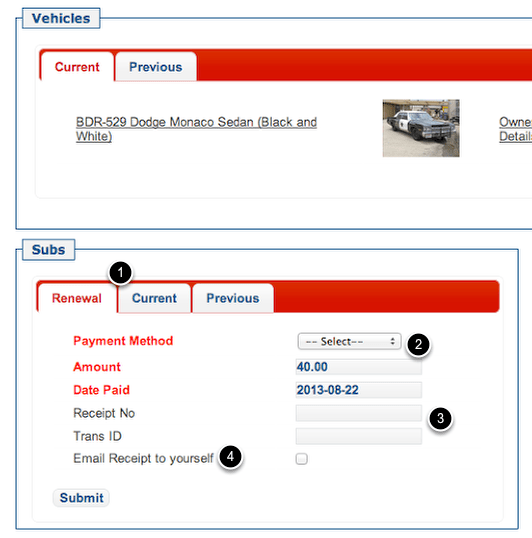
The “Subs” panel has a tab labelled “Renewal” that provides quick access to entering details of the renewal.

  1. If the member is in “Expiring” or “Lapsed” status, the Renewal Tab will be front-most. If they are a current member, it will be behind the “Current” and “Previous” tabs.
  2. Choose the type of payment from the drop-down list. The pre-populated amount is based on the “Renewal Fee” setting for this member’s Membership Type. You can override it if required. Similarly, the date paid field is prepopulated with today’s date, but can be changed.
  3. The Receipt Number and Transaction ID fields can be entered if they’re relevant. For example, you might want to record a Cheque Number, Postal Order Number or other identifying information to cross reference this payment against other information. Both of these fields are optional.
  4. An emailed receipt can be automatically generated and sent to the member. If the member has an email address recorded, this checkbox will be checked by default. If (as is the case in this example) the member does not have an email address, the prompt will read “Email Receipt to yourself”, and will NOT be checked by default. This allows you to receive the receipt email to print and post it.

When you’ve completed this renewal, click on the Members quick-search to locate the next renewing member.

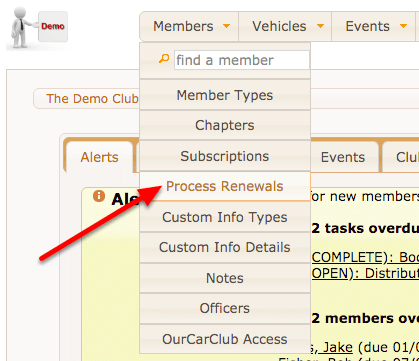
You can expedite the process still further by turning on the Process Renewals mode, which can be found in the Members menu.


media_1540460316408.png

Turning Process Renewals mode on changes the behaviour of the Member View page. Instead of the usual action, it opens in Edit view, but with the Subs panel also available. This allows you to make changes to address details of the member and process their renewal with far fewer clicks. Turning the mode off again can be done using the same approach.

Extract Member Contact Info

If you need to produce a list of current members and their contact details, there are a few different ways to do it:

  • Quick Download
  • Onscreen Report
  • Customised List Presentation

Simply choose the method you find most convenient for your intended purpose, and the device you’re using at the time. Some options are geared to use with smart-phones, whilst others may not suit smart-phones and tablets at all.

Method 1 – Quick Download to Excel etc

media_1353034764656.png

This option generates a report in a fixed format as a download.

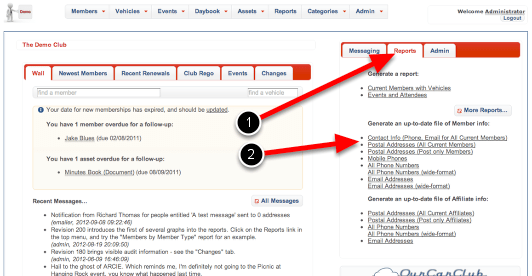
  1. From the home-page, click on the Quick Reports pane.
  2. Click on “Contact Info”, or one of the other lists if only phone numbers, or email addresses are required.

You’ll be prompted to save a file to your local computer, which you can then open with Microsoft Excel, OpenOffice or similar program.
Note: this method may not be suitable when using OurCarClub on a smart-phone or tablet device, as downloads may not be permitted.

Method 2 – Onscreen Report

media_1353035258066.png

This option also produces a standard format report, which can be displayed on-screen or printed.

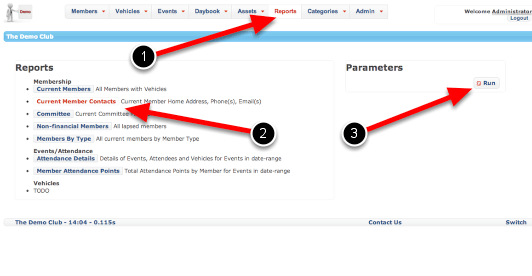
  1. Click the Top Menu Reports link from any page to bring up the Reports page.
  2. Choose “Current Member Contacts” by clicking on the label – note it’s highlighted once clicked on.
  3. This report has no parameters, so just click Run to display it.

Method 2 – Onscreen Report (cont.)

media_1353035393621.png

You will be presented with an onscreen report, which is also suitable for printing should you prefer.

  1. Click on a member’s name to view that member’s details. Pro-tip: right-click (PC) or control-click (Mac) to open this page in a new window or tab, allowing you to retain this report output in the current window.
  2. Click on an email address to open a new email addressed to this person
  3. On a smart-phone, click on the phone number to call the member.

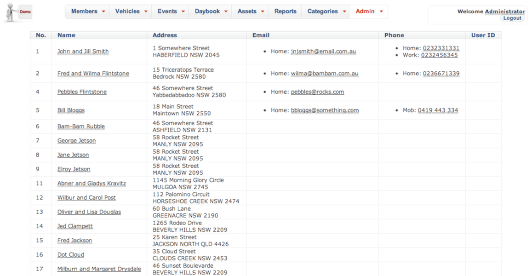
Method 3 – Customised List Presentation

media_1353036170968.png

This approach is the most flexible, and allows you to create the exact view of members you desire. It can also be printed.

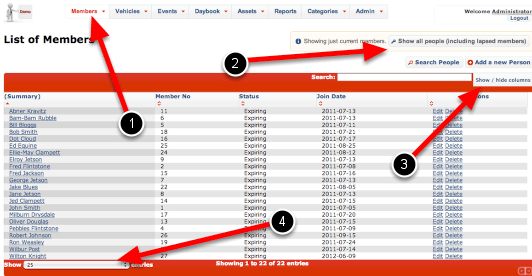
  1. Click on “Members” in the top menu, to bring up this Member List.
  2. (Optional) If required, click this to include lapsed members in the output as well as current members.
  3. Click on “Show/Hide Columns” to display all possible options.
  4. If required, increase the length of the display.

Method 3 – Customised List Presentation (cont)

media_1353036507143.png
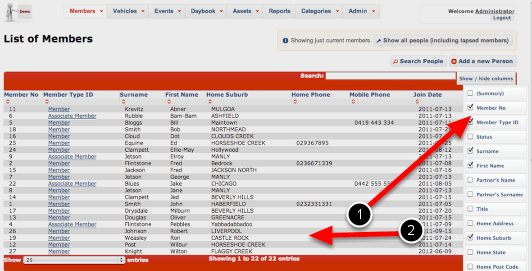
  1. Modify the displayed columns by checking and unchecking the boxes against their names. The list is instantly updated. In this example we have removed the Summary column to instead show separate Surname and First Name, replaced Status with Member Type, and added suburb and phone number fields.
  2. Click anywhere on the main page to dismiss the Show/Hide column list.

Method 3 – Customised List Presentation (cont)

media_1353037147301.png

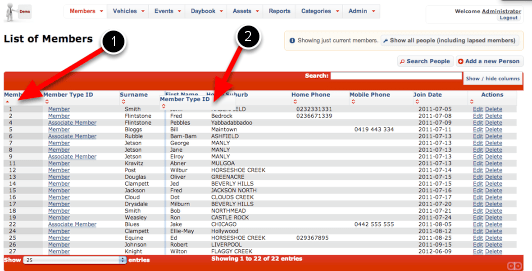
You can rearrange the columns to suit your preferred layout.

  1. Click on a column header to sort by that item. In this example the data is sorted by Member Number.
  2. Click and drag a column header to rearrange the layout. Notice Member Type is being dragged across towards the right. (NB this is not supported on all smart-phones and tablets.)

Pro tip: Settings for both Shown and Hidden columns, as well as sort order and column order will be remembered for whenever you return to this page.

Vehicle View

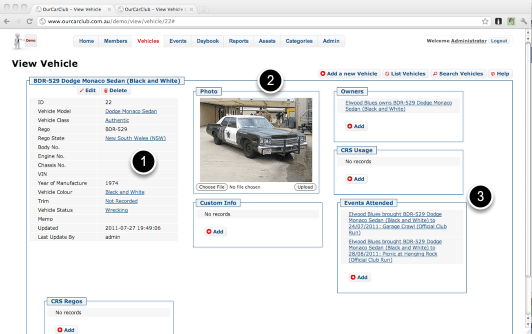
Just as a Member has many attributes and related pieces of information, so too does a vehicle.

Viewing an Individual Vehicle

wpid36-media_1328430330808.png

All View pages are similar in design: the left hand side has the attributes of the item being viewed, with Edit and Delete buttons. The boxes to the right and underneath show related pieces of information, where there may be none, one or many related records.

  1. Attributes of this vehicle. Any fields that are shown as links denote a relationship to a category or item. Clicking on “Authentic”, for example, would take you to a page showing all the vehicles thus classified. (More on this later…)
  2. You can upload an image of your member’s vehicle from this page, or you can provide a URL to an existing image on the web. OurCarClub supports a main image for each vehicle, and up to 8 additional images. This should be sufficient for clubs in jurisdictions where photographic records of vehicles on “Club Plates” need to be maintained (such as VicRoads).
  3. Another example of linked information. This vehicle may have attended many events, and you can navigate to a specific attendance record via the link.

List of Vehicles

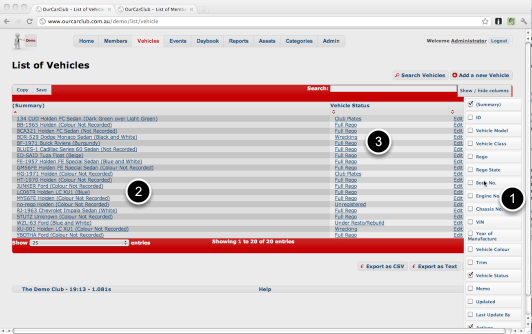
Let’s look at a different List Screen, the records of Vehicles in your club. As you can see, it’s quite similar to the Member List.

List of Vehicles

wpid22-media_1328429624781.png

As mentioned previously, all List screens share common features: click or drag the headers to sort or re-arrange, filter and export your data.

1. The Show/Hide columns button has been clicked, showing the additional columns available for inclusion in this view. Click any of the check-boxes to show/hide that column, and click the Show/Hide columns button again to dismiss.
2. Click on the "Summary" of any vehicle to go to its "View" screen.
3. All Vehicles have a Status. Click on a Status to show information about that Status, and a list of all Vehicles that match that status. This item to group to item navigation is a key feature of the OurCarClub system. It is extremely easy to navigate around your data.

List Vehicles (continued)

wpid23-media_1328430107263.png

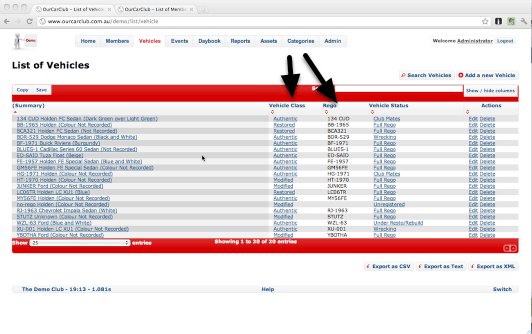
Here is that same screen with the Vehicle Class and Rego columns added to the view.

Views – Member View

Examining a single member’s data

wpid18-media_1328422813967.png

(That’s enough fiddling with the themes – back to the original Red & Blue theme).

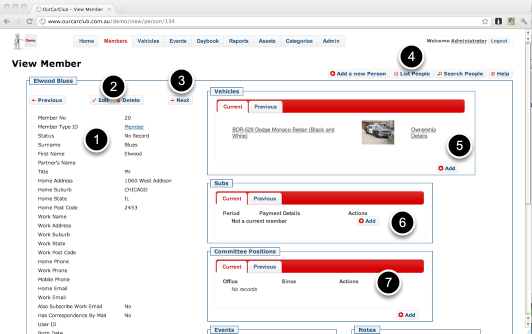
View Screens follow a standard design: the information about the particular record is on the left, and related information is grouped in boxes to the right and underneath. Related records are generally things we need to track over time, or where there may be none, one or many items linked to the main item (in this case a Member). A member may have many vehicles now, or they may have none. They may have previously owned vehicles that they have since sold. Obviously, if there was only one field in the Member record called "Vehicle", it would severely limit our ability to track this sort of thing.

1. All the standard fields for a member: names, addresses, contact details.
2. Edit / Delete this record.
3. Navigate to the next or previous member (by member-number)
4. Add a New Member, return to the List View, perform a Search, or open the Help Panel.
5. Member’s Vehicles, both Current and Previous can be seen in this tab. Click on the description or "Ownership Details" to navigate to the details of the Vehicle
6. Subscription info – curent membership info, and previous subscriptions (renewals). So each annual renewal is recorded for posterity.
7. Similarly to Subs, if this member has been or is a Committee Member, details are shown in this panel.

The sharp-eyed reader may have realised "hey, a Member can have move house, or change email address, or phone number! Over time they may have many of these things." And that’s true. But we’re not really interested in capturing an accurate history of this. It’s not relevant to managing your car club. As long as the address in the system is where they live now, where they used to live is not terribly important. We’re interested in ensuring any mail we might send today gets to them, not where we might have sent mail a year ago.

The other half of the Member screen

wpid19-media_1343643474174.png

As mentioned above, all the boxed content shows "related information", where there may be no data, one or many related records for a particular member. In OurCarClub, anything that looks like a link is a link, and it is easy to navigate from individual record to similar records. (See the Vehicle pages for more examples of this.)

1. Clicking on an Attendance Record will take you to a view of that member’s attendance in that event. (Attendance contains details of which car they brought to the event, amongst other things.)
2. Virtually every page has a Help link at the bottom to show context-sensitive information about the page you’re viewing.
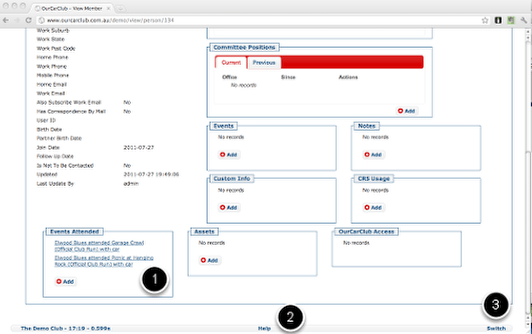
3. If you have access to multiple Car Club’s OurCarClub systems – including this "Demo Club", you can use the "Switch" link to access the alternate systems.

Lists – Member List

All data in your OurCarClub system can be displayed in a "List" context, that can be sorted, filtered, re-ordered and exported.

Understanding a List Page

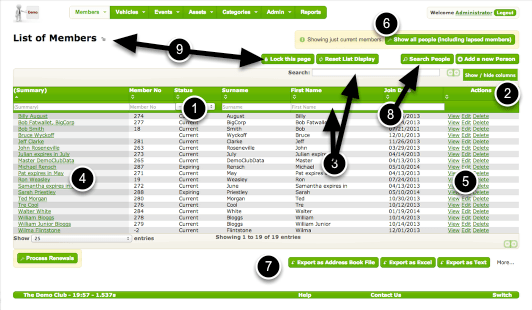
wpid73-media_1328422055418.png

Note: the “Green” theme is shown on this page.

This particular shot is showing the List of Members, which has a few items peculiar to that type of record. But every collection of records of a certain type (i.e. all Vehicles, all Members, all Types of Assets) can be manipulated in this way.

  1. Headers: click to sort by this column, click and drag to re-order columns
  2. Click “Show/Hide Columns” to alter the list display. The settings you choose are retained next time you come to this page
  3. Type a few characters in the quick-search box to find a particular record or group of records
  4. Click on a name to View member details
  5. Click Edit or Delete to alter this record
  6. By default only current members are shown. Click this button to show ex-member details.
  7. Export all records of this type for other uses.
  8. Perform more sophisticated Searching
  9. If you find you’re going back and forth from List to View and back again, it can be more efficient to lock the view page. Once the lock is activated all the links at (4) and (5) automatically open in a new browser window or tab (depending on your browser’s settings), leaving this list view in place. The button toggles the state of the lock, and the icon to the right of the title shows the current state.