Integration with Excel and other Desktop Applications

OurCarClub offers a few different ways to access your data and use it in other applications. The most common purpose for this facility is to manipulate the data in Microsoft Excel, to generate special purpose lists, or to perform analysis of the data, such as charting or pivot tables.

The two basic methods of extracting data involve taking a copy of the data that will be static, and the third, more advanced option creates a live link to the data in OurCarClub, that can stay up-to-date with subsequent changes made. Each of these can be accessed from any List page.

Option 1 – Export as CSV
media_1387015579754.png

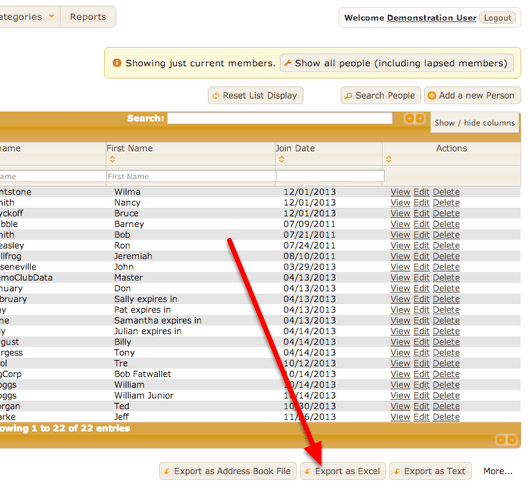
When this button is clicked, a dialog box will prompt you to save the file. It will be in CSV (or “Comma Separated Values”) format, which can be opened directly in Excel. The file will be named for the list being viewed, i.e. persons.csv or vehicles.csv

Option 2 – Copy and Paste to Excel
media_1387016061943.png

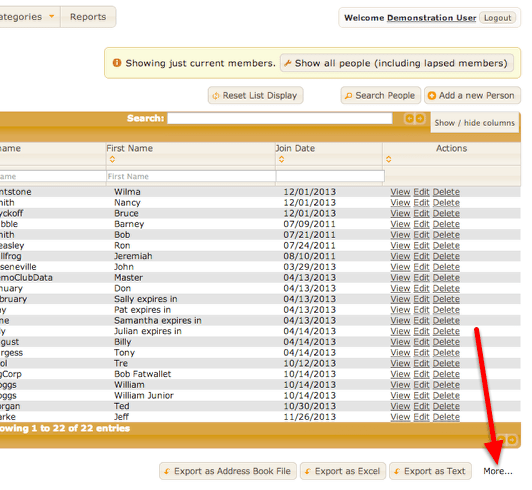
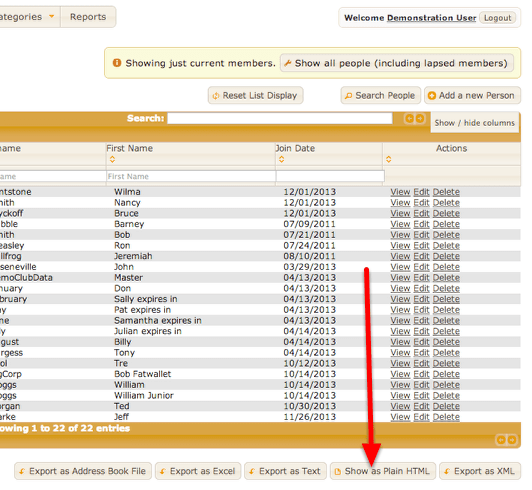
Under the link labelled “More…” are some less commonly used Export features.
media_1387016135202.png

In this instance, the “Show as Plain HTML” is what is required. This will re-display the current list, but in a very basic format.

media_1387016228574.png

In your browser, under the “Edit” menu, choose “Select All”, then “Copy”. Switch to Excel, and “Paste” into a Worksheet.
Note that this method is probably not well suited to lists that are likely to generate thousands of entries.

Option 3 – Access live OurCarClub data from Excel using a "Web Query"

OurCarClub provides a method for integrating with other web-apps or applications. By using this feature, you can create a link to live data that can be refreshed at any time, bringing the latest Member or Vehicle data into your spreadsheets whenever you open them.

This feature requires that you generate an API Key. API Keys are not generated by default for all OurCarClub users, as they are an advanced feature. An API Key should be treated like your username and password, and not shared with others.

To create an API Key, click on your username in the top right corner of the application.

Generating an API Key
media_1387017792424.png

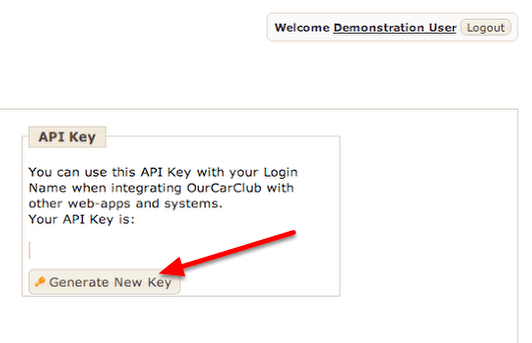
On the page with your details, there is a box labelled API Key, and a button to Generate a new API Key. This is used to create an initial key, or to regenerate it.
NB: If you regenerate your API Key, the old one is no longer valid, and anything that uses it will need to be updated.
media_1387017850088.png

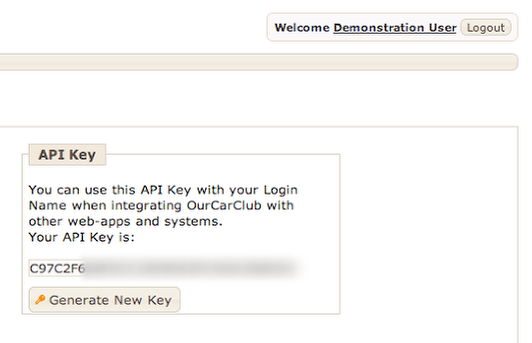
The key is a long string of letters and numbers. For the current purpose (creating an Excel Web Query) it is not necessary to make a note of it or copy it anywhere else.

Create a Web Query File
media_1387091059402.png

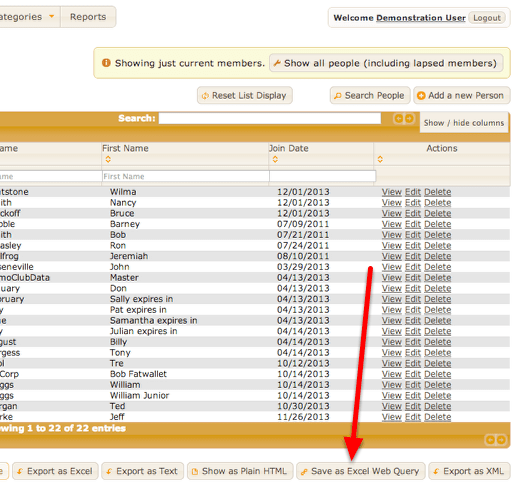
Once again, back to the List view. Now, under the “More…” export options, there is an additional “Save as Excel Web Query” option. Clicking this will result in a “Save As” dialog box appearing, for saving the file on your hard drive. By default, it will be called “OurCarClub-<club>-<list-type>.iqy”, but you can of course change this to call it anything you choose. The “iqy” extension should be retained, especially on a Windows PC.

Using the Web Query in Excel
media_1387091682562.png

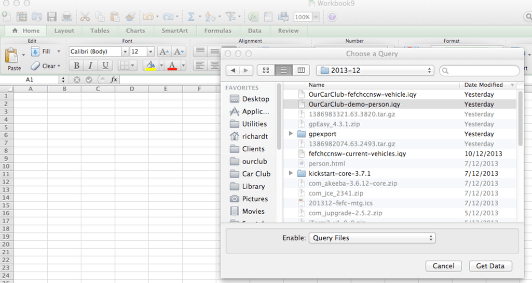
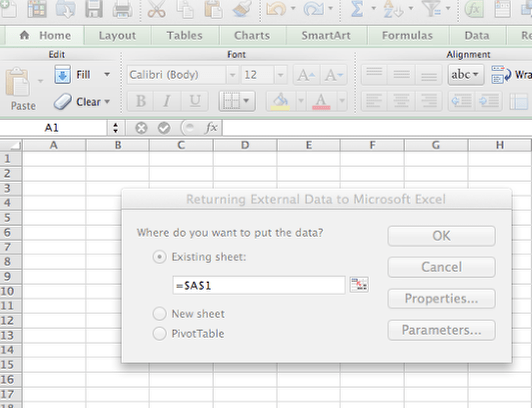
All reasonably modern versions of Microsoft Excel have the option to “Get External Data”, and this is usually located under a “Data” menu item. You will want to locate the “Use Saved Query” option, and then navigate to the Web Query file you just saved. You will then be prompted for where you want the data to be placed in the spreadsheet (usually cell $A$1 in the active sheet).
media_1387091724816.png

OurCarClub data live in Excel

media_1387091787667.png

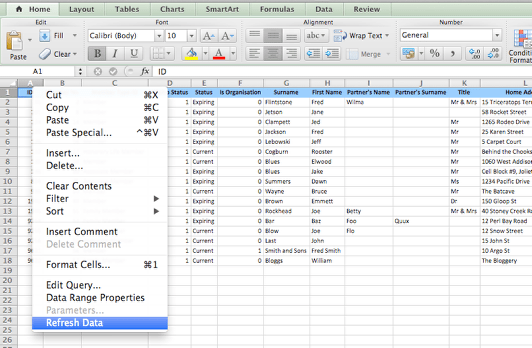
Once you click OK, Excel will request the data from OurCarClub, and return it as a table of data. You are then free to create graphs, pivot charts or other information from this data. At any time in the future, you can simply refresh the data from the Data menu, and obtain the latest information from OurCarClub.
Managing Club Assets

Most clubs own a variety of assets that are used to promote the club, or for members’ benefit. There are obvious items like computers or printers, club banners and perhaps a club trailer or barbecue. Beyond that, here are many other things a club might own: perpetual trophies, record books, documents and of course merchandise: shirts, stickers, badges, even reproduction parts for vehicles.
The OurCarClub system allows you track your assets, quantity on hand, who has custody of them and so on.

Asset Types

wpid173-media_1365826272233.png
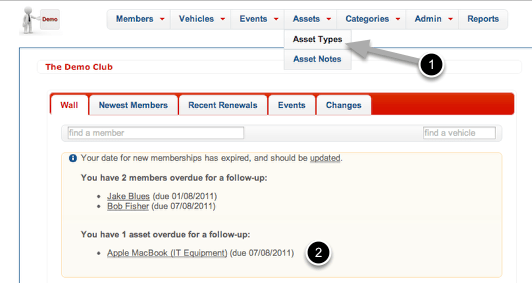
  1. Under the Assets option on the Menu, choose Asset Types to see the Asset Type List.
  2. Notice this message on the wall that there is an asset overdue for a follow-up – we’ll come back to that later.

Asset Types List

wpid174-media_1365826781604.png

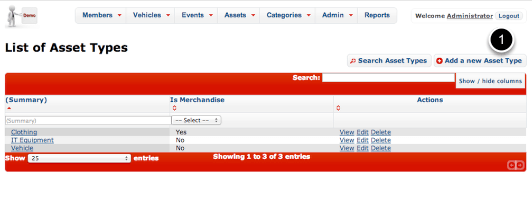
Here is an example of a list of Asset Types. Other possible types could include:

  • Trophy
  • Document/Record

You can add whatever suits your club. Let’s add a new type to cover the club’s flag, banner and similar items. Click “Add a new Asset Type”

Add a new Asset Type

wpid175-media_1365827000284.png
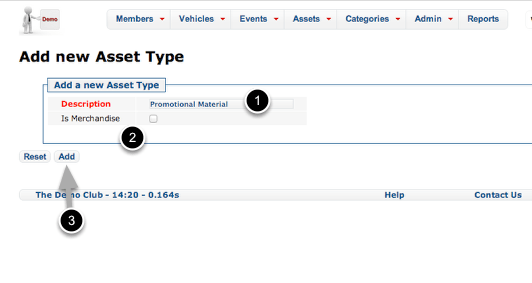
  1. Let’s call this type of item “Promotional Material”.
  2. Note the checkbox. This should be checked if this type of Asset is something you sell, and/or need to keep inventory of. Obviously that’s not the case for the club banner.
  3. Click Add or hit Return to save the Asset Type.

View the new Asset Type

wpid176-media_1365827147752.png

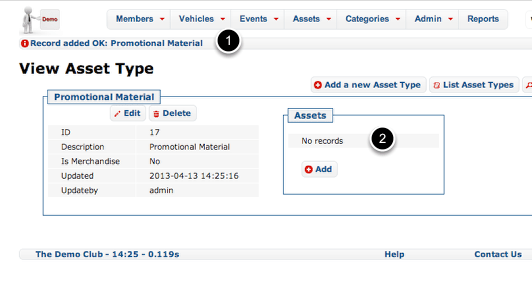
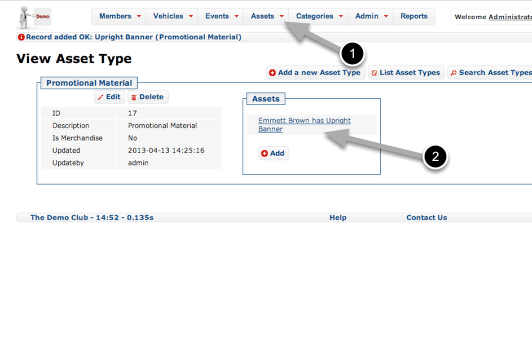
We’re now viewing Asset Type, which presents the information we just entered.

  1. The banner across the top notifies you that the new record was successfully added.
  2. Because this is a brand new Asset Type, there are not yet any Assets of this type. Press “Add” to create one.

Add a new Asset

wpid177-media_1365827718971.png

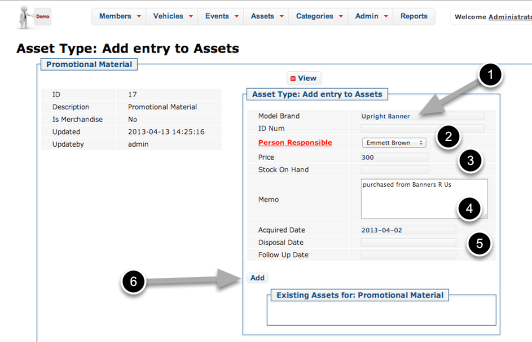
Enter the relevant details here:

  1. Give the item a suitable name. If it has a model name (IT Equipment is a good example of this) then it’s a good idea to include it. Similarly, if it has an ID or Serial Number, that can also be recorded.
  2. Enter the name of the member who has custody of or is responsible for the item.
  3. You can record the price of the item should you choose. This is usually more relevant for Merchandise items, as is the Stock on Hand column.
  4. A memo field is provided to make a note about the item.
  5. A series of dates to record when the item was acquired, disposed of, or needs to be followed up. All three fields are optional, but if the Follow Up Date is in the past, then this Asset will appear on the Wall (as we saw in an earlier screenshot). An example of how you might use this: imagine the asset was a perpetual trophy, given out at the Christmas Party. You might record a follow-up date of Nov. 1, to remind you to get it back from the current holder.
  6. Click “Add” to save this Asset.

View Asset Type (again)

wpid178-media_1365828794570.png

Repeat the exercise to record other promotional material if you wish.

  1. You can see and search all Assets in the Asset List, by clicking this item on the menu.
  2. To see details of the Asset, click this link.

View Asset

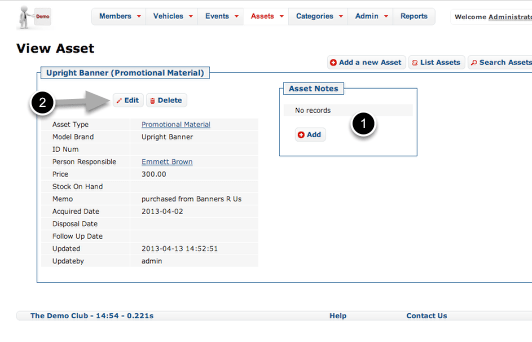
wpid179-media_1365829057634.png
  1. Beyond the simple “Memo” field, you can also record a history of Notes regarding this asset if you choose. A Note is also automatically created when custody of an Asset changes.
  2. Click Edit to record a change of custody.

Change Asset Details

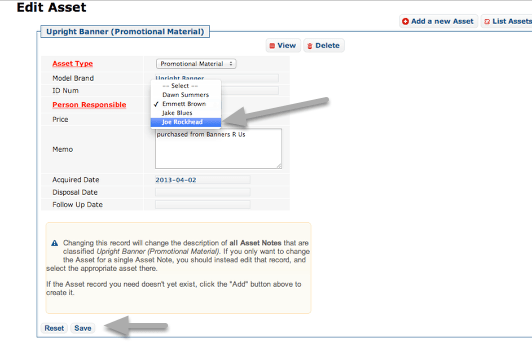
wpid180-media_1365829312251.png

In this example, custody of the banner has passed from Emmett to Joe. Click Save to record the change.

Asset Custody History

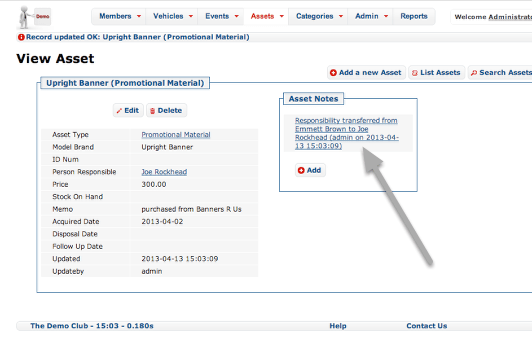
wpid181-media_1365829417367.png

Note the auto-generated Note recording the date on which custody was transferred.

Managing Merchandise

wpid182-media_1365829717633.png

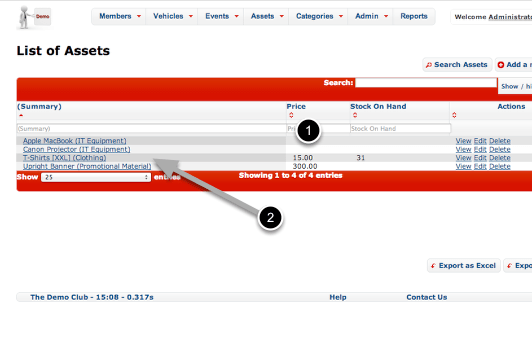
Merchandise such as club shirts needs to be kept inventoried and tracked. OurCarClub does not attempt to be a full book-keeping system, but provides a means to track inventory with ease.

  1. In this List View, we have enabled displaying the Price and Stock on Hand fields.
  2. Click on the T-Shirts link to view detail for this item.

Recording Merchandise Inventory Changes

wpid183-media_1365829875130.png
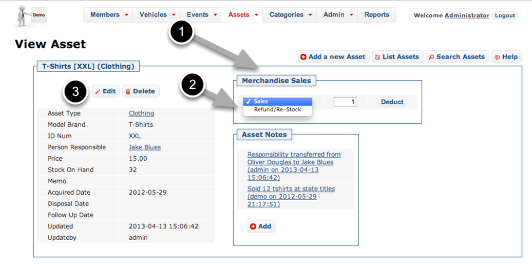
  1. When an Asset is recorded as being of a Type marked as “Is Merchandise”, the additional box show above appears.
  2. To record sale of an item, enter the quantity and click “Deduct”. Change the drop-down to “Refund/Re-Stock” to record a refund or a purchase by the club of more stock. (The “Deduct” button changes to “Add” when you do this.)
  3. To update Stock on Hand to reflect a Stocktake/Audit, simply Edit the Asset record and change the Stock on Hand field.

Once you’re comfortable with this, you’ll have control over your club’s assets in no time!