Most clubs own a variety of assets that are used to promote the club, or for members’ benefit. There are obvious items like computers or printers, club banners and perhaps a club trailer or barbecue. Beyond that, here are many other things a club might own: perpetual trophies, record books, documents and of course merchandise: shirts, stickers, badges, even reproduction parts for vehicles.
The OurCarClub system allows you track your assets, quantity on hand, who has custody of them and so on.
Asset Types
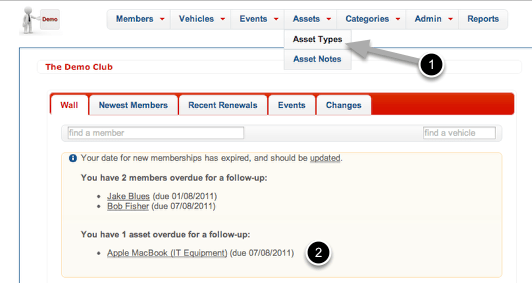
- Under the Assets option on the Menu, choose Asset Types to see the Asset Type List.
- Notice this message on the wall that there is an asset overdue for a follow-up – we’ll come back to that later.
Asset Types List
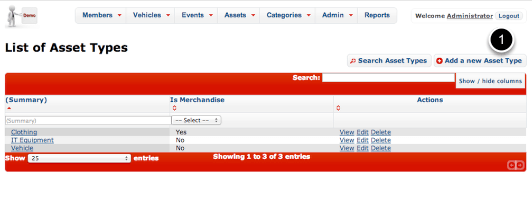
Here is an example of a list of Asset Types. Other possible types could include:
- Trophy
- Document/Record
You can add whatever suits your club. Let’s add a new type to cover the club’s flag, banner and similar items. Click “Add a new Asset Type”
Add a new Asset Type
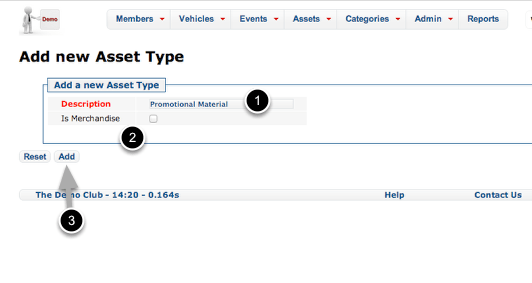
- Let’s call this type of item “Promotional Material”.
- Note the checkbox. This should be checked if this type of Asset is something you sell, and/or need to keep inventory of. Obviously that’s not the case for the club banner.
- Click Add or hit Return to save the Asset Type.
View the new Asset Type
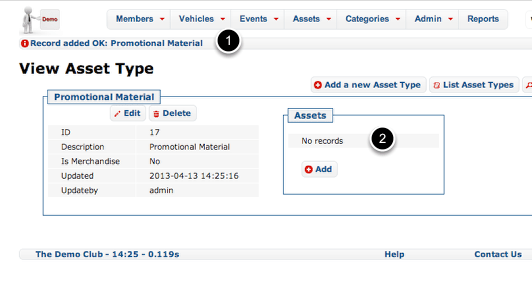
We’re now viewing Asset Type, which presents the information we just entered.
- The banner across the top notifies you that the new record was successfully added.
- Because this is a brand new Asset Type, there are not yet any Assets of this type. Press “Add” to create one.
Add a new Asset
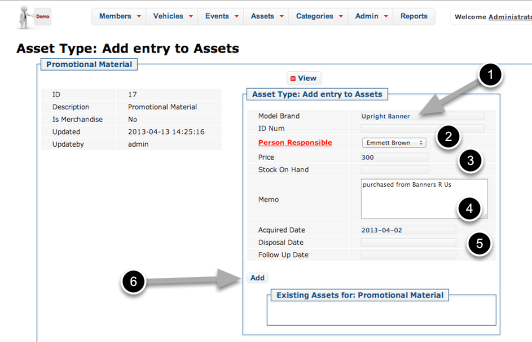
Enter the relevant details here:
- Give the item a suitable name. If it has a model name (IT Equipment is a good example of this) then it’s a good idea to include it. Similarly, if it has an ID or Serial Number, that can also be recorded.
- Enter the name of the member who has custody of or is responsible for the item.
- You can record the price of the item should you choose. This is usually more relevant for Merchandise items, as is the Stock on Hand column.
- A memo field is provided to make a note about the item.
- A series of dates to record when the item was acquired, disposed of, or needs to be followed up. All three fields are optional, but if the Follow Up Date is in the past, then this Asset will appear on the Wall (as we saw in an earlier screenshot). An example of how you might use this: imagine the asset was a perpetual trophy, given out at the Christmas Party. You might record a follow-up date of Nov. 1, to remind you to get it back from the current holder.
- Click “Add” to save this Asset.
View Asset Type (again)
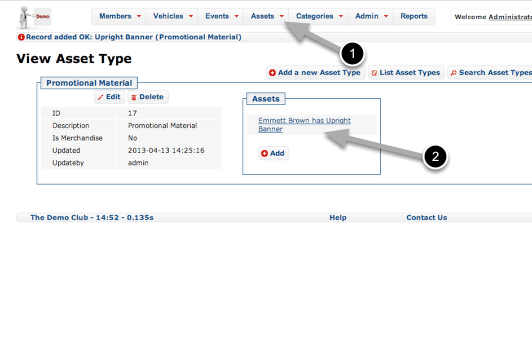
Repeat the exercise to record other promotional material if you wish.
- You can see and search all Assets in the Asset List, by clicking this item on the menu.
- To see details of the Asset, click this link.
View Asset
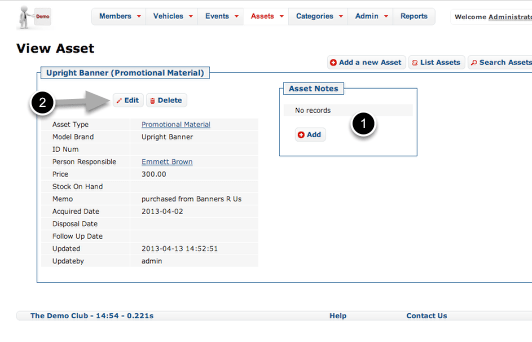
- Beyond the simple “Memo” field, you can also record a history of Notes regarding this asset if you choose. A Note is also automatically created when custody of an Asset changes.
- Click Edit to record a change of custody.
Change Asset Details
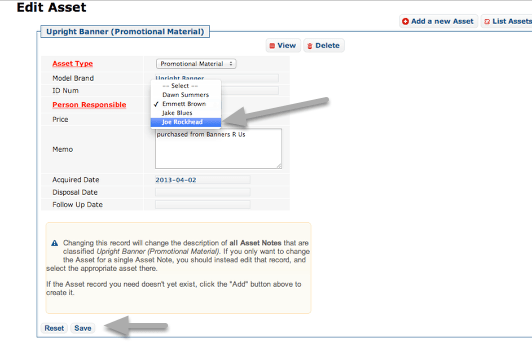
In this example, custody of the banner has passed from Emmett to Joe. Click Save to record the change.
Asset Custody History
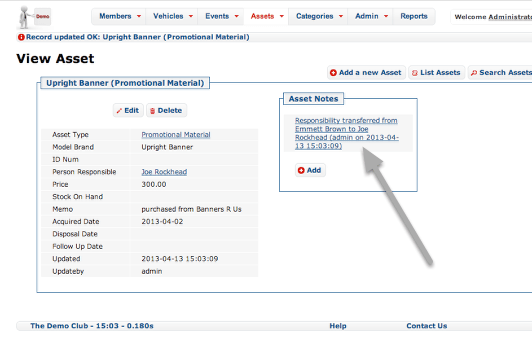
Note the auto-generated Note recording the date on which custody was transferred.
Managing Merchandise
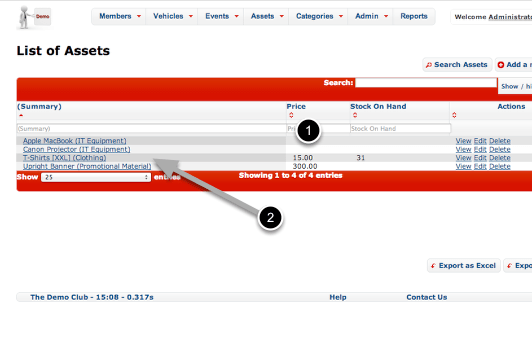
Merchandise such as club shirts needs to be kept inventoried and tracked. OurCarClub does not attempt to be a full book-keeping system, but provides a means to track inventory with ease.
- In this List View, we have enabled displaying the Price and Stock on Hand fields.
- Click on the T-Shirts link to view detail for this item.
Recording Merchandise Inventory Changes
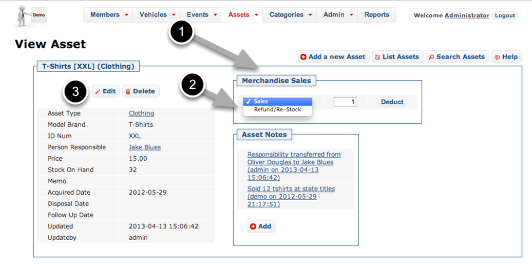
- When an Asset is recorded as being of a Type marked as “Is Merchandise”, the additional box show above appears.
- To record sale of an item, enter the quantity and click “Deduct”. Change the drop-down to “Refund/Re-Stock” to record a refund or a purchase by the club of more stock. (The “Deduct” button changes to “Add” when you do this.)
- To update Stock on Hand to reflect a Stocktake/Audit, simply Edit the Asset record and change the Stock on Hand field.
Once you’re comfortable with this, you’ll have control over your club’s assets in no time!
 OurCarClub