There’s a lot of information that can be captured when adding a new member to your database.
Understanding the Add Screen
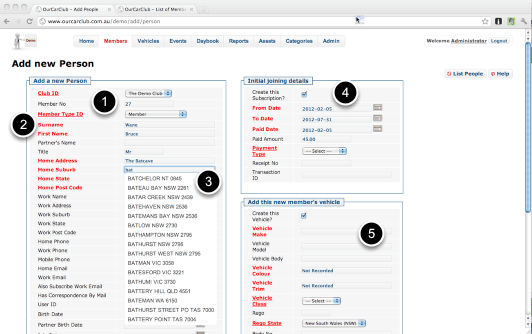
Although this is a very busy screen, it has everything required to add a new member into the system in a very short space of time, which means it can be done at a club meeting, if you have a computer (laptop, tablet etc) with internet access. Your new member can confirm for you that the details are correct, so you don’t have to try and decipher their handwriting a day or two later!
1. The next Member Number in sequence is automatically suggested.
2. Bold Red labels show attributes which are required, plain black labels are optional information.
3. Home and Workplace Suburb/State/Postcode are automatically suggested for you
4. Record this new member’s initial fees info, method of payment and receipt number.
5. Include their vehicle data. Again, Make/Model/Bodystyle are suggested for you from your Categories info, but can be overridden. Similarly, Vehicle Colour & Trim are suggested from your existing data once you type a couple of characters. (You can choose to record all the official Colour Codes and Descriptions for the model vehicles your club is dedicated to, if you wish. You can just enter "Blue", or you can leave it as Not Recorded if you’re not interested in recording this information.
Adding a New Member (continued)
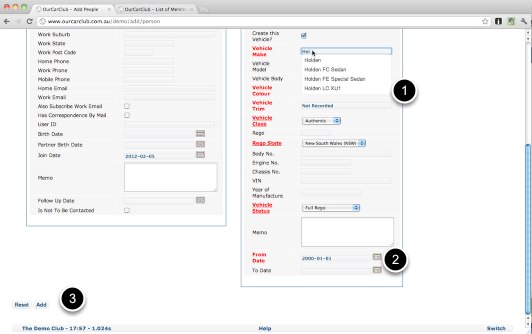
1. An example of the Make/Model/Body suggested text to describe the Vehicle
2. All Date fields have a Calendar control "widget" to select dates (and times, where appropriate).
3. When you’re finished, click Add. Any essential columns that are empty or invalid will be highlighted for correction, or you’ll go straight to the Member View page for this newly created record.
Adding a New Member (continued) Correcting Missing Info
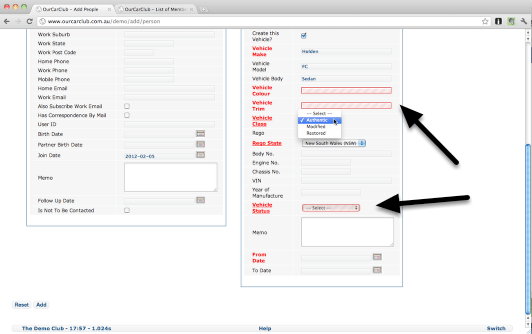
Note the highlighted text-boxes showing fields that require information that has not been provided.
 OurCarClub