The "home-page" of your OurCarClub system.
Finding your way around your OurCarClub system
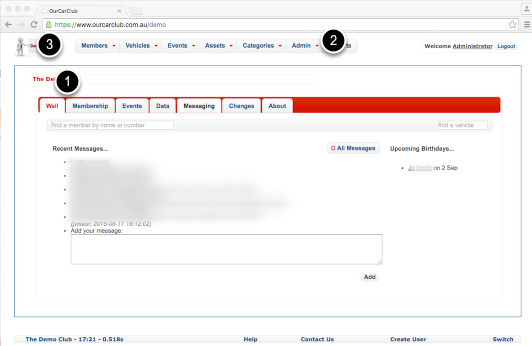
This is the “home-page” of your OurCarClub system. You can navigate to almost anywhere in the application from this page, and you can always return to this page from anywhere in the system by clicking on the club logo icon in the top left corner.
- The tabs in the main panel give you quick access to the “Wall” – where users can leave messages for each other, quickly find the most recently joined members, most recent renewals, upcoming Club Rego renewals and usage, and most recent and upcoming events.
- The menu bar quickly takes you to the most important parts of your database: Members, Vehicles, Events, Assets and so on.
- Click the club logo icon to return to this page from anywhere else in the application.
Finding your way around (continued)
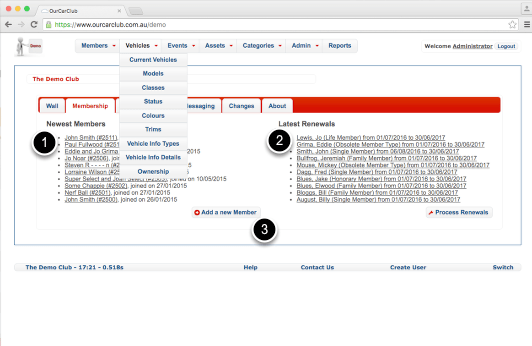
The main menu area has drop-down sub-menus, to easily navigate to its related categories.
Note that the top levels of each menu are also links – so you click “Members“, “Vehicles” and so on to get to the List View of that record type. (Unless you’re using a mobile device, in which case the link will appear as the top level item in the drop-down. This is because a touch device doesn’t have a distinction between a hover and a click.)
- The 10 most recently joined members
- The 10 most recently renewed memberships
- This button takes you to the page where you can add a new member and their vehicle.
More home page tabs
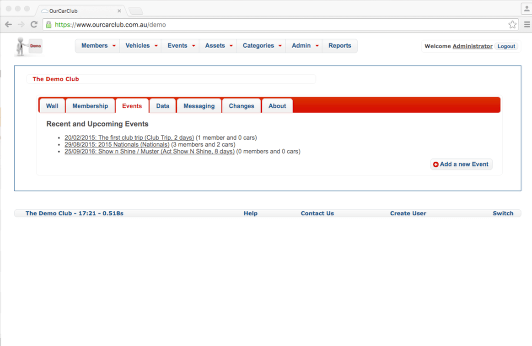
A lot of information on the Home Page or Dashboard is placed in tabs, to make the information manageable. In this example we’ve clicked the “Events” tab.
And finally…
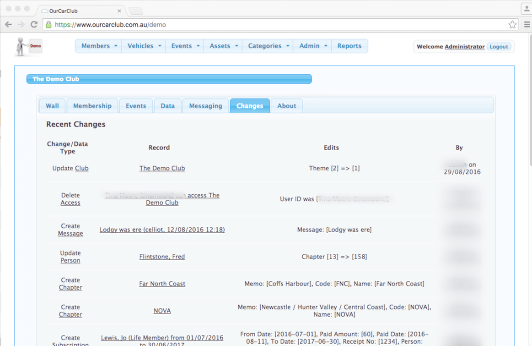
Note the “Blue” theme on this page. You can choose the theme that suits your club logo and colours. You’ll find this under the “Categories” link, explained later.
This panel shows the 20 most recent edits that were done, by whom and when.
 OurCarClub