OurCarClub offers a few different ways to access your data and use it in other applications. The most common purpose for this facility is to manipulate the data in Microsoft Excel, to generate special purpose lists, or to perform analysis of the data, such as charting or pivot tables.
The two basic methods of extracting data involve taking a copy of the data that will be static, and the third, more advanced option creates a live link to the data in OurCarClub, that can stay up-to-date with subsequent changes made. Each of these can be accessed from any List page.
Option 1 – Export as CSV
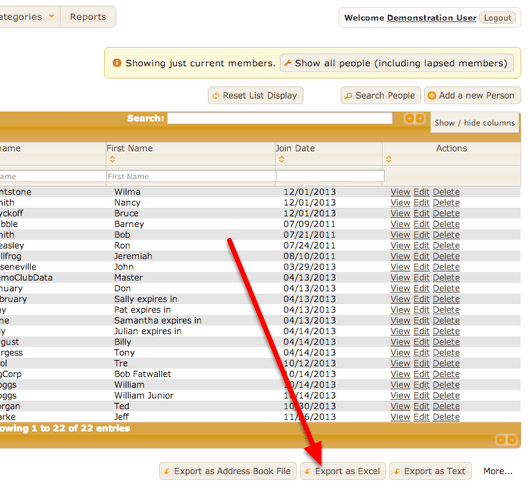
When this button is clicked, a dialog box will prompt you to save the file. It will be in CSV (or “Comma Separated Values”) format, which can be opened directly in Excel. The file will be named for the list being viewed, i.e. persons.csv or vehicles.csv
Option 2 – Copy and Paste to Excel
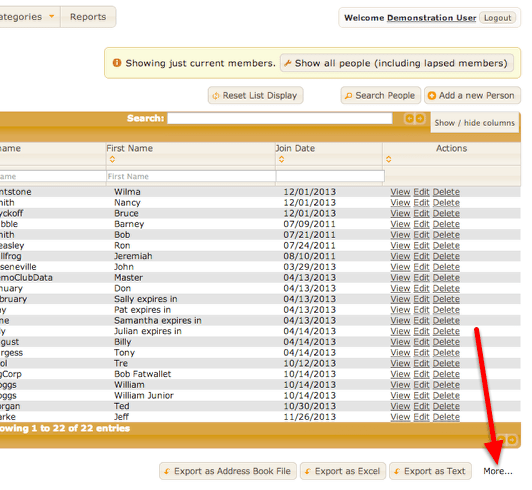
Under the link labelled “More…” are some less commonly used Export features.
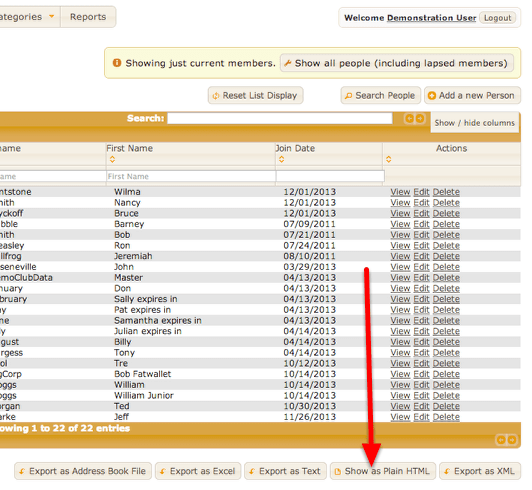
In this instance, the “Show as Plain HTML” is what is required. This will re-display the current list, but in a very basic format.

In your browser, under the “Edit” menu, choose “Select All”, then “Copy”. Switch to Excel, and “Paste” into a Worksheet.
Note that this method is probably not well suited to lists that are likely to generate thousands of entries.
Option 3 – Access live OurCarClub data from Excel using a "Web Query"
OurCarClub provides a method for integrating with other web-apps or applications. By using this feature, you can create a link to live data that can be refreshed at any time, bringing the latest Member or Vehicle data into your spreadsheets whenever you open them.
This feature requires that you generate an API Key. API Keys are not generated by default for all OurCarClub users, as they are an advanced feature. An API Key should be treated like your username and password, and not shared with others.
To create an API Key, click on your username in the top right corner of the application.
Generating an API Key
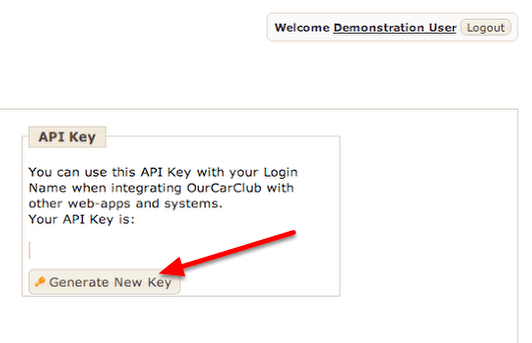
On the page with your details, there is a box labelled API Key, and a button to Generate a new API Key. This is used to create an initial key, or to regenerate it.
NB: If you regenerate your API Key, the old one is no longer valid, and anything that uses it will need to be updated.
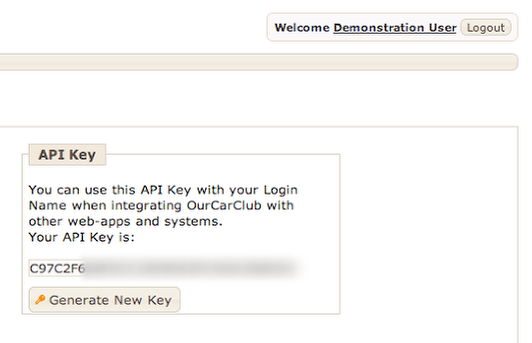
The key is a long string of letters and numbers. For the current purpose (creating an Excel Web Query) it is not necessary to make a note of it or copy it anywhere else.
Create a Web Query File
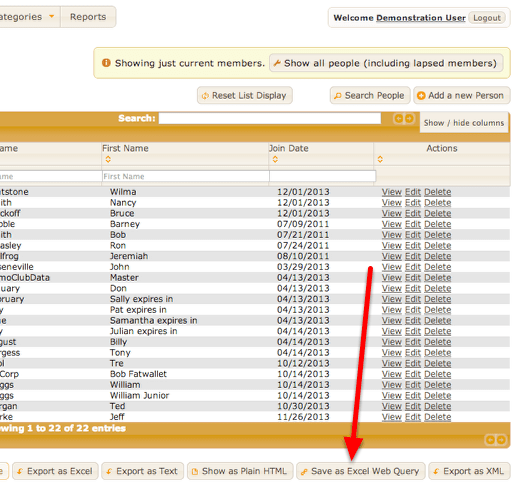
Once again, back to the List view. Now, under the “More…” export options, there is an additional “Save as Excel Web Query” option. Clicking this will result in a “Save As” dialog box appearing, for saving the file on your hard drive. By default, it will be called “OurCarClub-<club>-<list-type>.iqy”, but you can of course change this to call it anything you choose. The “iqy” extension should be retained, especially on a Windows PC.
Using the Web Query in Excel
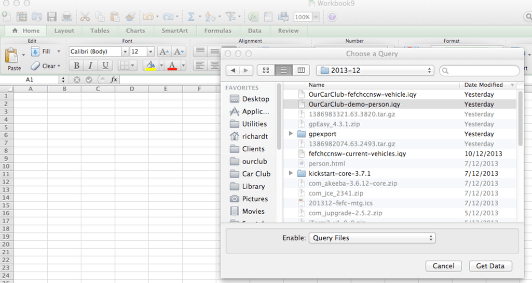
All reasonably modern versions of Microsoft Excel have the option to “Get External Data”, and this is usually located under a “Data” menu item. You will want to locate the “Use Saved Query” option, and then navigate to the Web Query file you just saved. You will then be prompted for where you want the data to be placed in the spreadsheet (usually cell $A$1 in the active sheet).
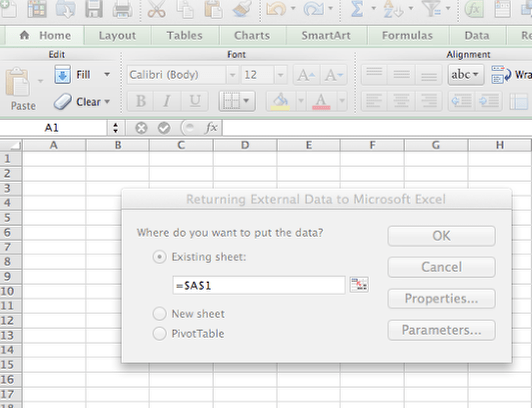
OurCarClub data live in Excel
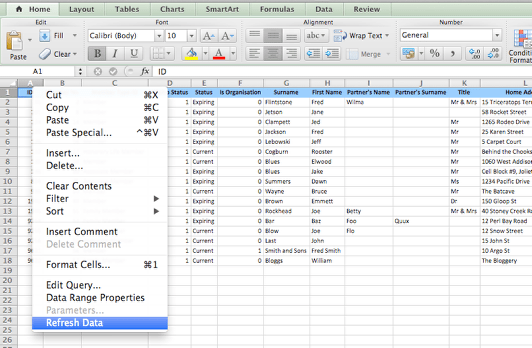
Once you click OK, Excel will request the data from OurCarClub, and return it as a table of data. You are then free to create graphs, pivot charts or other information from this data. At any time in the future, you can simply refresh the data from the Data menu, and obtain the latest information from OurCarClub.
 OurCarClub