OurCarClub allows you to easily keep minutes of Committee Meetings, including the members who attended and those who gave apologies. More importantly, you can capture new tasks and who has been assigned ownership of them, track their progress and close them once they’re complete. You can also easily print a formal agenda and official minutes.
Committee Meetings
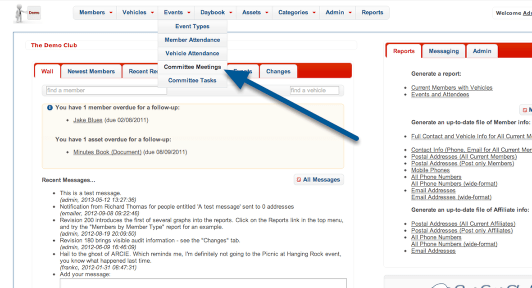
You’ll find Committee Meetings as an option under the “Events” menu. Notice also the “Committee Tasks” option. We’ll come back to that later.
Create a new Committee Meeting

Good meeting procedure means having an agreed agenda. For this reason, the Committee Meeting record should be created before the event. Like most aspects of OurCarClub, click the “Add” button.
Create a new Committee Meeting
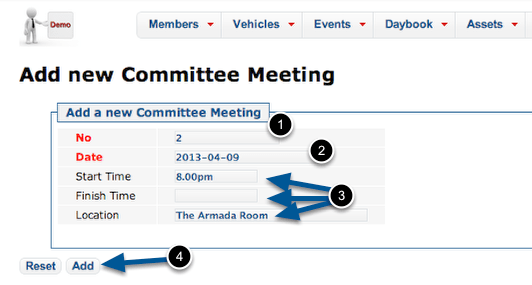
The meeting record itself only has a handful of fields.
- The Meeting No is automatically generated as the next one in sequence. Meeting numbers are important for tracking the tasks created at them. This is a mandatory field.
- Enter the date the meeting will occur – this is also required.
- The Start and Finish Times and Location are all optional, and are simply text fields. Obviously the Finish Time cannot be known until the meeting actually occurs, so we’ll edit the record to add that later.
- As always, click the “Add” button to save the new record.
Committee Meeting Detail
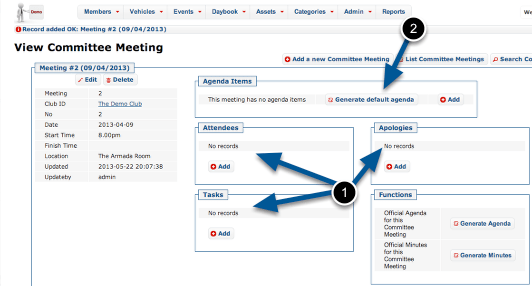
- Now that we can see all the related information, it should be obvious that most of these can only be populated after the meeting occurs.
- What we should do now is create an agenda. You can create an entirely customised agenda, but most of your meetings are likely to follow a standard pattern, which will be created for you by clicking “Generate default agenda”.
Default Agenda Items
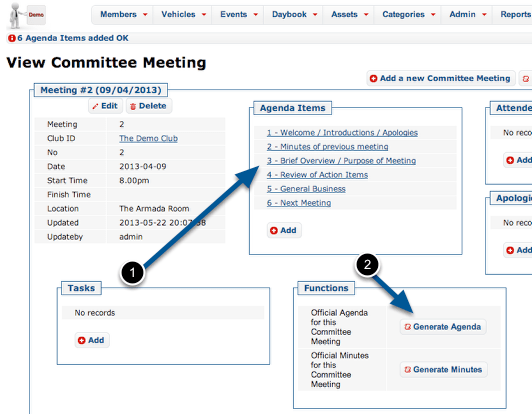
- The meeting now has the 6 standard agenda items. (Later on, we’ll see how you can adjust the default agenda items to suit your club.)
- Click “Generate Agenda” to produce a formal agenda document.
Agenda
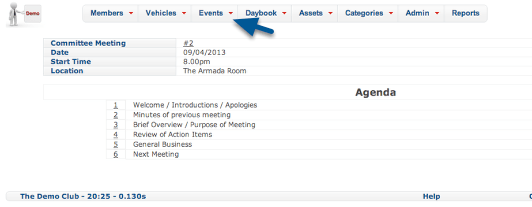
Here’s our new meeting’s Agenda, ready to be distributed. Print it out a few copies, or print to PDF and email it if you have PDF software installed.
The other thing that should be provided to attendees is the minutes of the previous meeting. (We had a previous meeting – now you know why our newly created meeting was number 2). Click the link under Events to jump back to the list of committee meetings.
Generating Minutes from a previous Meeting
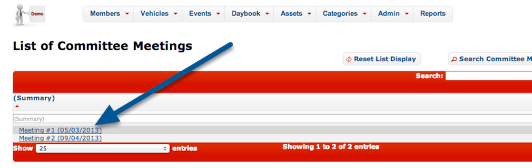
Click on the title of the meeting you want to generate minutes for.
A Previous Meeting
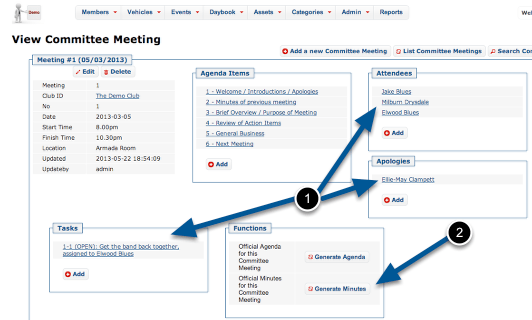
- Because this is a previous meeting, we have details of Attendees, Apologies and Tasks created. You might also notice this meeting has a finish time recorded. We’ll come back to all that later.
- Click the “Generate Minutes” button to create your document.
Meeting Minutes
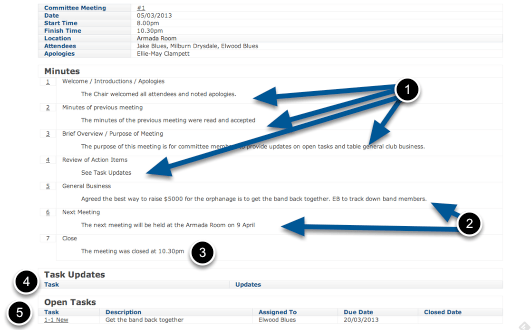
- All of these minutes are ‘boilerplate’, created when you generated the agenda.
- The minutes of the General Business and the Next Meeting would have been added at the time of the last meeting. Obviously these change with each meeting held.
- This 7th item gets added on automatically, based on the finish time recorded for the Meeting.
- Because this was our first meeting, we had no Task Updates. Otherwise, any tasks still open at the time of the last meeting would show here, with any recorded updates.
- We created a new Task at that meeting, which is identified as 1-1 (Meeting #1, Task #1). We can see who took responsibility for it and when it was due to be completed.
Like our Agenda, we can print these out for distribution.
Minuting the Meeting
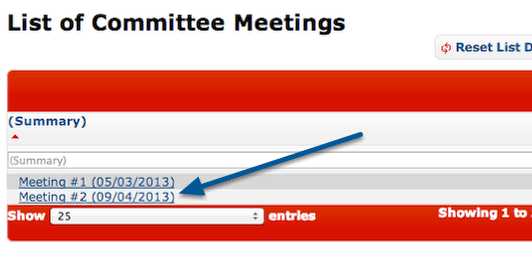
Your secretary (or nominated person) can minute the meeting as it occurs, if they have access to OurCarClub. The minutes can be transcribed later on, of course. To begin, view the relevant meeting.
Record Attendees and Apologies
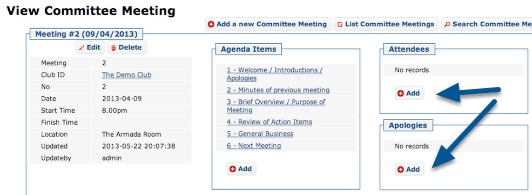
Recording of both attendees and apologies is identical, and very like adding a ‘related record’ in other aspects of OurCarClub.
Add an Attendee
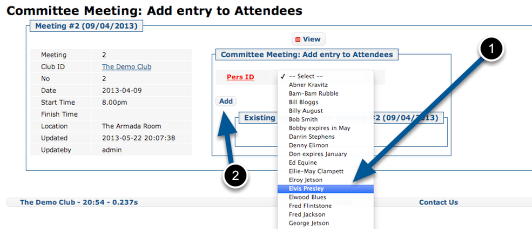
Select an attendee (1), and click “Add” (2). (NB – if your club is large, the Person selection will show a search-box rather than a huge long list.)
Apologies work exactly the same way.
Add a new Task
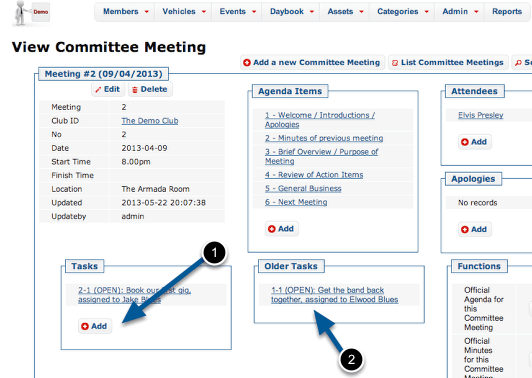
- As the meeting progresses, any new Task can be added.
- Existing tasks can be updated. NB: Older tasks will have been created at other meetings, and appear here for convenience.
Adding a new Task
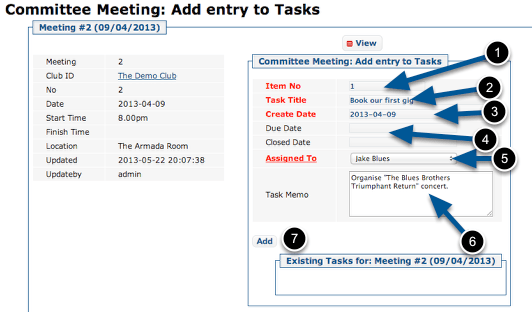
Enter the details of the task:
- Item Number is automatically generated in sequence.
- Give the task a short title
- The Create Date defaults to the date of the Meeting
- Due Date is optional, but should be entered. When a Task is allocated, it should have a defined date by which it will be done.
- Select the member assigned to the task.
- Enter additional notes about the task.
- Click “Add” to save the task.
 OurCarClub