An area that does cause some confusion with new users of OurCarClub is the difference between Membership Type and Membership Status.
Membership Status
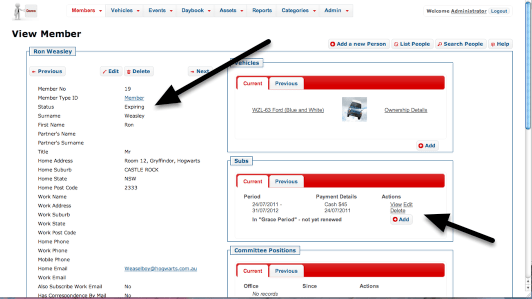
Regardless of the type of membership, each member has to pay their fees or risk having their membership lapse. (Unless they’re a Life Member, of course.) The OurCarClub system keeps a history of annual renewals, knowns as "Subs", or Subscriptions.
As a result, Membership Status is a derived value – you cannot enter it directly, it is determined from the currency of the member’s most recent Subscription. It is displayed in the Member List and Member View pages to make your life easier, but you cannot directly edit it.
- Once the end-date of a member’s most recent renewal has passed, their Status will change from Current to Expiring.
- Once the end-date is more than your club’s "grace period" days ago, the Status will change from Expiring to Lapsed.
See the section on New Sub End Date and Grace Period for more information.
NB: When loading historical data (records of past, not current members) into your OurCarClub system, an "Historical Data" membership-type can be created for you if you wish. However, it isn’t really necessary, unless there are no records of what kind of Membership these historical members had.
Membership Type
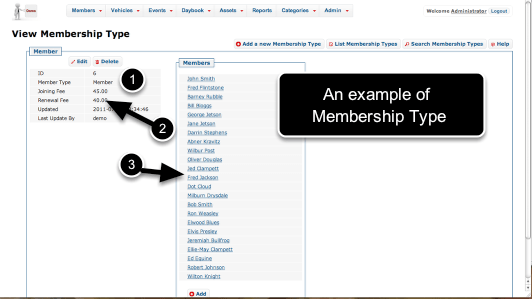
Each club can define their own list of Membership Types, and/or load the default set. Typical examples of Membership Types are:
- Full Member
- Social Member
- Family Membership
- Associate Member
- Honorary Life Member
- The Membership Type must be unique – you cannot have two Membership Types both called "Member".
- Each type will have a Joining Fee (the amount charged on initially joining the club) and a Renewal Fee (the amount charged on renewing. These are entered as numbers – don’t try to include a ‘$’ sign. If there’s no difference between Joining and Renewal Fee in your club, just put the same amount in both fields.
- As with many pages that show a category item, a list of People in that category is shown to the right.
Generally speaking, although a member could change their membership type from one renewal to the next, it is something that only happens occasionally, e.g. Social Member becomes Full Member, or Full Member receives Honorary Life Membership. Notice that "Lapsed" or "ex-Member" do not appear in this list. This is by design. You should not create Membership Types for this purpose.
Showing Lapsed Members

By default, the Members List is limited to only Current Members. However, information about lapsed members is still in the database, and you can toggle whether you want to display lapsed members or not using the button with the spanner, as pictured.
This setting remains in force until you change it back, or you log out.
The ability to access lapsed members is useful if they subsequently rejoin, or if you have need to contact them. It also provides an auditable history of membership.
 OurCarClub