Even more immediate than email is SMS, straight to your members’ mobile phones. You can make sure everyone knows about a late change to an event (such as a wet weather venue) via SMS. You may also find SMS reminders a good way to increase participation in events, by reminding people of club runs a day or two before.
Sending SMS to All Current Members
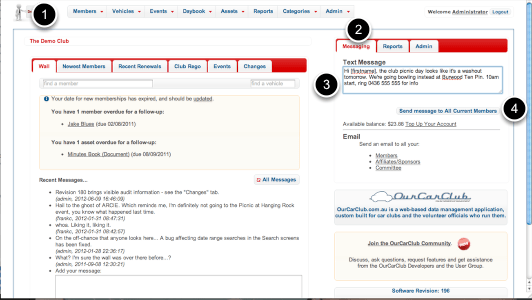
You have the option of sending a message to all current club members, or to an individual. Text messages are limited to 160 characters.
To send to all:
- Click on the club icon at the top left of the app to return to the "home page".
- Click on the Messaging tab on the right.
- Enter your message. If your OurCarClub user has been linked to your Member record, you’ll have the option of selecting whether the message will appear to come from you, or from ‘the club’. NB Messages from ‘the club’ cannot be replied to.
- Click ‘Send’ to trigger the SMS.
You’ll see a banner across the top of the page which will report the success or failure of the message send process. You’ll also see there is a link in the SMS panel that takes you to the SMS portal to top up your account. (More on this below.)
Advanced Usage:
You can personalise messages if you wish. Use the token [firstname] and/or [lastname] in the message, and they’ll be replaced with the member’s name details when the message arrives. Just remember to allow for long names if your message is close to 160 characters long.
This feature is not available…
If you see this message, you won’t be able to send SMS messages. SMS is not available for clubs that are trialling OurCarClub, nor can SMS messages be sent from the Demo Club. You’ll need to upgrade to a full OurCarClub account.
Sending SMS to a Specific Member

Sending to a single member is virtually the same process. Navigate to the Member View page for the individual you want to send the message to, and you’ll find the SMS option amongst the various panels, immediately after ‘Committee Positions’. Then just follow steps 3 and 4 above.
NB: The last message sent is ‘sticky’, in the sense that the system remembers it for your session. This can be useful if you want to send the same message to three or four members. You won’t have to copy and paste it, the system will pre-populate the box for you with the contents of the last message you sent. Obviously you can overtype it.
This feature is not available…
You’ll see this message when the member you are looking at does not have a mobile number listed. Obviously it is not possible to send a text to a member without a mobile phone!
Using the SMS Portal
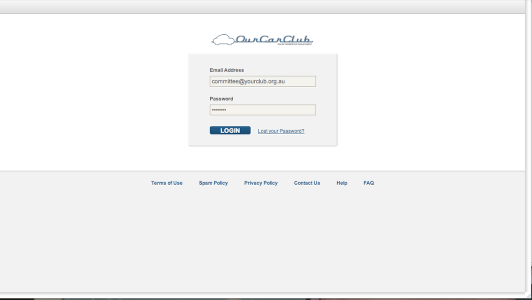
You’ll have a username (email address) and a password to log in, which OurCarClub will have provided you when you first set up your system. You can change either of these should you need to. Typically, the email address will be the club’s ‘official’ email address.
The main reason you will log into the portal is to top up your account with more funds to send messages to your members. However, there are some other features and benefits available there that you may choose to take advantage of if you wish.
Using the SMS Portal (continued.)
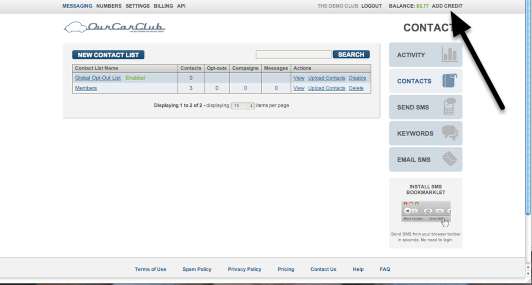
You’ll have a username (email address) and a password to log in, which OurCarClub will have provided you when you first set up your system. You can change either of these should you need to. Typically, the email address will be the club’s ‘official’ email address.
The main reason you will log into the portal is to top up your account with more funds to send messages to your members. However, there are some other features and benefits available there that you may choose to take advantage of if you wish.
Lists
The list entitled Members is automatically synchronised with your Current Members in OurCarClub. Although you can edit this list, you shouldn’t. Any changes you make will disappear after the next sync process anyway.
However, you can create more lists if you wish. From the portal, you are able to send an SMS to one of these lists (and indeed to any individual). Some suggestions:
Create a "Committee" list, which would make it easy to send a message out to your officials.
Create a list of members (and others – you can add any mobile number you wish) who are attending a particular run – say a big, interstate event – so you can message them all with ease.
This area of OurCarClub may be expanded in future releases to support creating and sending messages to custom lists.
Topping Up Your Account
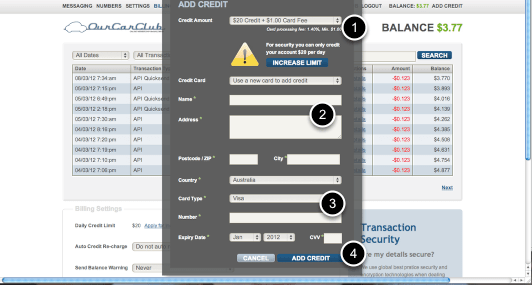
Clicking on the Add Credit link shown on the previous page brings up this screen. Just enter the required details and and click the "Add Credit" button.
- Select an option for how much credit to add
- Enter details for the card-holder
- Enter the card details
- Click "Add Credit"
Auto-renewal
The facility is there to arrange for the system to automatically debit a card when the balance drops below a certain amount. It’s entirely up to each club whether that is suitable for them or not.
 OurCarClub