Advanced Email Options

Beyond simply emailing all members, OurCarClub allows you to send targeted messages to specific groups of members. Furthermore, you can choose to allow your members, your affiliates and others to send messages to your club members.

Allowing All Club Members to Email the Club
media_1404983182494.png

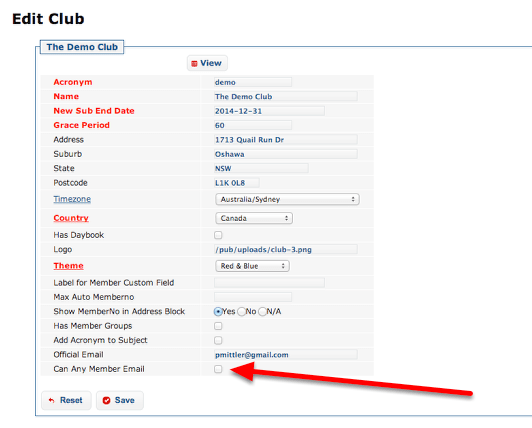
If you choose to enable this feature, it means your <yourclub>@ourcarclub.info address operates as a Mailing List, and all participants can send a message to all others. It is disabled by default, since it reduces control over what messages are sent.
To enable this feature, click on the “Categories” menu item, and check the “Can Any Member Email” checkbox.

Emailing Member Subsets
media_1404983768324.png

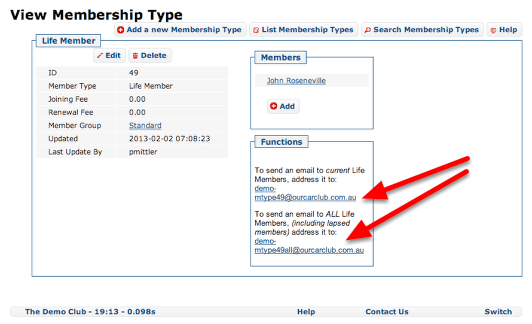
Many category style lists – Vehicle Model, Member Type, Event and so on, provide an email address by which you can send an email to just the members who meet that criteria. The address that should be used can be found in the “Functions” box on the “View” page for any data type that supports the feature. In each case there are two variations – an email address for all current members (the default), and another for members current and expired. The example image above shows the email address to use to email just the Life Members of the Demo Club.

This feature can also be used to email just the participants in a specific event – future or past. The email address can be found on the Event view page.

Some of the categories that support email subsets are:

  • Membership Type
  • Member Group (where enabled)
  • Custom Info Type
  • Vehicle Model
  • Vehicle Class
  • Vehicle Status
  • Club Vehicle Info (Vehicle Custom Info Tpye)
  • Event

Allowing Affiliates to email your members
media_1404987599335.png

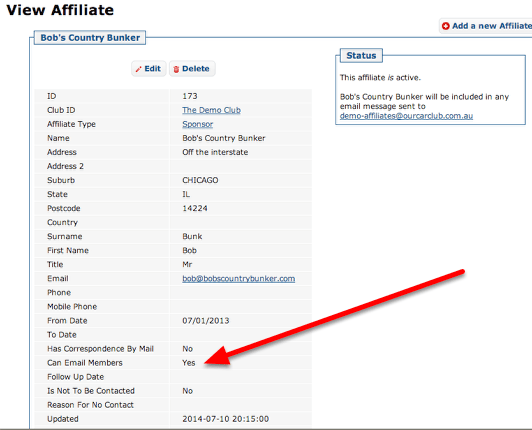
Affiliates can be flagged as permitted to send messages to your club members by checking the box shown above. An affiliate that is not considered “current” will not be allowed to send messages to the group regardless of the setting of this box.

Allowing other email addresses
media_1404987869999.png

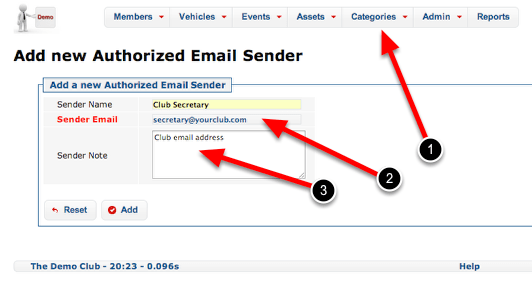
If you have additional email addresses beyond those that belong to committee members or affiliates, you can add them to the Authorized Email Senders list. Any email sent to a club address from an address in that list will be accepted and forwarded.
This feature is useful for recording email addresses that belong to the club, such as secretary@<yourclub.com>, where it is impractical to record it against a club member.

  1. Authorized Email Senders can be found under the Categories drop-down
  2. Record the approved email address
  3. A note regarding who the address belongs to and why it is permitted can be added here.
Committee Meetings and Task Management

OurCarClub allows you to easily keep minutes of Committee Meetings, including the members who attended and those who gave apologies. More importantly, you can capture new tasks and who has been assigned ownership of them, track their progress and close them once they’re complete. You can also easily print a formal agenda and official minutes.


Committee Meetings

media_1369216281920.png

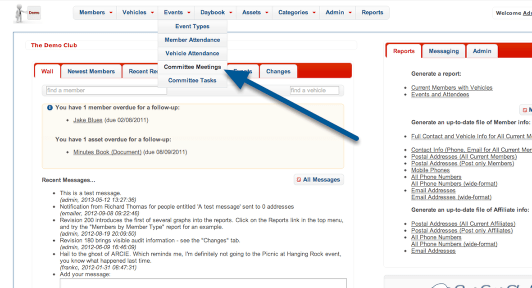
You’ll find Committee Meetings as an option under the “Events” menu. Notice also the “Committee Tasks” option. We’ll come back to that later.

Create a new Committee Meeting

media_1369216750917.png

Good meeting procedure means having an agreed agenda. For this reason, the Committee Meeting record should be created before the event. Like most aspects of OurCarClub, click the “Add” button.

Create a new Committee Meeting

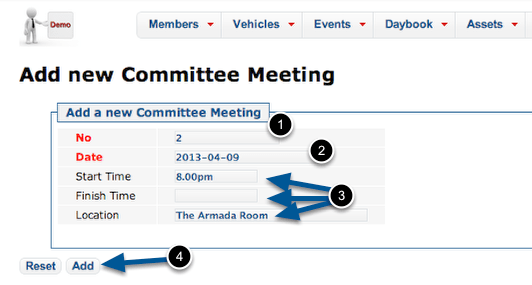
media_1369217239783.png

The meeting record itself only has a handful of fields.

  1. The Meeting No is automatically generated as the next one in sequence. Meeting numbers are important for tracking the tasks created at them. This is a mandatory field.
  2. Enter the date the meeting will occur – this is also required.
  3. The Start and Finish Times and Location are all optional, and are simply text fields. Obviously the Finish Time cannot be known until the meeting actually occurs, so we’ll edit the record to add that later.
  4. As always, click the “Add” button to save the new record.

Committee Meeting Detail

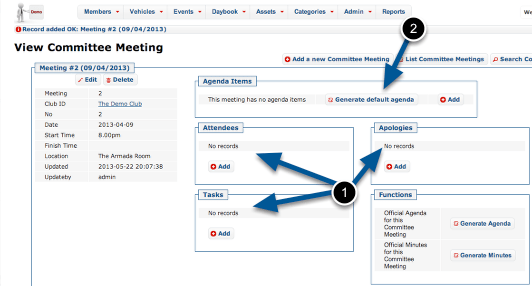
media_1369217308195.png
  1. Now that we can see all the related information, it should be obvious that most of these can only be populated after the meeting occurs.
  2. What we should do now is create an agenda. You can create an entirely customised agenda, but most of your meetings are likely to follow a standard pattern, which will be created for you by clicking “Generate default agenda”.

Default Agenda Items

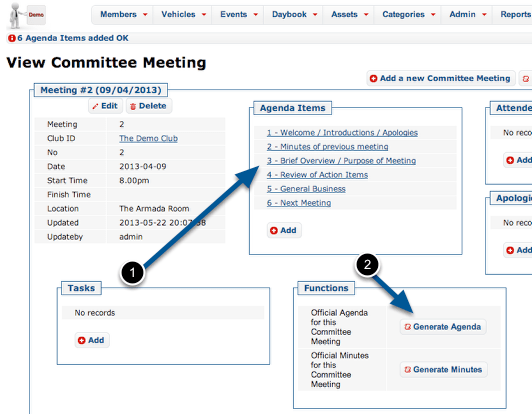
media_1369217893291.png
  1. The meeting now has the 6 standard agenda items. (Later on, we’ll see how you can adjust the default agenda items to suit your club.)
  2. Click “Generate Agenda” to produce a formal agenda document.

Agenda

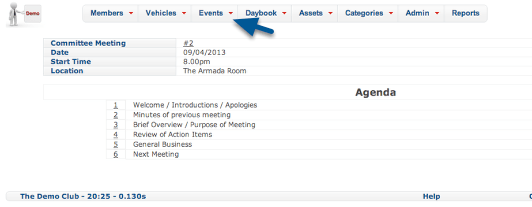
media_1369218607287.png

Here’s our new meeting’s Agenda, ready to be distributed. Print it out a few copies, or print to PDF and email it if you have PDF software installed.

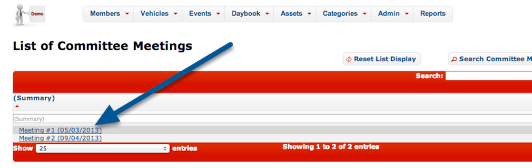
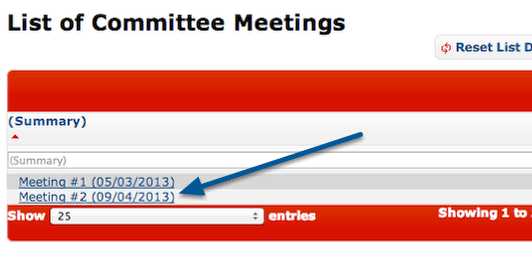
The other thing that should be provided to attendees is the minutes of the previous meeting. (We had a previous meeting – now you know why our newly created meeting was number 2). Click the link under Events to jump back to the list of committee meetings.

Generating Minutes from a previous Meeting

media_1369218737891.png

Click on the title of the meeting you want to generate minutes for.

A Previous Meeting

media_1369218838288.png
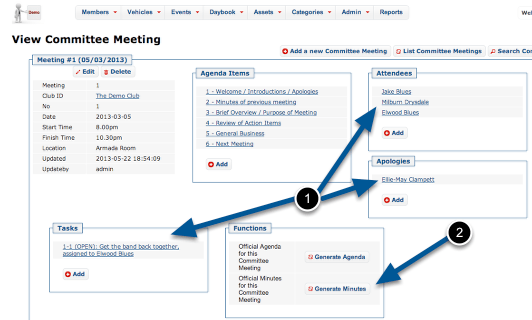
  1. Because this is a previous meeting, we have details of Attendees, Apologies and Tasks created. You might also notice this meeting has a finish time recorded. We’ll come back to all that later.
  2. Click the “Generate Minutes” button to create your document.

Meeting Minutes

media_1369219111371.png
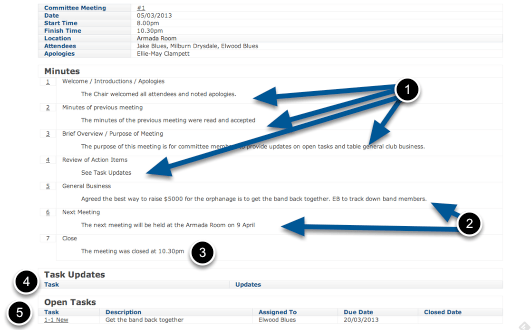
  1. All of these minutes are ‘boilerplate’, created when you generated the agenda.
  2. The minutes of the General Business and the Next Meeting would have been added at the time of the last meeting. Obviously these change with each meeting held.
  3. This 7th item gets added on automatically, based on the finish time recorded for the Meeting.
  4. Because this was our first meeting, we had no Task Updates. Otherwise, any tasks still open at the time of the last meeting would show here, with any recorded updates.
  5. We created a new Task at that meeting, which is identified as 1-1 (Meeting #1, Task #1). We can see who took responsibility for it and when it was due to be completed.

Like our Agenda, we can print these out for distribution.

Minuting the Meeting

media_1369219836830.png

Your secretary (or nominated person) can minute the meeting as it occurs, if they have access to OurCarClub. The minutes can be transcribed later on, of course. To begin, view the relevant meeting.

Record Attendees and Apologies

media_1369219965263.png

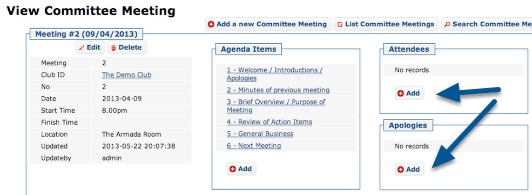
Recording of both attendees and apologies is identical, and very like adding a ‘related record’ in other aspects of OurCarClub.

Add an Attendee

media_1369220137498.png

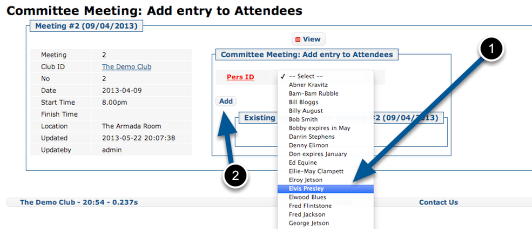
Select an attendee (1), and click “Add” (2). (NB – if your club is large, the Person selection will show a search-box rather than a huge long list.)

Apologies work exactly the same way.

Add a new Task

media_1369225454997.png
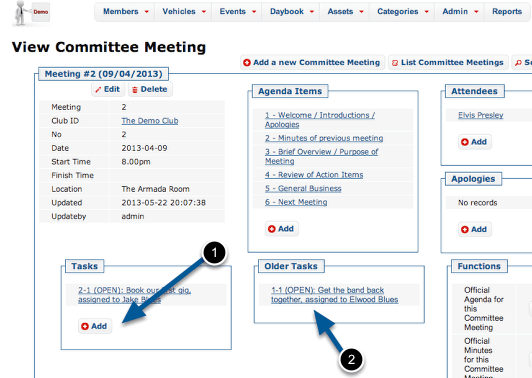
  1. As the meeting progresses, any new Task can be added.
  2. Existing tasks can be updated. NB: Older tasks will have been created at other meetings, and appear here for convenience.

Adding a new Task

media_1369221436397.png

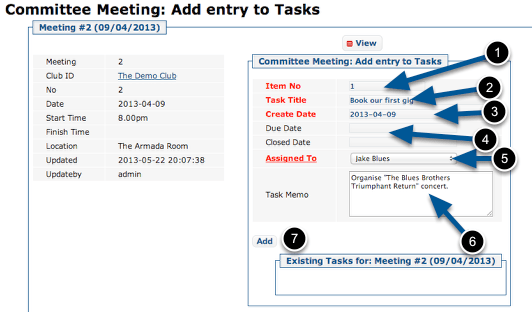
Enter the details of the task:

  1. Item Number is automatically generated in sequence.
  2. Give the task a short title
  3. The Create Date defaults to the date of the Meeting
  4. Due Date is optional, but should be entered. When a Task is allocated, it should have a defined date by which it will be done.
  5. Select the member assigned to the task.
  6. Enter additional notes about the task.
  7. Click “Add” to save the task.

Extract Member Contact Info

If you need to produce a list of current members and their contact details, there are a few different ways to do it:

  • Quick Download
  • Onscreen Report
  • Customised List Presentation

Simply choose the method you find most convenient for your intended purpose, and the device you’re using at the time. Some options are geared to use with smart-phones, whilst others may not suit smart-phones and tablets at all.

Method 1 – Quick Download to Excel etc

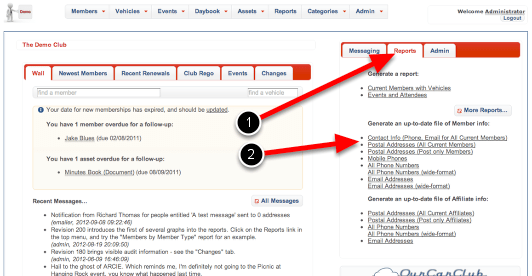
media_1353034764656.png

This option generates a report in a fixed format as a download.

  1. From the home-page, click on the Quick Reports pane.
  2. Click on “Contact Info”, or one of the other lists if only phone numbers, or email addresses are required.

You’ll be prompted to save a file to your local computer, which you can then open with Microsoft Excel, OpenOffice or similar program.
Note: this method may not be suitable when using OurCarClub on a smart-phone or tablet device, as downloads may not be permitted.

Method 2 – Onscreen Report

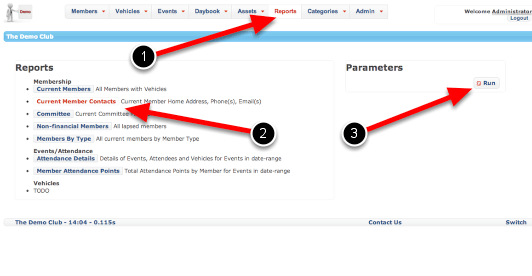
media_1353035258066.png

This option also produces a standard format report, which can be displayed on-screen or printed.

  1. Click the Top Menu Reports link from any page to bring up the Reports page.
  2. Choose “Current Member Contacts” by clicking on the label – note it’s highlighted once clicked on.
  3. This report has no parameters, so just click Run to display it.

Method 2 – Onscreen Report (cont.)

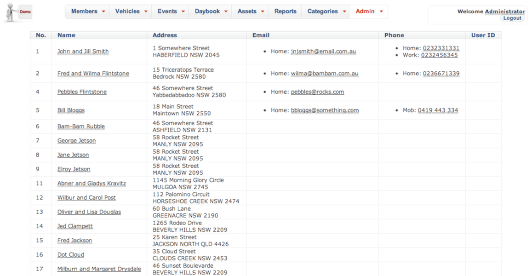
media_1353035393621.png

You will be presented with an onscreen report, which is also suitable for printing should you prefer.

  1. Click on a member’s name to view that member’s details. Pro-tip: right-click (PC) or control-click (Mac) to open this page in a new window or tab, allowing you to retain this report output in the current window.
  2. Click on an email address to open a new email addressed to this person
  3. On a smart-phone, click on the phone number to call the member.

Method 3 – Customised List Presentation

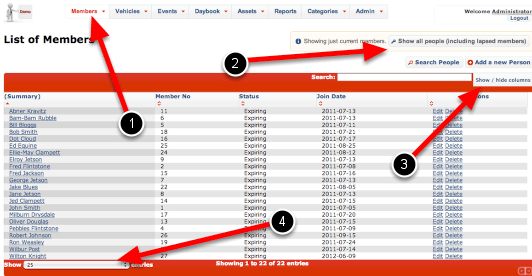
media_1353036170968.png

This approach is the most flexible, and allows you to create the exact view of members you desire. It can also be printed.

  1. Click on “Members” in the top menu, to bring up this Member List.
  2. (Optional) If required, click this to include lapsed members in the output as well as current members.
  3. Click on “Show/Hide Columns” to display all possible options.
  4. If required, increase the length of the display.

Method 3 – Customised List Presentation (cont)

media_1353036507143.png
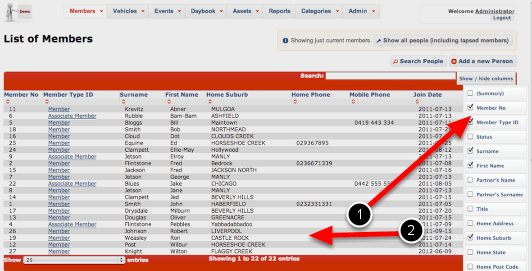
  1. Modify the displayed columns by checking and unchecking the boxes against their names. The list is instantly updated. In this example we have removed the Summary column to instead show separate Surname and First Name, replaced Status with Member Type, and added suburb and phone number fields.
  2. Click anywhere on the main page to dismiss the Show/Hide column list.

Method 3 – Customised List Presentation (cont)

media_1353037147301.png

You can rearrange the columns to suit your preferred layout.

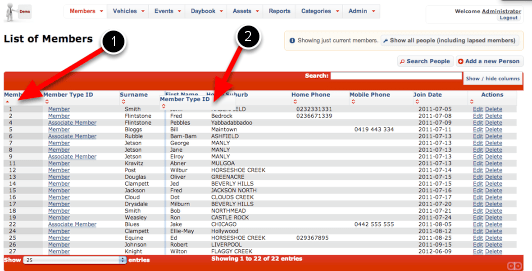
  1. Click on a column header to sort by that item. In this example the data is sorted by Member Number.
  2. Click and drag a column header to rearrange the layout. Notice Member Type is being dragged across towards the right. (NB this is not supported on all smart-phones and tablets.)

Pro tip: Settings for both Shown and Hidden columns, as well as sort order and column order will be remembered for whenever you return to this page.